
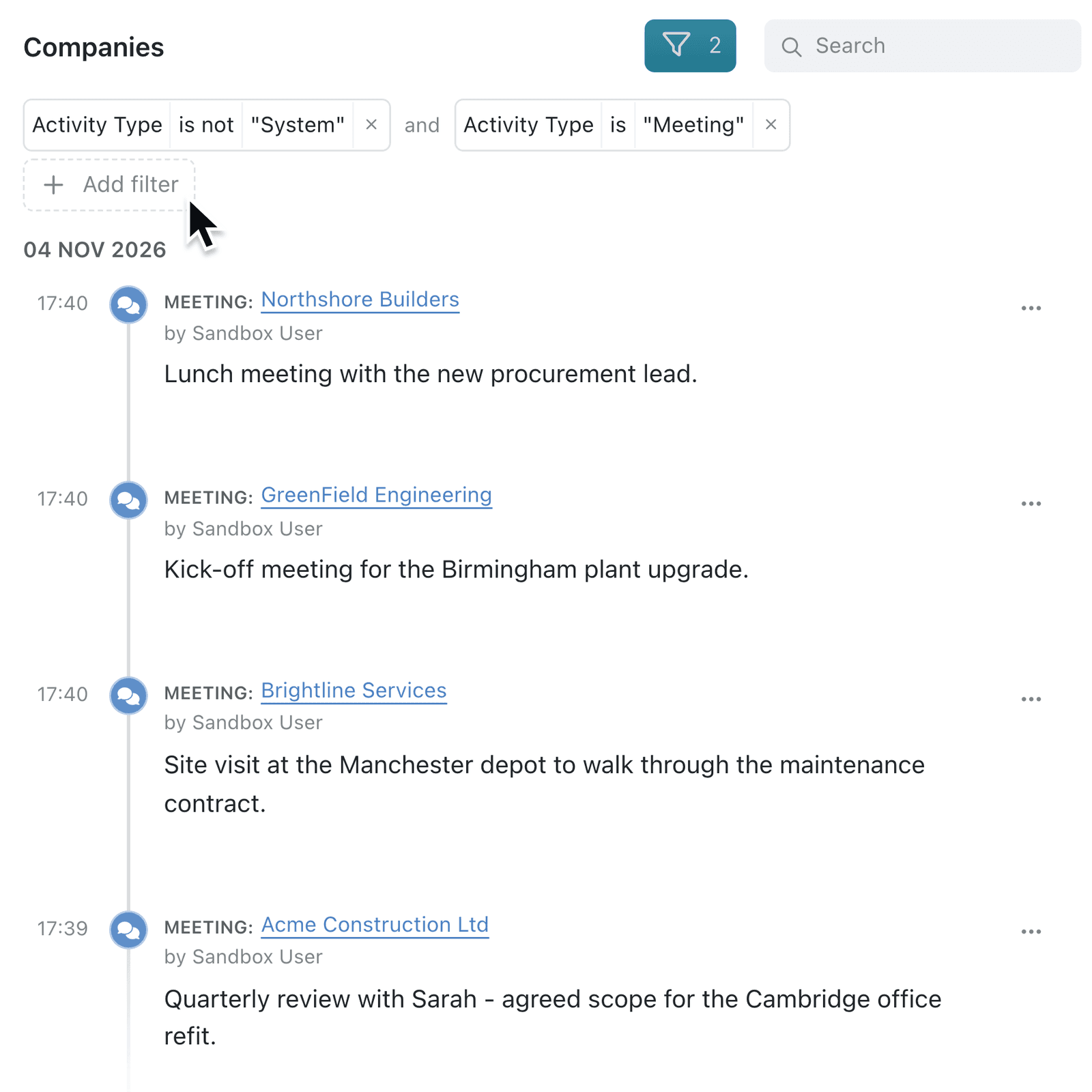
A busy record or collection builds up a long history of notes, calls, emails and automatic changes, and finding the one conversation you need could mean a lot of scrolling. You can now filter activities to show just the ones you're looking for.
What's new:
You can now filter activities by Type, Timestamp or Content, on a record's Activities tab and on the Activities tab of your Dashboard. Add several filters to narrow the list further, use them alongside search, and filter by any custom activity types your collections use.
On the Dashboard, select a collection to filter activities across all of its records at once, or All Activities to filter across every collection you can access. The Dashboard also starts with a filter that hides System activities, so the notes, calls and emails your team logged come first.
Why it matters:
- Find a conversation fast by filtering to a type such as Phone Call or Meeting.
- Focus on a time period, such as everything logged since your last review.
- Cut the noise with system activities hidden on the Dashboard until you want them.
How it works:
- Open a record and select its Activities tab, or open your Dashboard and select the Activities tab.
- On the Dashboard, select All Activities or a collection from the list on the left.
- Click the funnel (Show filters) icon, then Add filter, and select Type, Timestamp or Content.
- Set the value, such as Type is Meeting, then add more filters to narrow the list further.
- To include system activities on the Dashboard, remove the Activity Type is not "System" filter.
When to use it:
- Account managers can pull up every meeting logged against a client in the last quarter before a review.
- Housing associations can filter their properties for every Inspection activity to check visits are on schedule.
- Client services teams can search a collection's emails for a complaint reference, across every customer at once.
Get started
Open your Dashboard, select the Activities tab, choose a collection and click the funnel (Show filters) icon.
If you have questions or feedback, we would love to hear from you. Email support@kinabase.com — we're listening.