
Automations are powerful, but as they grow in complexity, it becomes harder to remember exactly what each one does. A workflow with multiple triggers, conditions, and steps can leave even the person who built it wondering about its purpose weeks later. Keeping descriptions up to date is one of those tasks that rarely gets done.
What's New
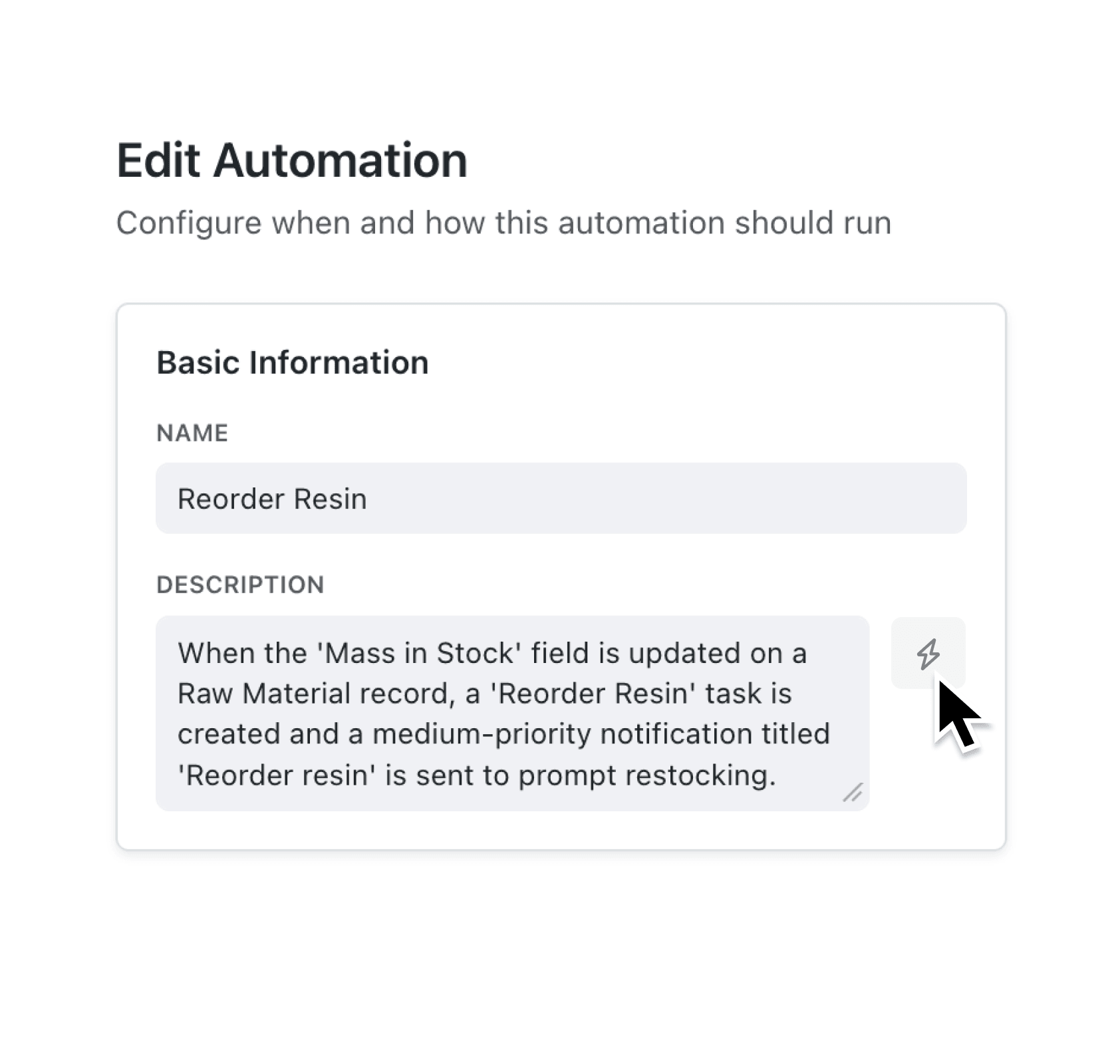
You can now generate a human-readable description for any automation using AI. When you open an automation in the editor, a bolt icon appears beside the Description field. Click it, and Kinabase analyses the automation's trigger, steps, field assignments, and conditions to produce a concise summary in plain English. The description is written for a general audience, so anyone on your team can understand what the automation does without reading through every step.
Why it matters:
- Document automations effortlessly — Instead of writing descriptions by hand, let AI summarise the trigger, steps, and field assignments into one to three clear sentences.
- Understand workflows at a glance — Generated descriptions explain what happens and why, making it easy to identify the right automation when browsing a list.
- Onboard team members faster — New colleagues and external consultants can review automation descriptions to understand your processes without needing a walkthrough.
- Keep documentation current — Regenerate the description whenever you change an automation's configuration, so it always reflects the latest setup.
How it works:
- Open the automation you want to describe, or create a new one.
- Configure the trigger and at least one step. The automation must have no validation errors for the AI button to appear.
- Click the bolt icon next to the Description field.
- Review the generated description. You can edit it, regenerate it, or replace it with your own text at any time.
- Save the automation. The description will now appear wherever the automation is listed.
When to use it:
- Operations managers managing dozens of automations across departments can generate descriptions to create a clear catalogue of what each automation does, making audits and handovers straightforward.
- Sales team leads setting up automations for lead follow-ups, task assignments, and notifications can quickly document each workflow so the wider team understands the process without a training session.
- Implementation consultants configuring automations for clients can generate and refine descriptions to include in project documentation, saving time during delivery.
Get Started
Open any automation in your workspace and click the bolt icon next to the Description field. If you have feedback on the generated descriptions, we'd love to hear from you.
If you have questions or feedback, we would love to hear from you. Email support@kinabase.com — we’re listening.