
Gathering feedback through rating fields is straightforward when you have a simple 1 to 5 scale. But what if your ratings need more context, or you want to ensure respondents understand exactly what each value means? Until now, rating fields only offered sliders and radio buttons, which work well for numeric scales but can leave users guessing when the meaning behind each number matters.
What's New:
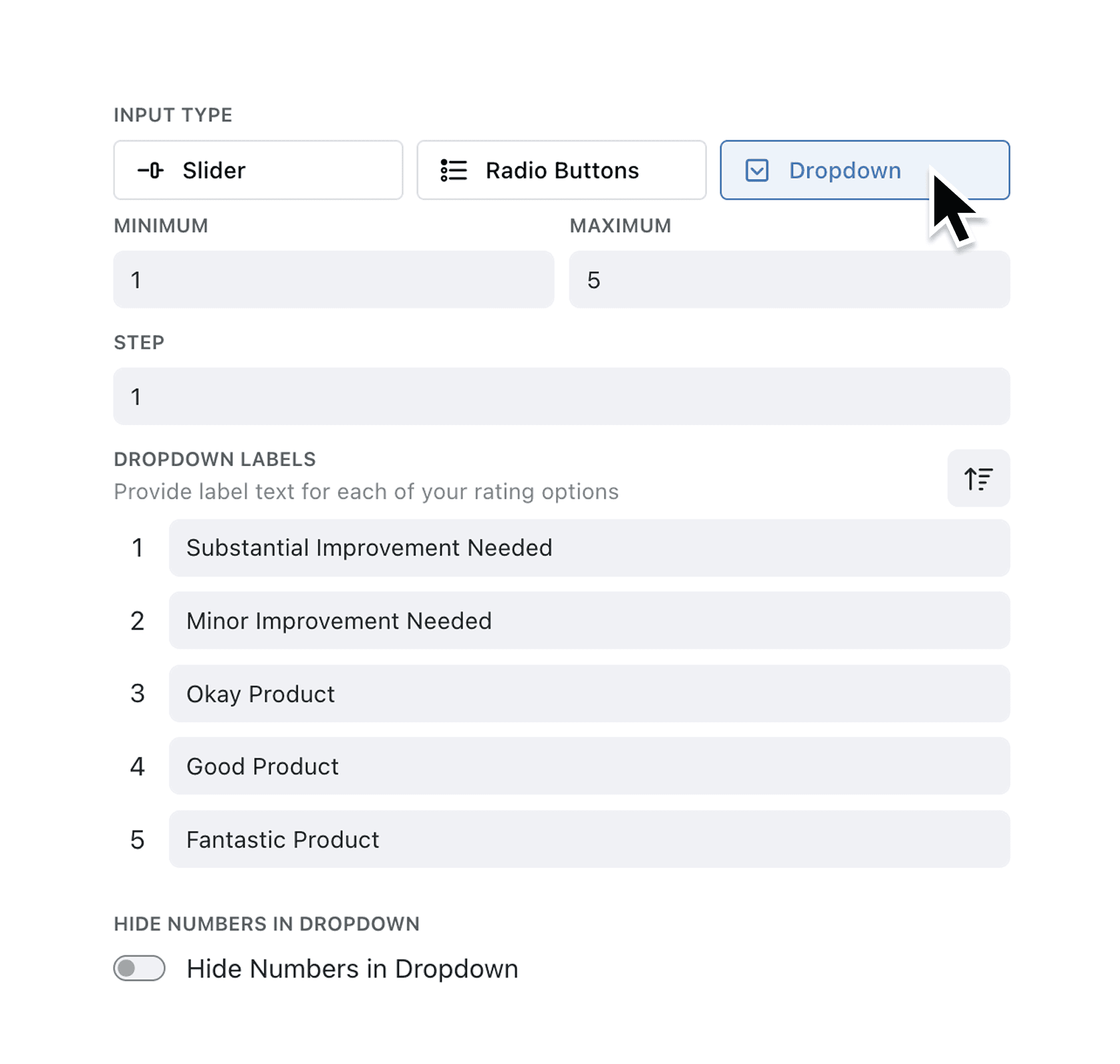
Rating fields now include a Dropdown input mode with full custom labelling. When you configure a rating field, you can choose between Slider, Radio Buttons, or the new Dropdown option. Select Dropdown and you will see a text input for each rating step, allowing you to define meaningful labels that appear alongside the numeric value. For example, a 1 to 5 satisfaction rating can display "1 (Very Dissatisfied)" through to "5 (Very Satisfied)" in a clean dropdown menu.
Why it matters:
- Guide respondents with clear choices — Custom labels remove ambiguity by explaining exactly what each rating value represents, leading to more consistent and accurate data.
- Handle longer rating scales efficiently — Dropdowns support up to 25 options, making them ideal for detailed assessment scales that would overwhelm a radio button layout.
- Maintain data integrity with validation — Labels must be unique, within character limits, and present for every step, ensuring your rating options stay meaningful and error-free.
- Keep forms clean and accessible — Dropdowns take up less vertical space than radio buttons, particularly useful for forms with multiple rating questions or limited screen space.
How it works:
- Navigate to your Collection and open the field configuration panel.
- Add a new Rating field or edit an existing one.
- Under Input Type, select the Dropdown option.
- Enter a label for each rating step in the text fields that appear below. Each label must be unique and no longer than 30 characters.
- Check the preview at the bottom of the configuration panel to see how your dropdown will appear to users.
- Save your changes.
Note: Switching between Dropdown and other input types will clear your labels to avoid confusion, so finalise your input type choice before adding labels.
When to use it:
- HR teams can use labelled dropdowns for employee performance reviews, where each score from 1 to 5 has a defined meaning such as "Needs Improvement", "Meets Expectations", or "Exceeds Expectations".
- Quality assurance managers can create detailed inspection checklists with ratings that map to specific compliance levels, ensuring inspectors select the appropriate category rather than guessing.
- Customer success teams can build feedback forms where satisfaction ratings include clear descriptions, reducing the variance that comes from different interpretations of numeric scales.
Ready to add more clarity to your rating questions? Head to your Collection settings and try out the new Dropdown mode on your rating fields.
Try it now in Kinabase → Collections → Fields → Rating
If you have questions or feedback, we would love to hear from you. Email support@kinabase.com — we’re listening.