
Working with contact data can sometimes be frustrating: names are often stored as a single text field. This makes it difficult to personalise communications, sort by surname, or import data from spreadsheets that have separate columns for first name and last name. You end up with inconsistent formats like "John Smith", "Smith, John", or "Dr. Jane Doe" all mixed together.
What's New:
We've introduced a dedicated Person Name field type that stores names as structured data with separate components for: title (optional: Mr, Mrs, etc), first name, middle names (optional), and last name. The field displays the full name naturally while keeping each part accessible for sorting, filtering, and personalised emails.
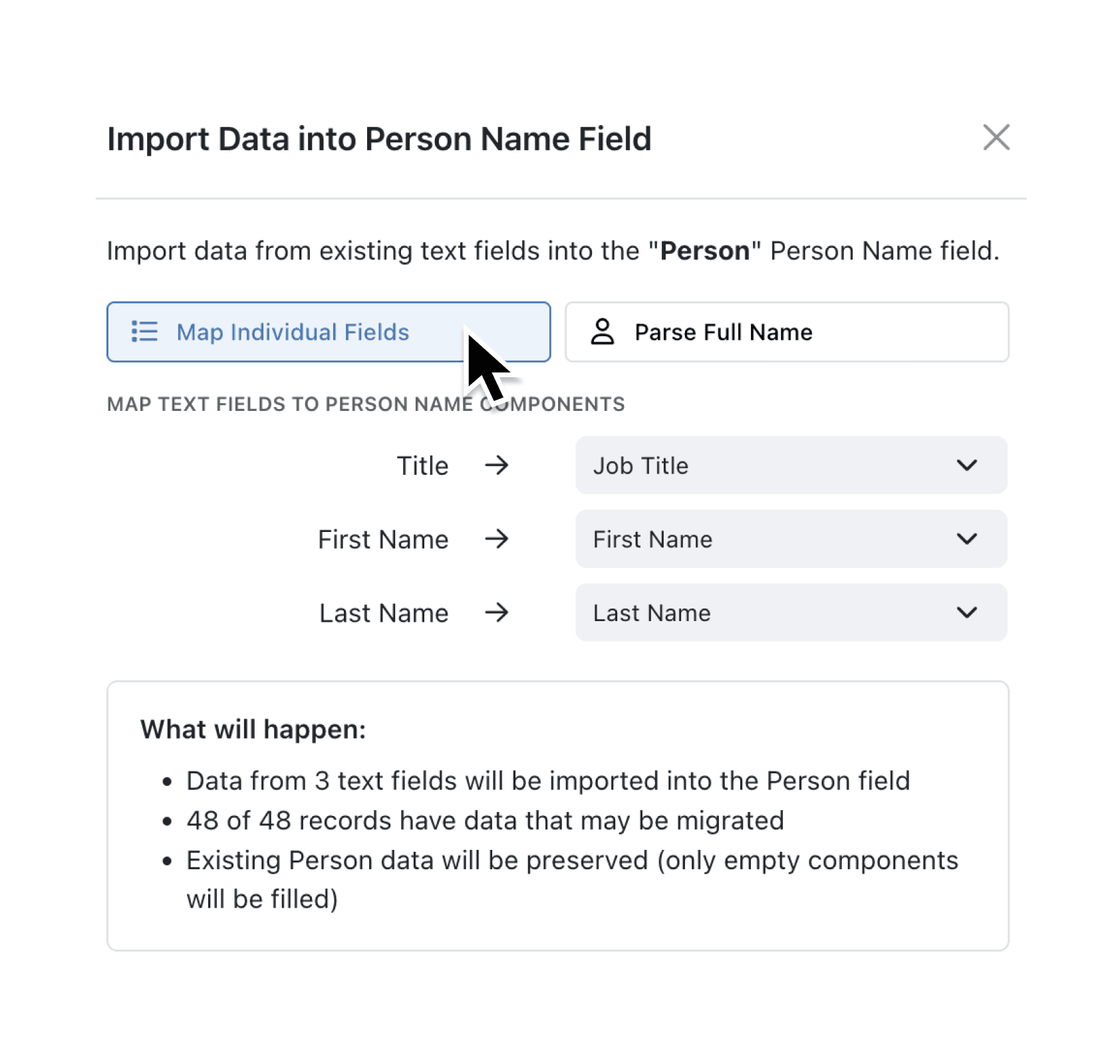
When adding a Person Name field to an existing collection, you can import data from your current text fields. Choose between two import modes: map individual fields (when you have separate columns for first name, last name, etc.) or parse a full name field using intelligent name recognition that detects titles like Dr, Prof, and Mr.
Why it matters:
- Structure your contact data with separate fields for title, first name, middle names, and last name whilst displaying the full name seamlessly.
- Import existing data using the built-in tool for easy data migration.
- Personalise your communications by accessing individual name components in email templates, forms, and automations.
- Configure to match your needs with optional title and middle name fields that you can enable or disable per collection.
How it works:
- Navigate to your Collection and open Configure → Fields.
- Click Add Field and select Person Name from the field type picker.
- Enter a label such as "Contact Name" and configure whether to enable titles and middle names.
- Save the field to add it to your collection.
- To import existing data, right-click the Person Name field and select Import > From existing fields.
- Choose your import mode: map individual text fields to each name component, or select a full name field to parse automatically.
Note: The import tool preserves existing Person Name data and only fills in empty components.
When to use it:
- Sales teams can import prospect lists from CRM exports with separate first name and last name columns, then use the structured data to personalise outreach emails with "Dear Dr Smith" or "Hi Jane".
- Event coordinators can manage attendee registrations with consistent name formatting, making it easy to produce name badges sorted by surname whilst displaying full names with titles.
- HR administrators can maintain employee directories with properly structured names that work seamlessly with mail merge and formal correspondence requiring titles.
Ready to get started?
Add a Person Name field to any collection where you manage contact information. If you already have name data in text fields, use the import tool to migrate your existing records without re-entering any information.
Try it now in Kinabase → Collections → Fields → Person Name.
Have feedback? Email support@kinabase.com — we’re listening.