
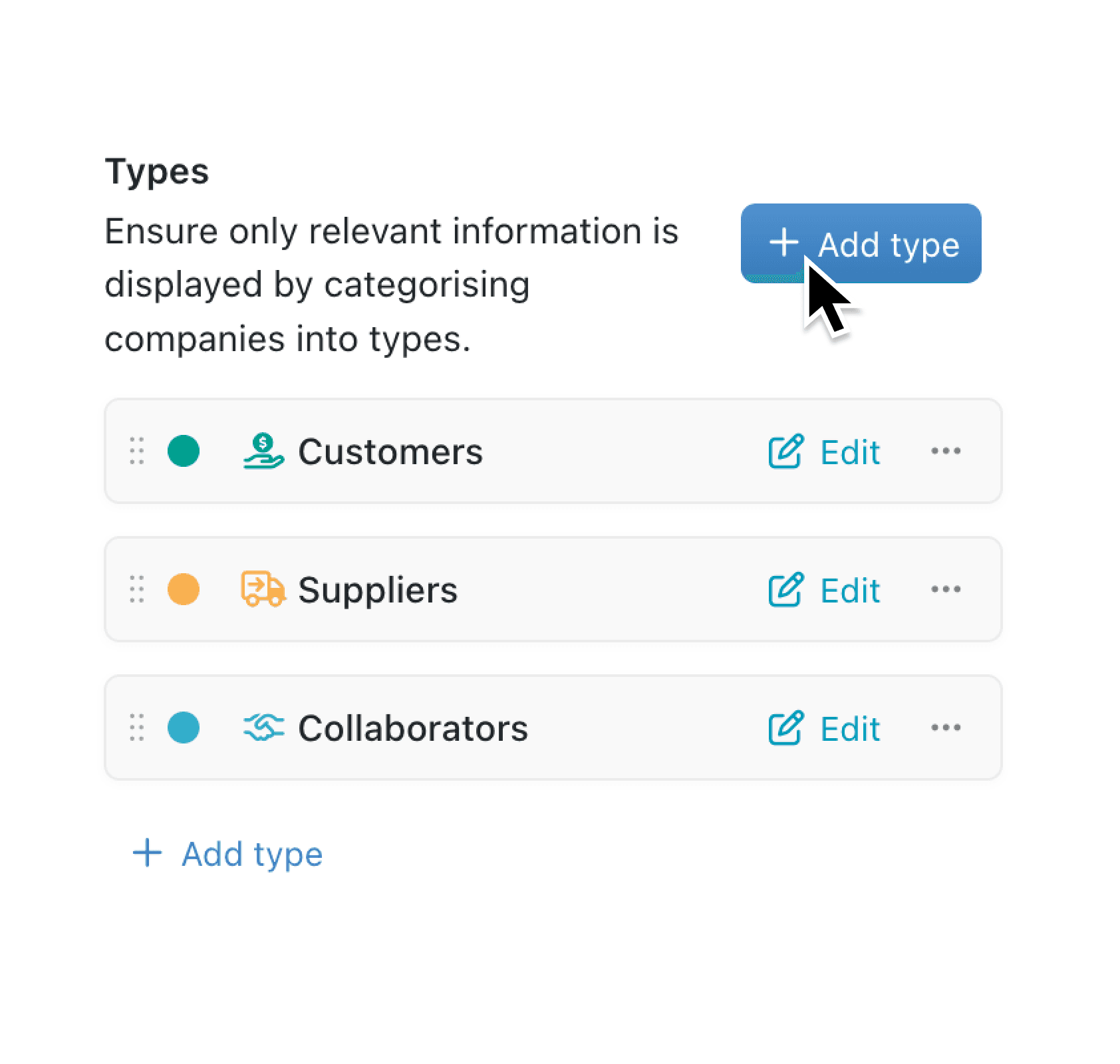
When you have several record types within a collection, they can all start to look the same. Scanning a long list of projects, contacts, or requests to find the right category means reading every label carefully. It slows you down and makes it easy to overlook important items.
What's New
You can now assign a colour and an icon to each type in a collection. When you create or edit a type, a colour picker and icon selector appear alongside the name field. The chosen colour and icon then display as a visual badge wherever that type appears, including table views, lists, and configuration screens. Colours follow the same pattern already available for workflow stages, while icon support is a new addition unique to types.
Why it matters:
- Spot the right records instantly by scanning colour-coded badges and icons in tables and lists, rather than reading every type label.
- Create a shared visual language across your organisation so that team members recognise record categories at a glance, even before reading the text.
- Configure in seconds with the built-in colour palette (10 colour options) and searchable icon picker, no technical knowledge required.
- Keep your workspace consistent because type badges now match the same colour style used by workflow stages and option fields, giving your data a polished, unified look.
How it works:
- Open the collection you want to configure and navigate to Configure, then Types.
- Click Add type to create a new type, or click the edit button on an existing type.
- Select a colour from the dropdown palette on the left of the type name. Choose from 10 colour variants including blue, green, red, orange, purple, and more.
- Click the icon picker next to the colour selector and search for an icon that represents the type. The picker suggests icons based on the type name to speed things up.
- Enter the type name, then click Save. Your new colour and icon will immediately appear in tables, lists, and wherever the type badge is shown.
Note: You need collection configuration permissions to add or edit types. If you do not see the Types section, ask your workspace administrator.
When to use it:
Operations managers categorise project types (Internal, Client, Research) with distinct colours and icons so that team dashboards instantly communicate the mix of work in progress.
Sales teams colour-code lead types (Inbound, Referral, Partner) to quickly filter and prioritise follow-ups during pipeline reviews.
HR administrators assign icons and colours to request types (Leave, Expense, Training) so employees can spot the right category at a glance when submitting or reviewing requests.
Get Started
Open any collection with types and try adding colours and icons to see the difference it makes. If you have feedback or suggestions, we would love to hear from you through the in-app support channel.
If you have questions or feedback, we would love to hear from you. Email support@kinabase.com — we’re listening.