
Organisations with multiple brands often need documents that reflect different identities. Whether you operate subsidiaries, work with partners, or manage distinct divisions, you previously had to use the same branding across all document templates or maintain separate workspaces entirely.
What's New
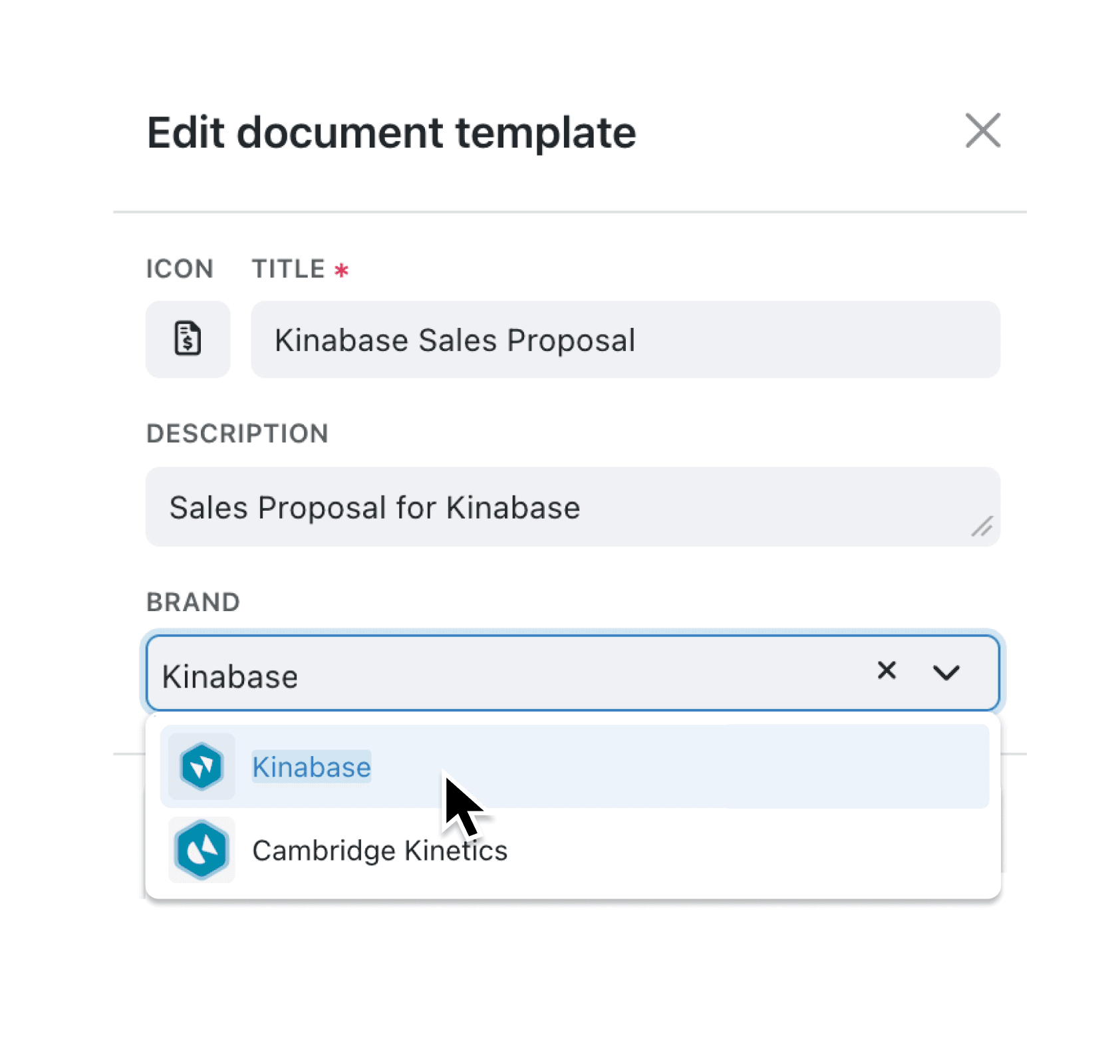
Document templates now include a brand selector that lets you choose which brand identity to use when generating, previewing, or printing that template. When you add or edit a document template, you'll see a new Brand field that displays all configured brand identities in your workspace. The selected brand applies automatically whenever documents are generated from that template.
Why it matters:
- Use the right logo for each document type — Apply your main brand to customer-facing proposals whilst using subsidiary branding for internal reports or partner logos for co-branded materials.
- Maintain brand consistency without extra effort — Once configured, the correct branding appears automatically in the document editor, preview, and printed output.
- Avoid duplicate workspaces — Keep all your collections and data in one place whilst still producing documents with different brand identities.
- Streamline multi-entity operations — Organisations managing multiple legal entities, franchises, or product lines can generate properly branded documents from a single workspace.
How it works:
- Navigate to a collection's settings and open the Document Templates section.
- Click Add to create a new template, or open the menu on an existing template and select Properties.
- In the modal, use the Brand field to select from your configured brand identities.
- Save your changes. The selected brand will now appear in previews, the editor, and printed documents.
Note: You must first configure multiple brands in your workspace settings under Settings > Branding before the brand selector becomes useful. If only one brand exists, documents will continue using that brand by default.
When to use it:
- Operations managers at holding companies can create invoice templates for each subsidiary, ensuring documents display the correct registered company name and logo.
- Marketing teams working with channel partners can prepare co-branded proposal templates that automatically apply partner logos when generating sales documents.
- Finance administrators managing multiple trading entities can configure separate receipt and statement templates for each entity, maintaining proper legal branding without switching workspaces.
Get Started
Open any collection's document template settings to configure brand selection for your templates. If you haven't set up multiple brands yet, visit Settings > Branding to add additional brand identities first.
Have questions about multi-brand document generation? Reach out through the help menu or visit our documentation.
If you have questions or feedback, we would love to hear from you. Email support@kinabase.com — we’re listening.