
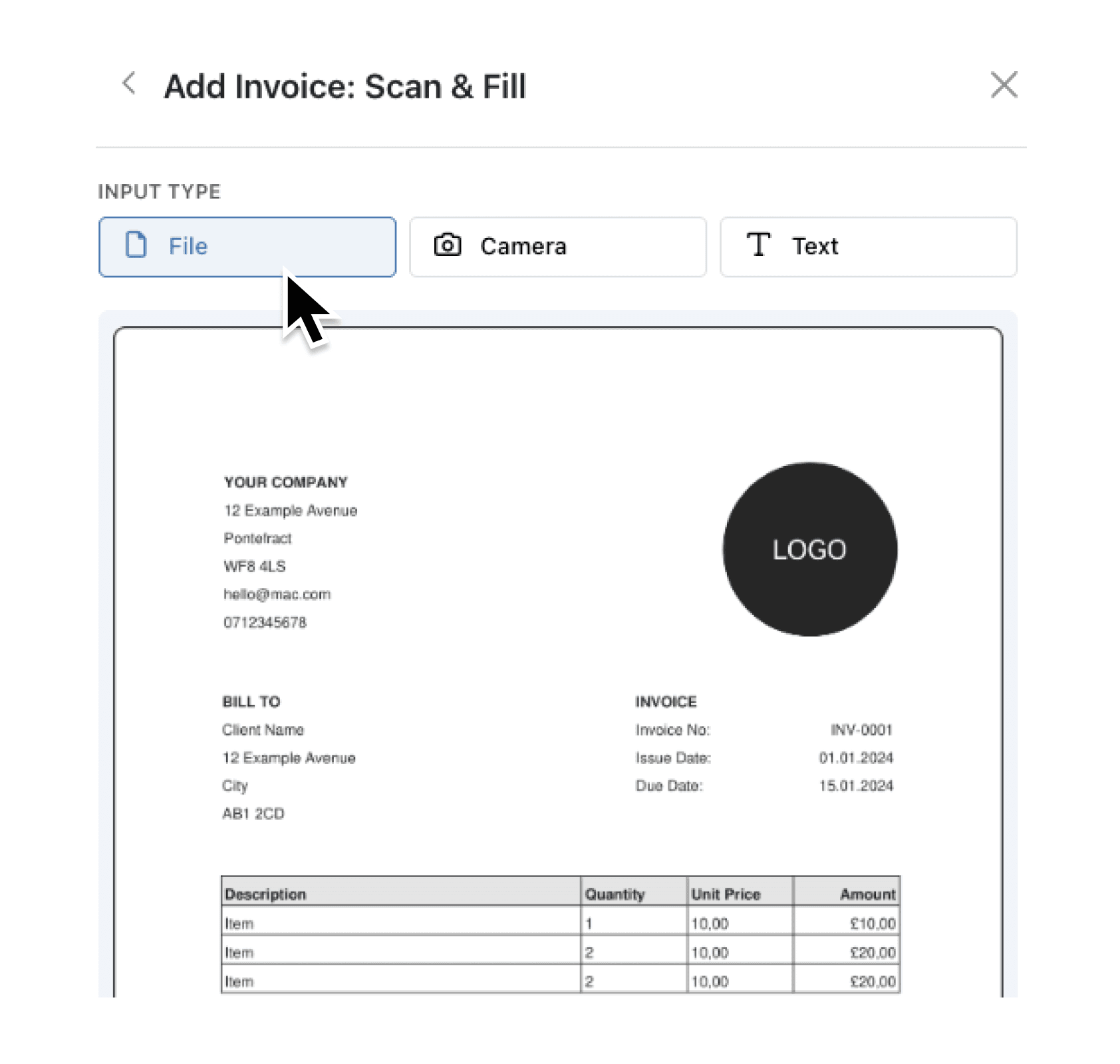
Processing multi-line documents like invoices, delivery notes, or purchase orders has always been tedious. You scan a document, and Scan & Fill extracts the header information—but what about the 15 line items on the page? Until now, you had to enter those manually.
What's New
Scan & Fill now extracts complete documents, including all line items, in a single operation. When you scan an invoice with 20 line items, all 20 appear in your form ready for review. The AI recognises tabular data, repeating entries, and list structures—then populates both your main record and any associated subcollection records automatically.
You can also now trigger Scan & Fill directly from file fields. Upload a PDF or image to a file field, click the dropdown menu, and select "Scan & Fill" to extract data from that specific file. No need to re-upload or start from scratch.
Why it matters:
- Capture entire documents at once — Header details and all line items extracted together, eliminating the need for manual data entry of individual rows
- Save time on repetitive data entry — A 20-line delivery note that took minutes to enter now takes seconds to review and add
- Start extraction from existing files — Trigger Scan & Fill from any uploaded PDF, Word document, or image already attached to your form
- Review before saving — AI-generated content is clearly marked with a bolt icon, and you can edit any field before adding the record
How it works:
- Open any collection that has subcollections (such as Orders with Order Lines, or Invoices with Line Items).
- Click + Add to create a new record.
- Either click the Scan & Fill button and upload your document, or upload a file to a file field first.
- If you uploaded to a file field, click the file's dropdown menu and select Scan & Fill.
- Review the extracted data—both the main record fields and all line items will be populated.
- Edit any fields as needed, then click Add to save.
Note: Scan & Fill requires AI to be enabled on your workspace plan. Contact your administrator if you don't see the option.
When to use it:
- Warehouse teams receiving goods can photograph a delivery note and have all line items extracted instantly, ready for stock reconciliation.
- Finance teams processing supplier invoices can scan PDFs and capture every line item with quantities, descriptions, and prices—no manual transcription.
- Operations managers logging maintenance requests with parts lists can extract all components from a work order document in one scan.
Get Started
Try Scan & Fill on your next multi-line document. Open a collection with subcollections, upload an invoice or delivery note, and see the complete extraction in action. We'd love to hear how it works for your workflows—share your feedback through the help menu.
If you have questions or feedback, we would love to hear from you. Email support@kinabase.com — we’re listening.