
Kinabase portals are designed to keep users signed in for a smooth experience. Now, you can tailor that experience with configurable inactivity timeouts, so each portal can match your organisation’s security requirements while staying convenient for users.
What's new:
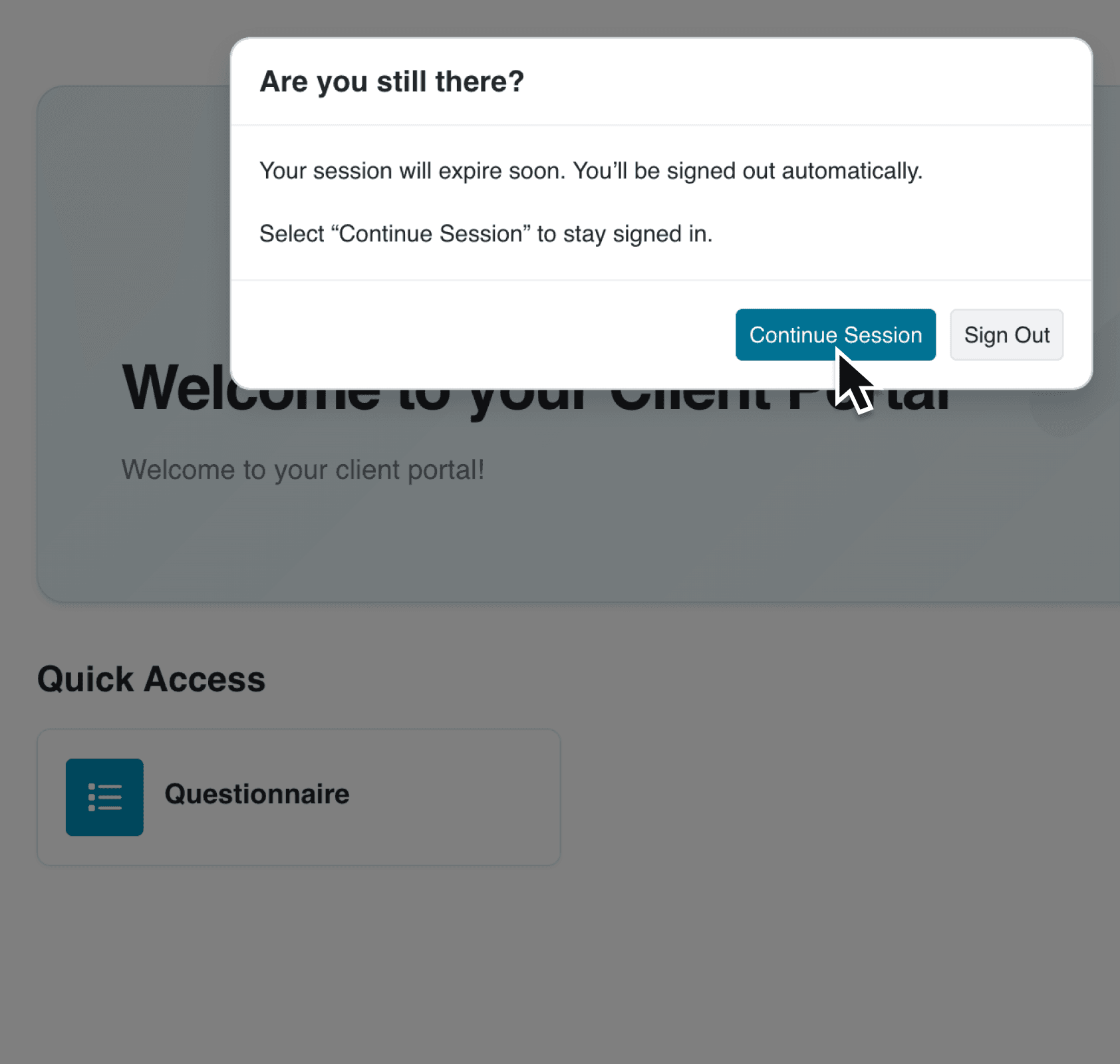
You can now set a custom inactivity timeout on any portal. When enabled, Kinabase tracks how long a portal user has been idle and automatically signs them out once the configured period elapses. When a session is about to expire, a modal appears with the message "Are you still there?" and two options: Continue Session to reset the countdown, or Sign Out to end the session immediately. If the user takes no action, they are signed out automatically and redirected to the portal sign-in page.
Why it matters:
- Protect sensitive data by ensuring idle portal sessions are closed automatically, reducing the risk of unauthorised access on shared or unattended devices.
- Choose the right balance between security and convenience with ten preset durations ranging from 30 minutes to 4 weeks, or leave timeouts disabled for the default 14-day behaviour.
- Keep users informed with a clear warning modal that appears before the session expires, offering a one-click option to stay signed in.
- Stay consistent across tabs because extending a session in one browser tab automatically refreshes the countdown in every other open tab for the same portal.
How it works:
- Navigate to Settings > Portals and open the portal you want to configure.
- Select the Security pane in the portal settings sidebar.
- Toggle Enable inactivity timeout to on.
- Choose a Timeout duration from the dropdown. The default is 1 day. Options range from 30 minutes up to 4 weeks.
- Save your changes. The new timeout applies to all future sign-ins for that portal.
Note: Only colleagues with permission to edit portal settings can configure timeouts. Existing sessions will continue with the previous 14-day expiry until the user signs in again.
When to use it:
- Compliance officers at financial services firms can set a 1-hour timeout on portals that expose client account data, satisfying audit requirements for session management without affecting other, lower-risk portals.
- Operations managers running supplier portals can enable a 4-hour timeout so warehouse staff stay signed in during a shift but are automatically logged out if they walk away from a shared terminal.
- IT administrators managing multiple portals can leave internal knowledge-base portals on the default 14-day expiry for convenience, while enforcing a 30-minute timeout on portals that handle personally identifiable information.
Get started
Ready to tighten session security on your portals? Head to Settings > Portals, pick a portal, and open the Security pane.
If you have questions or feedback, we would love to hear from you. Email support@kinabase.com — we’re listening.