
Entering record details on a phone or tablet often means wrestling with a small keyboard, switching between fields, and losing your train of thought. For field workers, sales reps on the move, or anyone whose hands are already busy, typing slows everything down.
What's New
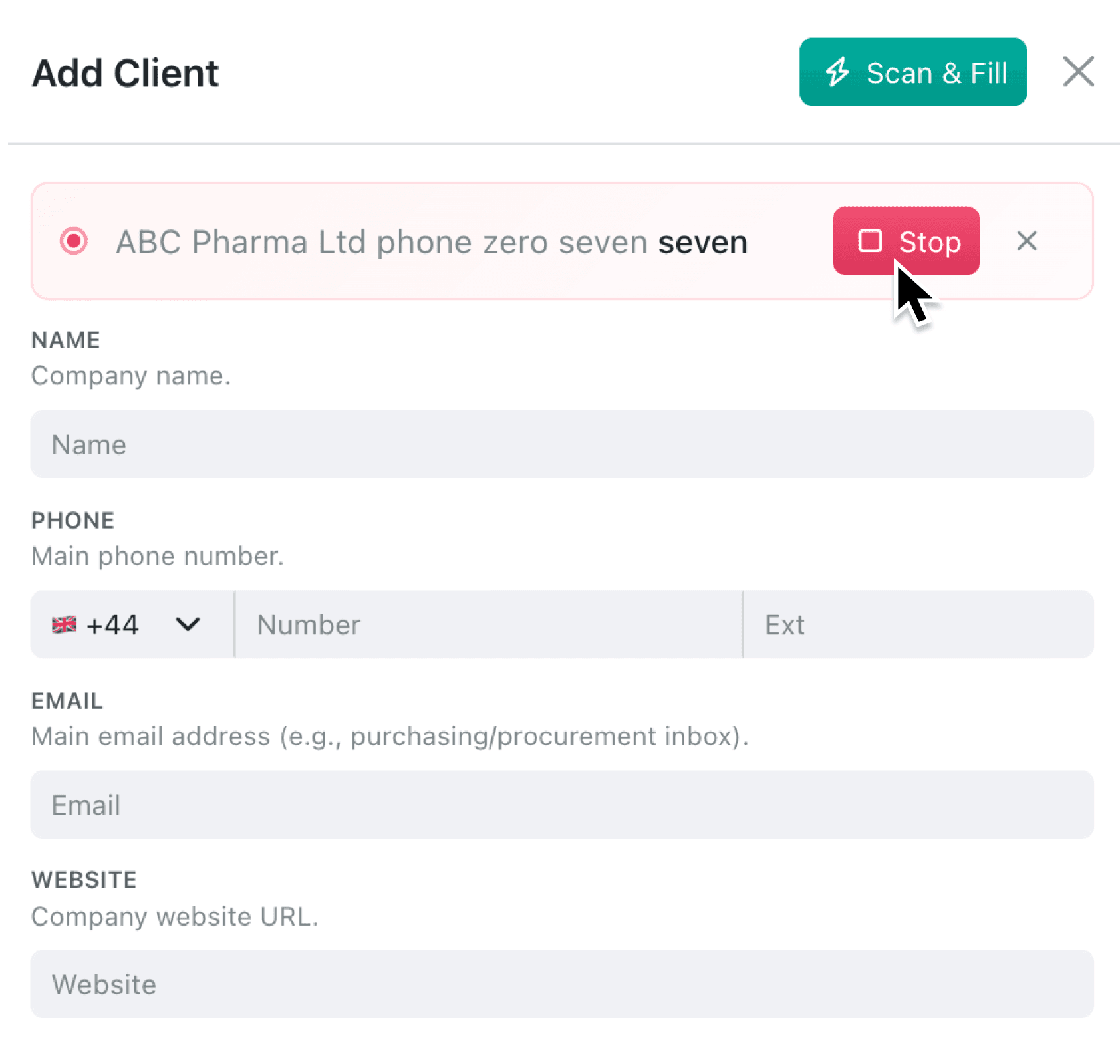
Scan & Fill now includes a voice input mode. When you open the Add Record form, a microphone button appears in the header. Tap it to start speaking, and a live transcript banner shows your words as they are recognised. When you stop recording, the AI maps your spoken details into the correct fields, ready for you to review and save.
Why it matters
- Capture information on the go when you are on site, in a meeting, or away from your desk, without needing to type a single character.
- Speed up data entry on mobile devices where voice is faster and more natural than tapping through fields on a small screen.
- Reduce transcription errors by letting AI extract structured data from natural speech, the same way it already handles pasted text or uploaded documents.
- Keep your existing process because voice input feeds into the same Scan & Fill review step you already know. Nothing changes about how you approve or edit suggested values.
How it works
- Open any collection and click + Add to create a new record.
- Look for the microphone button in the top-right corner of the form header, next to the existing Scan & Fill button.
- Click the microphone to start recording. A banner appears with a pulsing indicator and a rolling subtitle of your words.
- Speak naturally, describing the record details you want to capture (for example, "New contact, Sarah Chen, email sarah at example dot com, phone 07700 900123").
- Click Stop when you are finished. The transcript is sent to AI, which maps your words into the matching fields. Review the suggested values and save.
To cancel a recording without generating, click the X button on the banner.
Note: Voice input requires a supported browser (Chrome, Edge, or Safari). The microphone button will not appear in browsers that lack speech recognition support, such as Firefox. Your browser will ask for microphone permission the first time you use this feature.
When to use it
- Field engineers and site inspectors can describe an issue or observation aloud while their hands are occupied, and have the record created for them when they are done.
- Sales teams can dictate contact details or meeting notes into a new record immediately after a call, before the details fade.
- Warehouse and logistics staff can log deliveries, stock movements, or equipment checks by voice while handling goods, keeping data entry and physical work running in parallel.
Get Started
Open any collection, click + Add, and tap the microphone icon to try voice input on your next record. Like all Scan & Fill results, voice-generated suggestions are shown for your review before saving, so you stay in control of your data.
If you have questions or feedback, we would love to hear from you. Email support@kinabase.com — we're listening.