
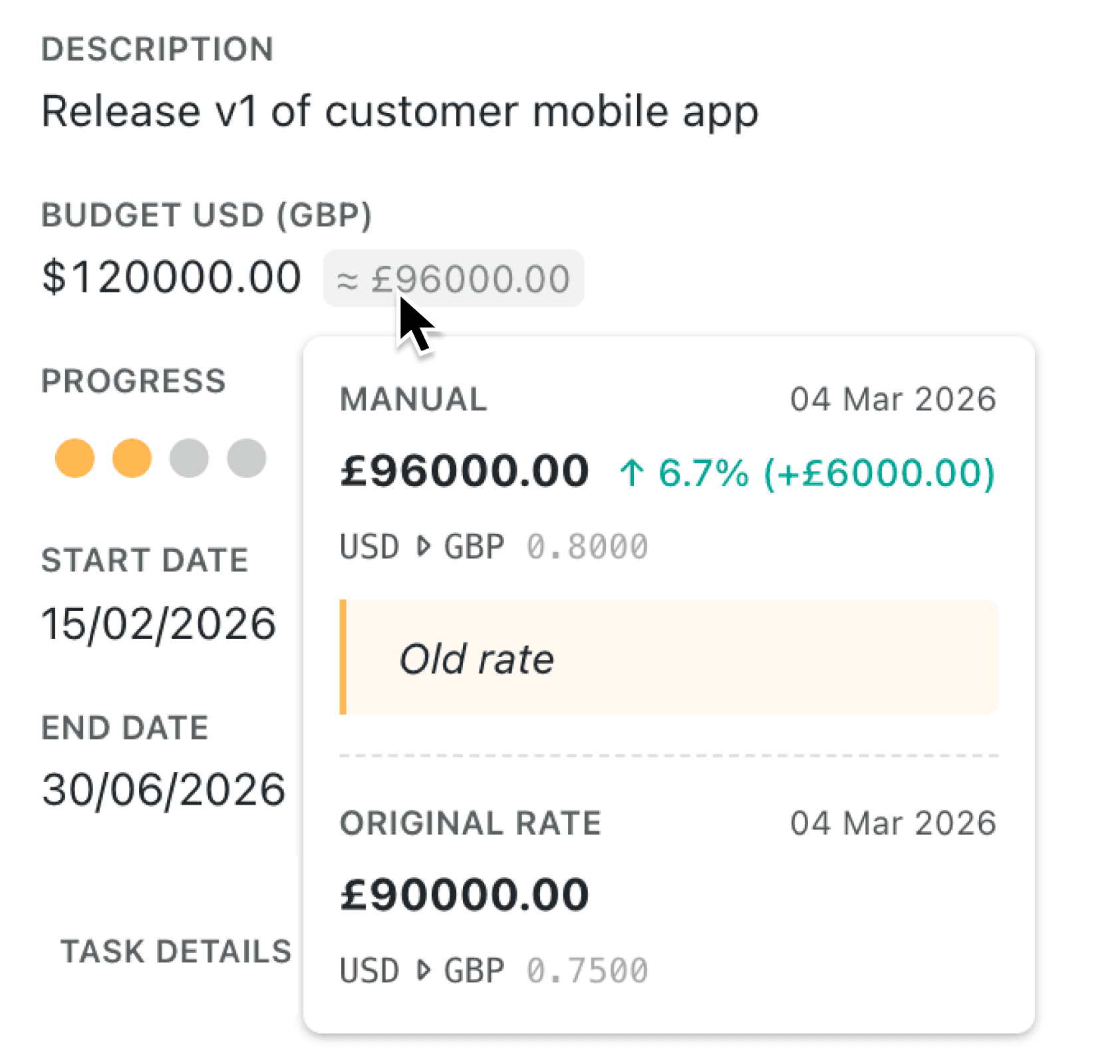
Managing finances across multiple currencies has always been a challenge for organisations working internationally. Converting amounts, tracking exchange rates, and making sure reports reflect accurate numbers takes time and introduces risk. With multi-currency support in Kinabase, you can now store, convert, and report on amounts in any currency, all from within your existing collections and workflows.
What's new:
Kinabase now includes a Global Currency field type that lets you capture amounts in any currency while automatically converting them to your organisation's base currency. Behind the scenes, every conversion is recorded with a full audit trail, so you always know the rate that was applied, when it was applied, and how the conversion was calculated. Alongside this, a new Currency settings area gives administrators full control over exchange rates, enabled currencies, and base currency configuration.
Why it matters:
- Store amounts in any currency and see the base-currency equivalent instantly, so your team can work in the currency that makes sense for each transaction while reports stay consistent.
- Maintain a complete audit trail for every conversion, including the rate used, the date it was applied, and whether it was a pre-set or manually entered rate.
- Control how rates are managed per field, with options to allow manual rate entry, rate updates, and direction-aware gain/loss indicators for buy, sell, or neutral transactions.
- Manage exchange rates centrally from one settings page, with rate history, date-effective entries, and chart visualisation so your finance team always has visibility.
How it works:
- Navigate to Settings > Currency and set your organisation's base currency (the currency used for reporting and conversions).
- Click Add Currency to enable additional currencies your team needs, and set an initial exchange rate with an applies-from date and an optional note.
- Go to any collection, open the field editor, and add a Global Currency field. Choose your preferred direction (Buy, Sell, or Neutral) and decide whether users can manually enter or update the latest exchange rate.
- When entering data, select the currency from the dropdown, type the amount, and the base-currency equivalent appears automatically. Click the rate indicator to view the full conversion breakdown or edit the rate manually (if permitted).
- To update exchange rates over time, return to Settings > Currency, expand the rate history for any currency, and click Add rate with the new applies-from date. Previous rates are preserved for audit and cannot be edited later, and the View Chart option allows you to visualise exchange rate history over time.
Note: Global Currency fields require the accounting feature to be enabled for your organisation.
When to use it:
- Finance teams managing invoices and expenses in multiple currencies can enter amounts in the original currency and see consistent base-currency totals for reporting, without maintaining separate spreadsheets.
- Operations managers overseeing international suppliers can track costs in the supplier's local currency while their dashboards and aggregations automatically reflect values in the organisation's base currency.
- Sales teams closing deals across regions can record revenue in the customer's currency, with automatic conversion for pipeline reports, and use the buy/sell direction setting to see how rate movements affect margins.
Get started
Open Settings > Currency to configure your currencies and exchange rates, then add a Global Currency field to any collection.
If you have questions or feedback, we would love to hear from you. Email support@kinabase.com — we’re listening.