
When you share a portal with external users or colleagues, everyone sees the same navigation. There is no simple way to show certain pages only to the right people, so you end up building separate portals to keep sensitive data out of sight.
What's new:
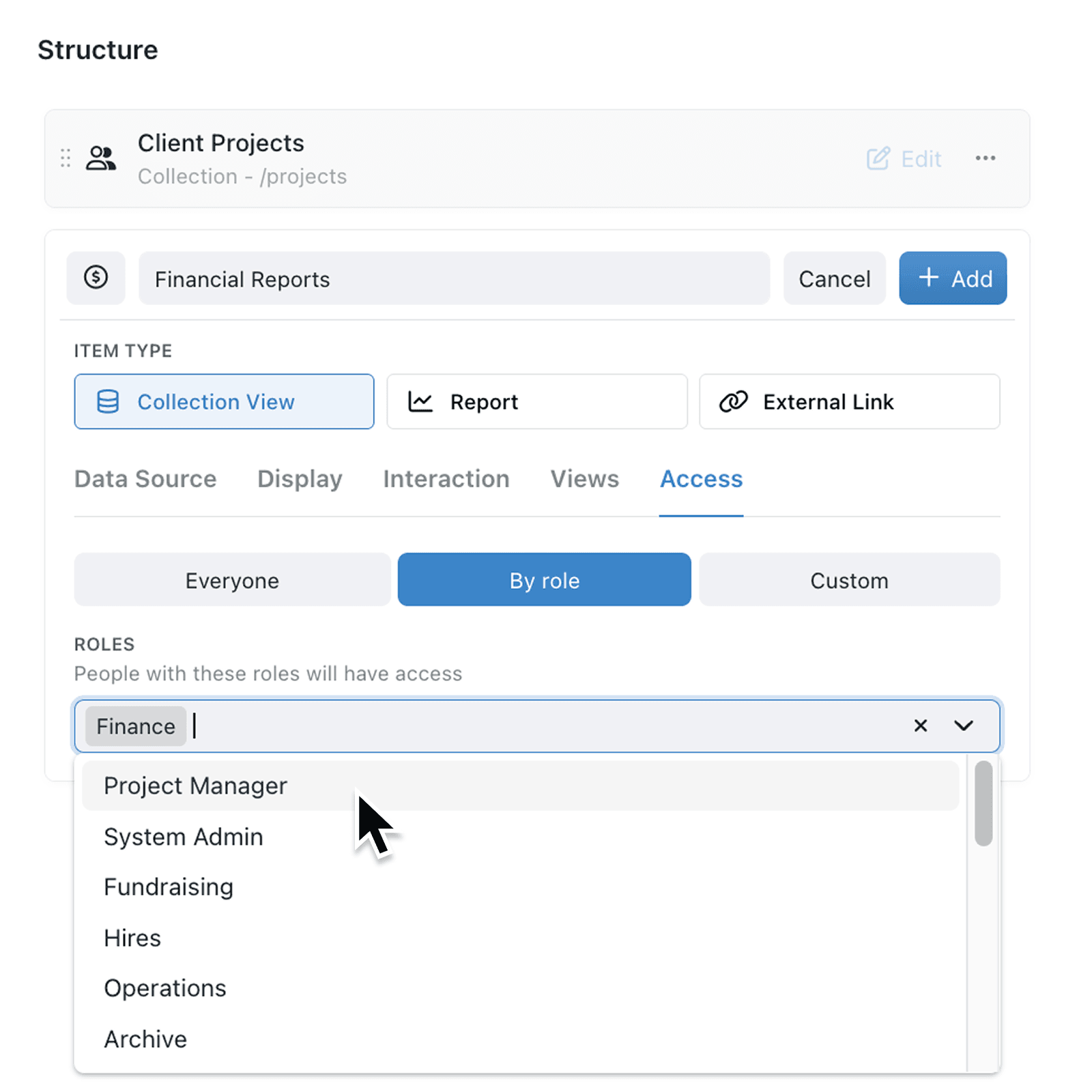
You can now add access conditions to any navigation item in a portal. Each Collection View, Report, or External Link can have its own visibility rules, so only the right users see it in the sidebar.
Why it matters:
- Control visibility within a single portal by showing or hiding individual pages based on a user's role or record data.
- Tailor the experience for each user so external users see only the pages relevant to them, reducing clutter and confusion.
- Configure in seconds with the Access tab on each navigation item letting you set conditions with the same familiar condition builder used elsewhere in Kinabase.
How it works:
- Open Settings > Portals and select the portal you want to configure.
- Click on a navigation item (Collection View, Report, or External Link) to open its editor.
- For Collection View and Report items, switch to the Access tab. For External Link items, the access settings appear directly in the editor.
- For internal portals, choose Everyone, By role, or Custom to set who can see the item. For external portals, toggle between Everyone and Custom, then build conditions against the user record (for example, "Status is Active" or "Region is EMEA").
- Save the portal. The conditions take effect immediately for all users.
When to use it:
- Operations managers running a client portal can restrict financial reports to users flagged as account owners, while keeping general project updates visible to everyone.
- HR teams sharing an internal portal with the whole organisation can limit sensitive policy pages to managers by role, without creating a second portal.
- Partner consultants building portals for clients can deliver a single portal where each department only sees the pages relevant to them.
Get started
Open any portal in Settings and look for the Access tab on your navigation items. Start with a single restricted page and confirm it disappears for users who do not meet the conditions, then expand from there.
If you have questions or feedback, we would love to hear from you. Email support@kinabase.com — we're listening.