
When you send people to a shared form from your website or an email, you often already know some of the answers - which campaign they came from, the code they were given or their email address. Until now, they had to type those in again. A shared form can now pick them up from its link.
What's new:
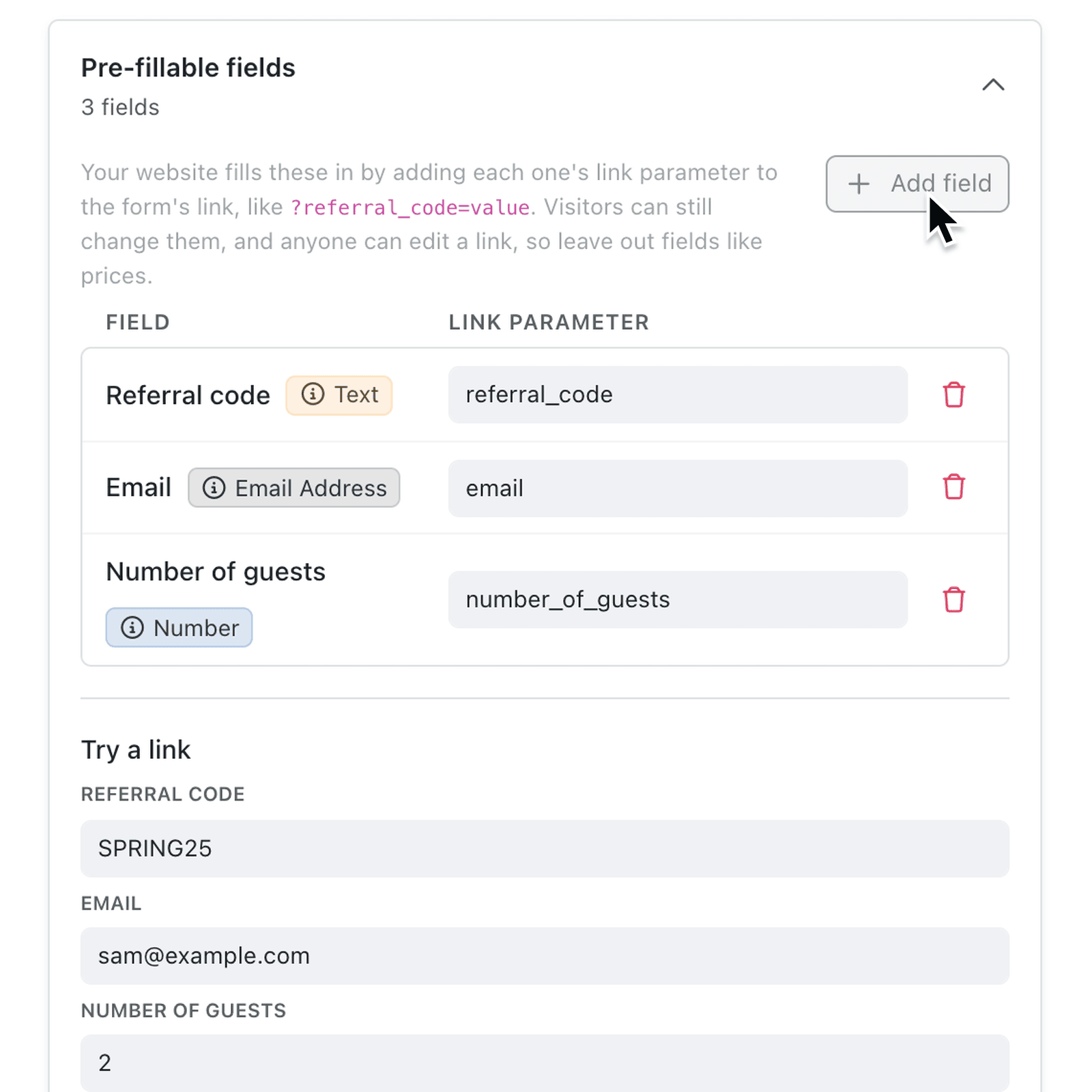
Shared forms have a new Pre-fillable fields section on the Sharing tab. Choose the form fields that can be filled in, and a link can carry their values - such as a referral code or an email address - so they're already filled in when the visitor opens the form. Visitors can still change them before submitting.
Use Try a link to enter example values and copy the link for your website or emails, then click Preview to see the form filled in.
Why it matters:
- Save visitors typing by passing in details you already know.
- Track where responses come from with a campaign or referral code in each link.
- Give every contact their own link by building it in a computed field, your website or your email tool.
- Check before you publish by previewing the form with example values.
How it works:
- Open Settings → Operations → Forms and open a form that opens From a link or portal.
- Open the Sharing tab and expand Pre-fillable fields.
- Click Add field and choose a field, such as Referral code.
- Under Try a link, enter the values you want filled in and click Copy.
- Click Preview to check the form, then save it.
Note: Text, number, email, phone and website fields can be pre-filled. Anyone can edit a link, so don't pre-fill values you rely on, such as prices.
When to use it:
- Marketing teams can add a campaign code to each email link and see which campaign every sign-up came from.
- Event coordinators can link from an invitation with the guest's email already filled in.
- Sales teams can send a quote request form with the referral partner's code built into the link.
Get started
Open a shared form under Settings → Operations → Forms, go to the Sharing tab and add a field under Pre-fillable fields.
If you have questions or feedback, we would love to hear from you. Email support@kinabase.com — we're listening.