
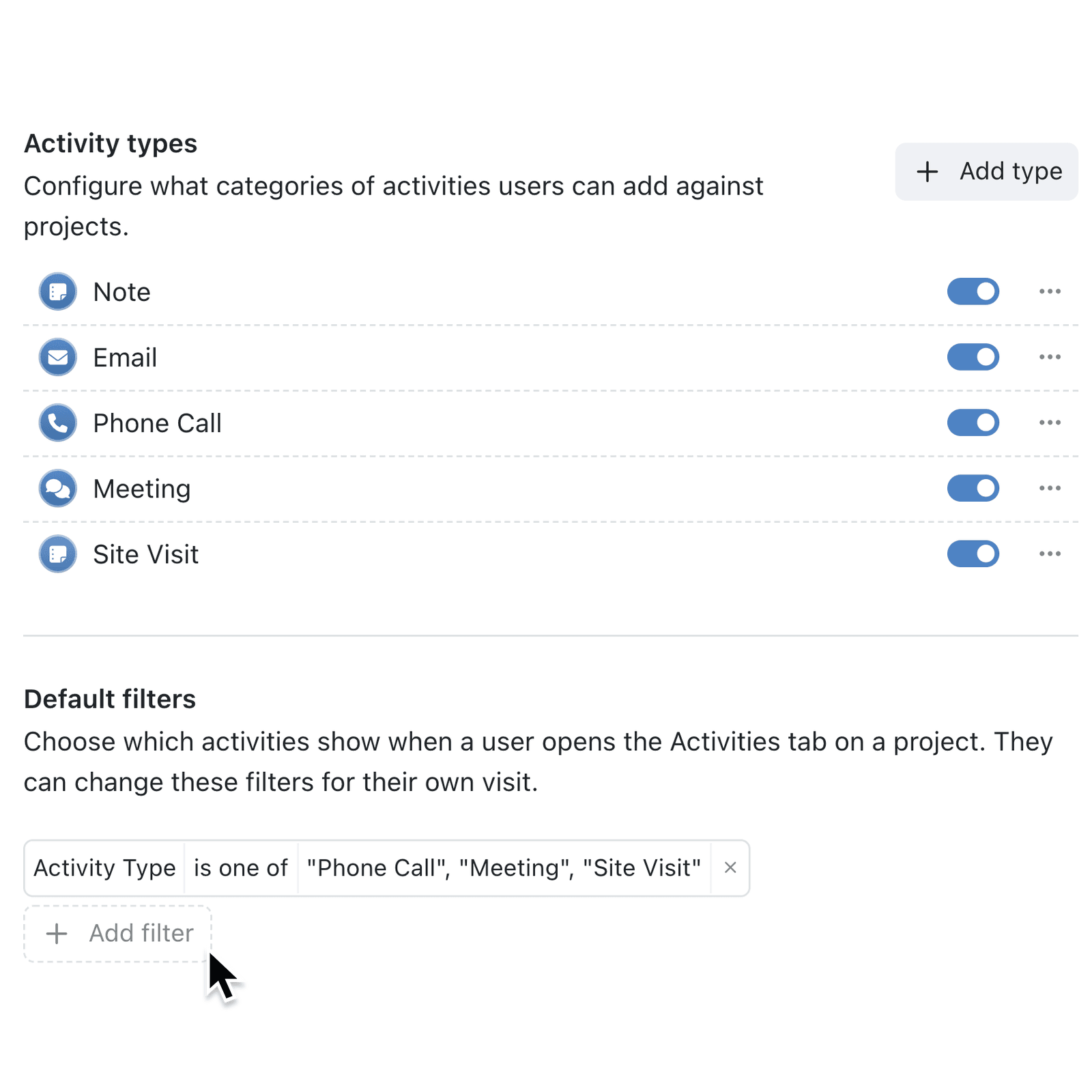
Activity filters help you find the call or meeting you need on a busy record, but they cleared as soon as you moved on to the next one. Now each collection can save default filters, so every record opens on the activities your team checks most.
What's new:
Default filters is a new setting under Activities in a collection's configuration, below Activity types. Filter by Type, Content or Timestamp, and every record in the collection opens its Activities tab with those filters applied. The funnel (Show filters) icon shows how many are in force.
Why it matters:
- Start on what matters with each record opening on calls and site visits rather than every automatic change.
- Give the team one starting point while anyone can still clear the filters for a visit.
- Change activity types safely as filters follow a rename and a deletion is previewed first.
How it works:
- Open the collection, click the options menu (⋯) and select Configure.
- Under Features, select Activities.
- Under Default filters, click Add filter, select Type, Content or Timestamp, set the value and confirm with the tick.
- Click Update to save.
- Open a record and select its Activities tab. Click the funnel (Show filters) icon to review or change the filters for this visit.
When to use it:
- Facilities teams checking a building's history can open every property record on its Inspection activities.
- Account managers preparing for a client review can open each account on calls and meetings, without the automatic field-change notes.
- Recruitment teams moving between candidates can open each one on Interview activities, so feedback is the first thing they see.
Get started
Open a collection's Configure settings, select Activities and click Add filter under Default filters.
If you have questions or feedback, we would love to hear from you. Email support@kinabase.com — we're listening.