
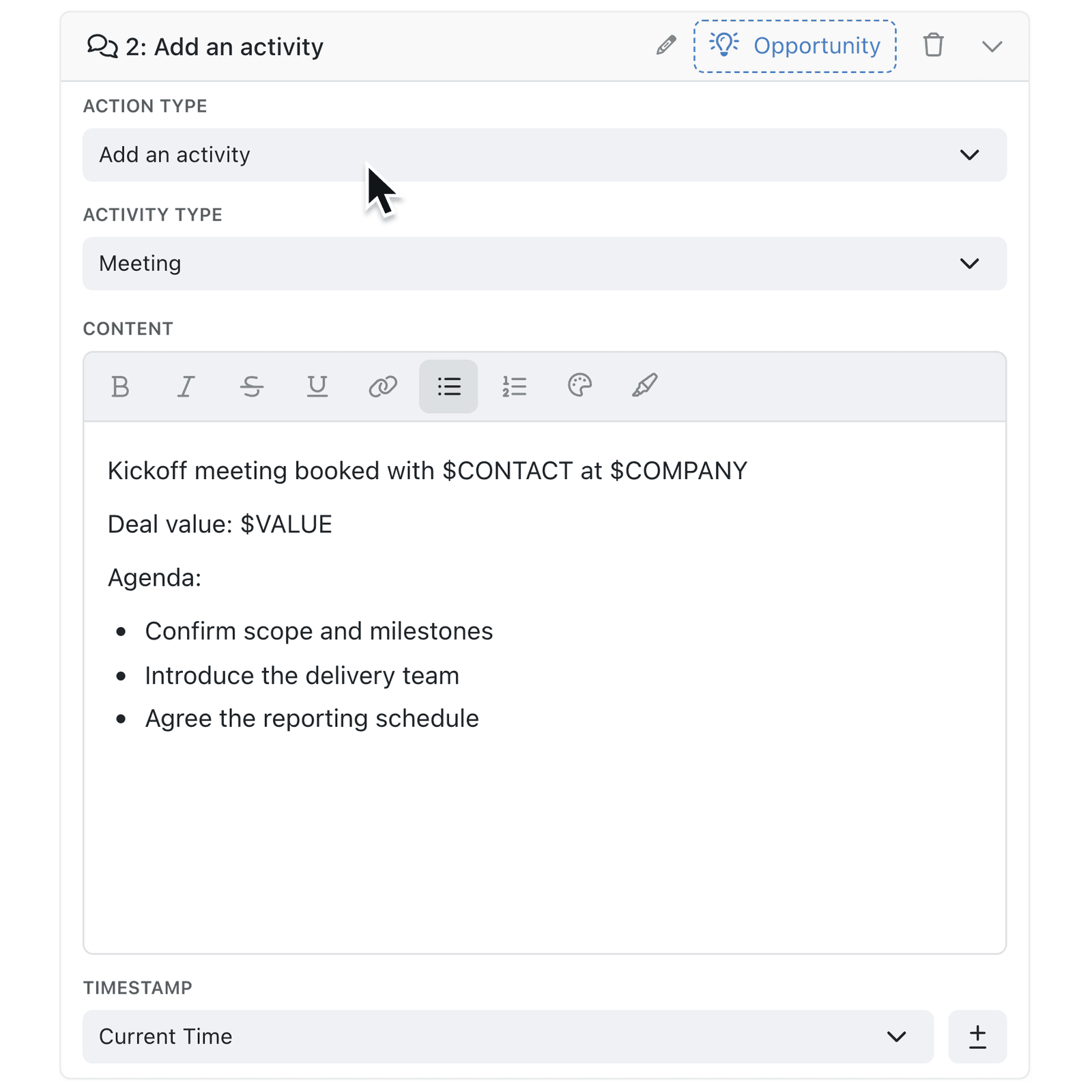
A record's Activities tab is where your team sees what's happened, but only if someone remembers to log it. When a step already runs through an automation, that note is easy to miss. Now automations can log activities for you.
What's new:
Add an activity is a new automation step. It logs a note, meeting, phone call, email or any other activity type enabled on the collection, with content that can include values from the record. The activity appears on the record's Activities tab via the automation's name, so everyone can see where it came from.
Why it matters:
- Keep every record's history complete without relying on someone to type it up.
- See where each entry came from with the automation named on the activity.
- Capture the details that matter by pulling record values into the activity's content.
How it works:
- Open Settings → Operations → Automations and add or open an automation.
- Under What to do, click Add step and set Action Type to Add an activity.
- Select the Activity Type.
- Write the Content, typing
$to include values from the record. - Check the Timestamp, which defaults to when the automation runs.
- Click Save.
Note: The step is offered only when activities are enabled on the collection the step acts on.
When to use it:
- Recruitment teams can log a note when a candidate moves to interview, recording the role and hiring manager.
- Client services teams can log a call summary when a complaint is closed, so the next person to open the record sees how it was resolved.
- Accountancy practices can log a meeting when a year-end review is booked, keeping each client's history in one place.
Get started
Open Settings → Operations → Automations and add an Add an activity step to an automation.
If you have questions or feedback, we would love to hear from you. Email support@kinabase.com — we're listening.