
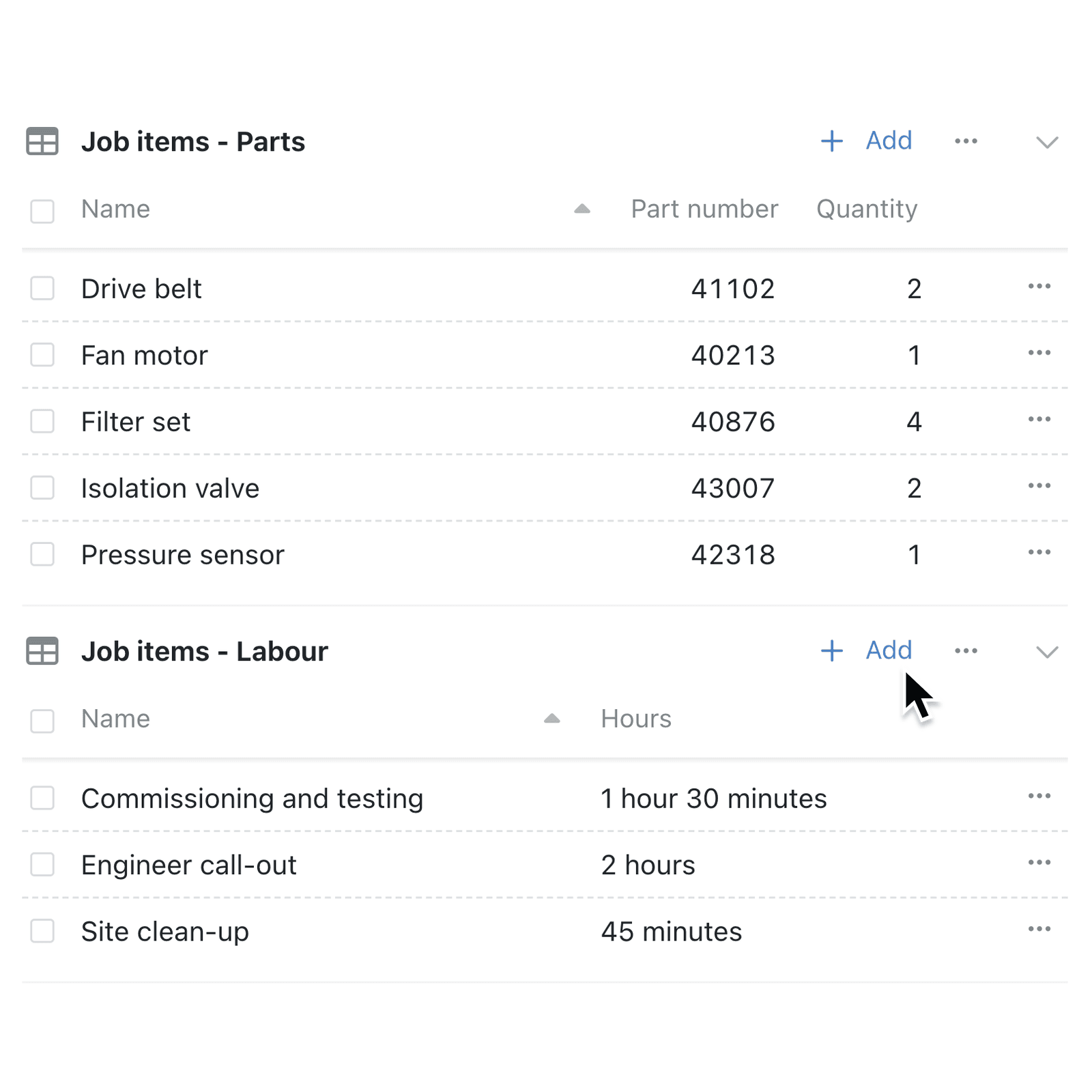
Job sheets, quotes and bills of materials often mix different kinds of row on one record - parts and labour, products and services. Until now every row shared the same fields, so people had to skip the ones that didn't apply. Now lists and child collections can have types, so each kind of row asks only for what it needs.
What's new:
A collection list now has a Types tab, and a child collection has Types under Setup, just like any collection. Each type has its own fields and rules, and Type lifecycle and Required work as they do on a collection.
On the parent record, typed rows can share one table, or each type can have a section of its own with its own columns, Add, Import (.csv) and Export (.csv). Choose between them with A table for each type of on the list's Visibility tab.
Why it matters:
- Keep mixed rows on one record with each kind holding only the fields it needs.
- Fill in rows faster as the form asks only for that type's fields, in Kinabase and in portals.
- Read each kind at a glance with a section and columns per type.
- Import and export by type from each type's own section.
How it works:
- Open the parent collection, click the options menu (⋯) and select Configure.
- Under Setup, select Lists, click Edit on a saved list and open the Types tab.
- Click Add type, name the type and tick the fields it uses. Repeat for each kind of row.
- Open the Visibility tab and tick A table for each type of to give each type its own section. Leave it unticked to keep one shared table. Click Save.
- Open a record and add a row from the section for its type, or use the menu beside Add in a shared table.
Note: For a child collection, open its own Configure settings and select Types under Setup.
When to use it:
- Field service teams can log parts and labour on the same job, with part numbers on one and hours on the other.
- Professional services firms can quote fixed-fee and time-and-materials lines together, each with the fields its pricing needs.
- Facilities teams can record lift, fire door and boiler inspections against a building, each in its own section with its own checks.
Get started
Open a collection's Configure settings, select Lists and click Edit on a list to add its Types.
If you have questions or feedback, we would love to hear from you. Email support@kinabase.com — we're listening.