
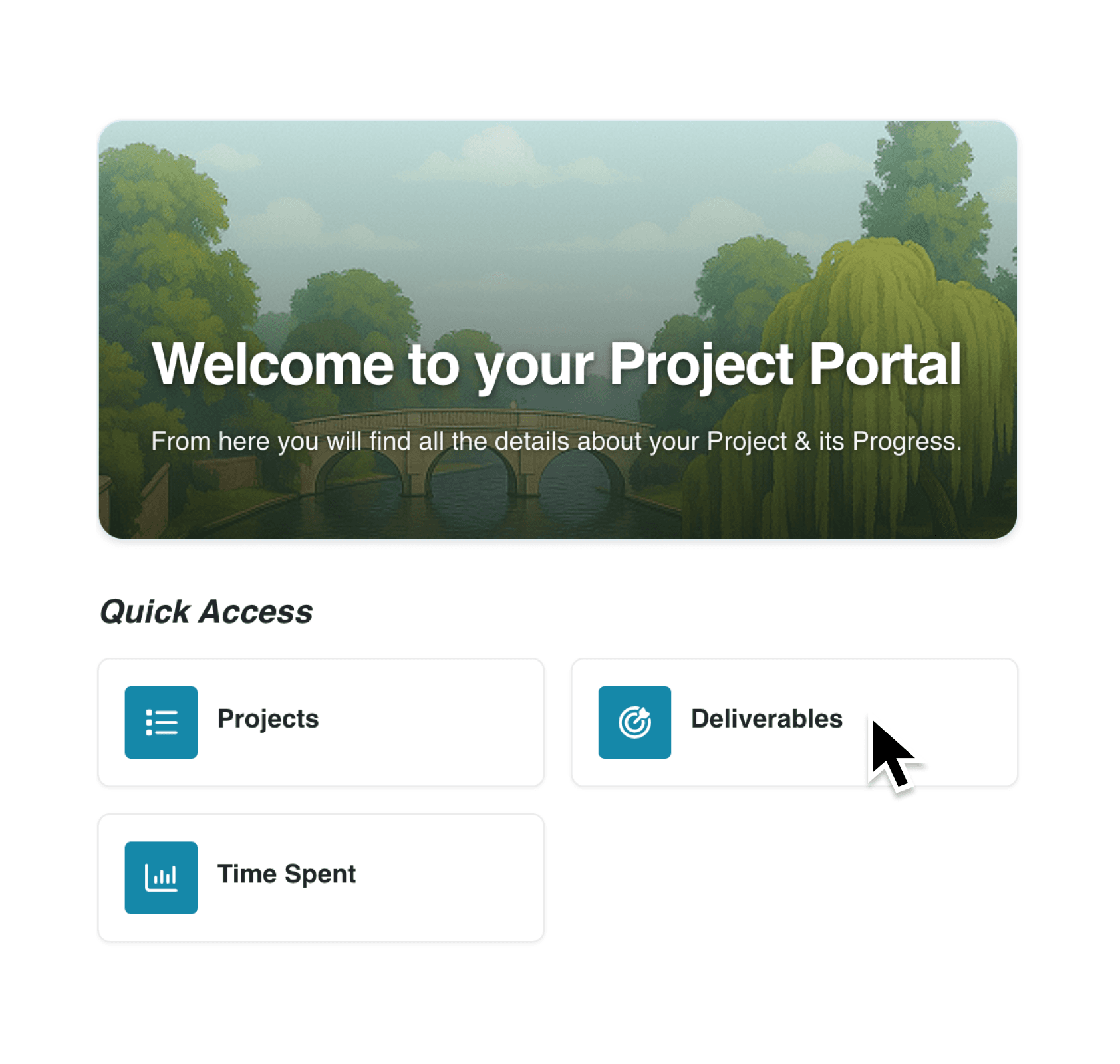
Generic portal homepages can feel impersonal and fail to reinforce your brand when clients log in. Until now, portals displayed only text and icons on the dashboard, missing an opportunity to make a strong visual impression.
What's New:
You can now upload custom banner images to your client portals. The banner appears prominently at the top of the portal dashboard, greeting users with a visual that matches your organisation's identity. Choose between two layout styles to control how your welcome message and banner work together.
Why it matters:
- Strengthen brand recognition by displaying company imagery, team photos, or product visuals that clients instantly recognise
- Create a professional first impression with a polished, welcoming dashboard that reflects the quality of your service
- Choose your preferred layout with either Full Width Overlay (text appears over the image) or Split Layout (text beside the image)
- Update easily at any time by uploading a new banner or deleting the existing one through portal settings
How it works:
- Open Settings and select Portals from the navigation
- Choose the portal you want to customise and click to edit
- Navigate to the Display tab within the portal settings
- Scroll to the Banner section and click Upload Banner
- Select an image file (maximum 5MB), then choose your preferred layout: Full Width Overlay or Split Layout
- Save your portal settings to publish the banner
Note: Recommended image dimensions are 1200x300 pixels for overlay layout or 600x300 pixels for split layout. Only image files are accepted.
When to use it:
- Client services teams upload a banner featuring their company logo and brand colours, ensuring clients feel confident they're in the right place when accessing project updates
- Training providers display course imagery or certification badges on their learner portal, reinforcing the programme's professional credentials
- Property managers showcase building photography on tenant portals, creating a sense of community and helping residents identify with their residence
Start customising your portal
Head to your portal settings to upload your first banner image. You can preview both layout options before saving to see which best suits your welcome message and brand style.
Try it now in Kinabase → Portals → Settings → Display
If you have questions or feedback, we would love to hear from you. Email support@kinabase.com — we’re listening.