
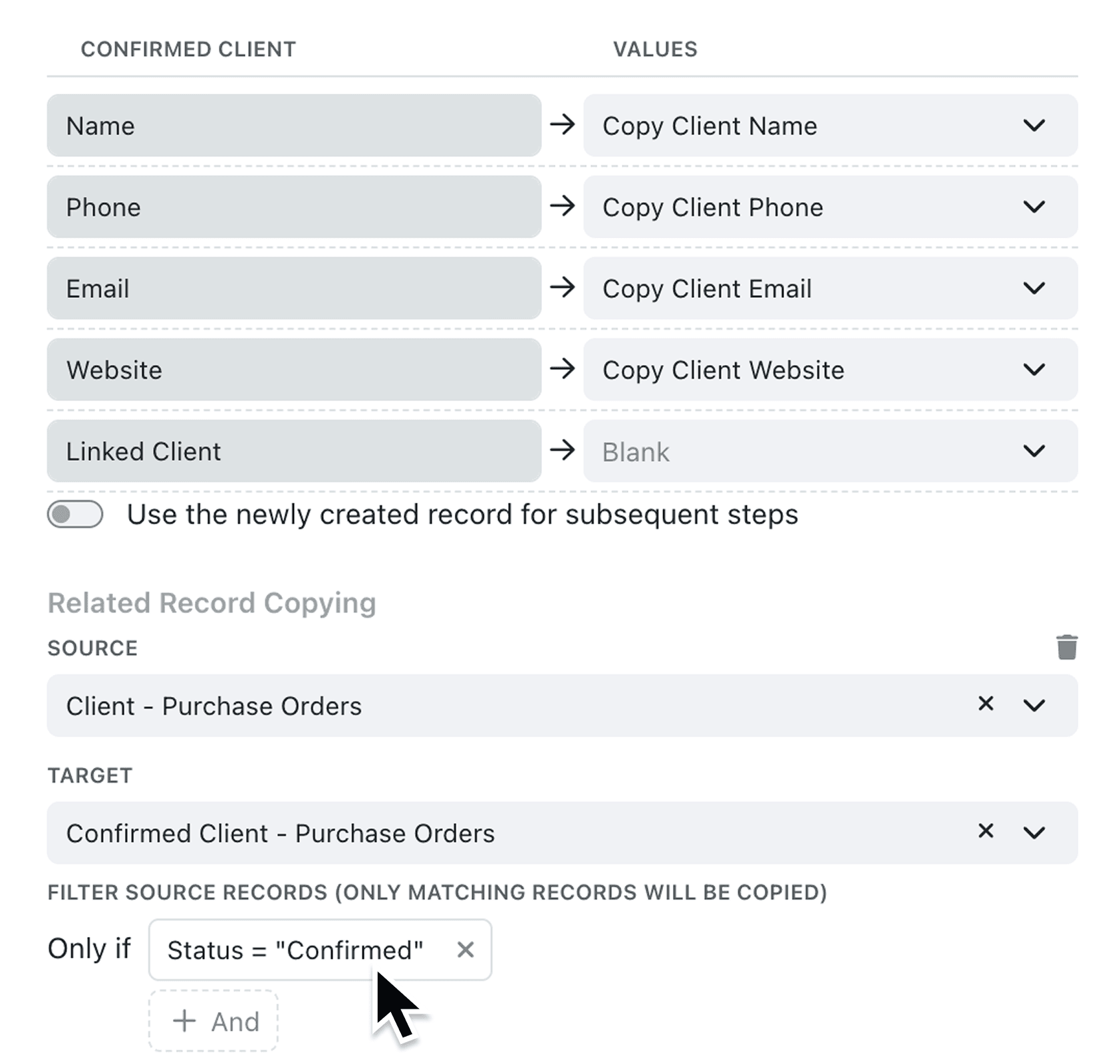
When you automate record creation with related record copying, every linked record gets duplicated — even the ones you don't want. Until now, cleaning up unwanted copies meant manual deletions or awkward workaround automations. That extra effort adds up fast, especially in high-volume workflows like order processing or project duplication.
What's new:
You can now apply a filter condition to each related record copy rule inside a Create a new record automation step. The filter evaluates each source record before it's copied, so only records that match your conditions are brought across. The same condition builder you already know from automation triggers and permissions is used here, keeping the experience consistent.
Why it matters:
- Copy selectively by choosing exactly which related records carry over during an automation, without cleaning up afterwards.
- Build conditions visually by using the familiar condition builder with full AND/OR logic, no formula syntax required.
- See what will happen at a glance with the automation step summary now displaying the filter alongside the copy action, so you can review your rules without opening the configuration.
- Keep your collections tidy by avoiding creating and then deleting unnecessary records.
How it works:
- Open an existing automation or create a new one by selecting Automations from the Settings menu.
- Add or edit a Create a new record step that includes related record copying.
- In the Related Record Copying section, select your source and target collections as usual.
- Below the target link field, click Add filter. The condition builder appears with the instruction: "Filter source records (only matching records will be copied)".
- Build your conditions using the visual builder — choose a field from the source collection, set your operator, and enter a value. Add further conditions with And or Or if logic as needed.
- Save the automation. The step summary now shows your copy action with the filter, for example: "Copy related records from Line Items to New Line Items where Status is Active".
Note: Filters that reference the current user are not available here, since automations may be triggered when no user is logged in.
When to use it:
- Operations managers processing purchase orders can duplicate only line items with a status of "Confirmed", leaving draft or cancelled items behind when creating a fulfilment record.
- Project leads duplicating a project template can copy only tasks marked as "Not Started", skipping completed or archived tasks so the new project starts clean.
- Sales teams cloning an opportunity with product line items can filter to copy only items above a minimum value threshold, keeping the new opportunity focused on high-priority products.
Get started
Open any automation with related record copying and add a filter to take precise control of your workflows.
If you have questions or feedback, we would love to hear from you. Email support@kinabase.com — we’re listening.