
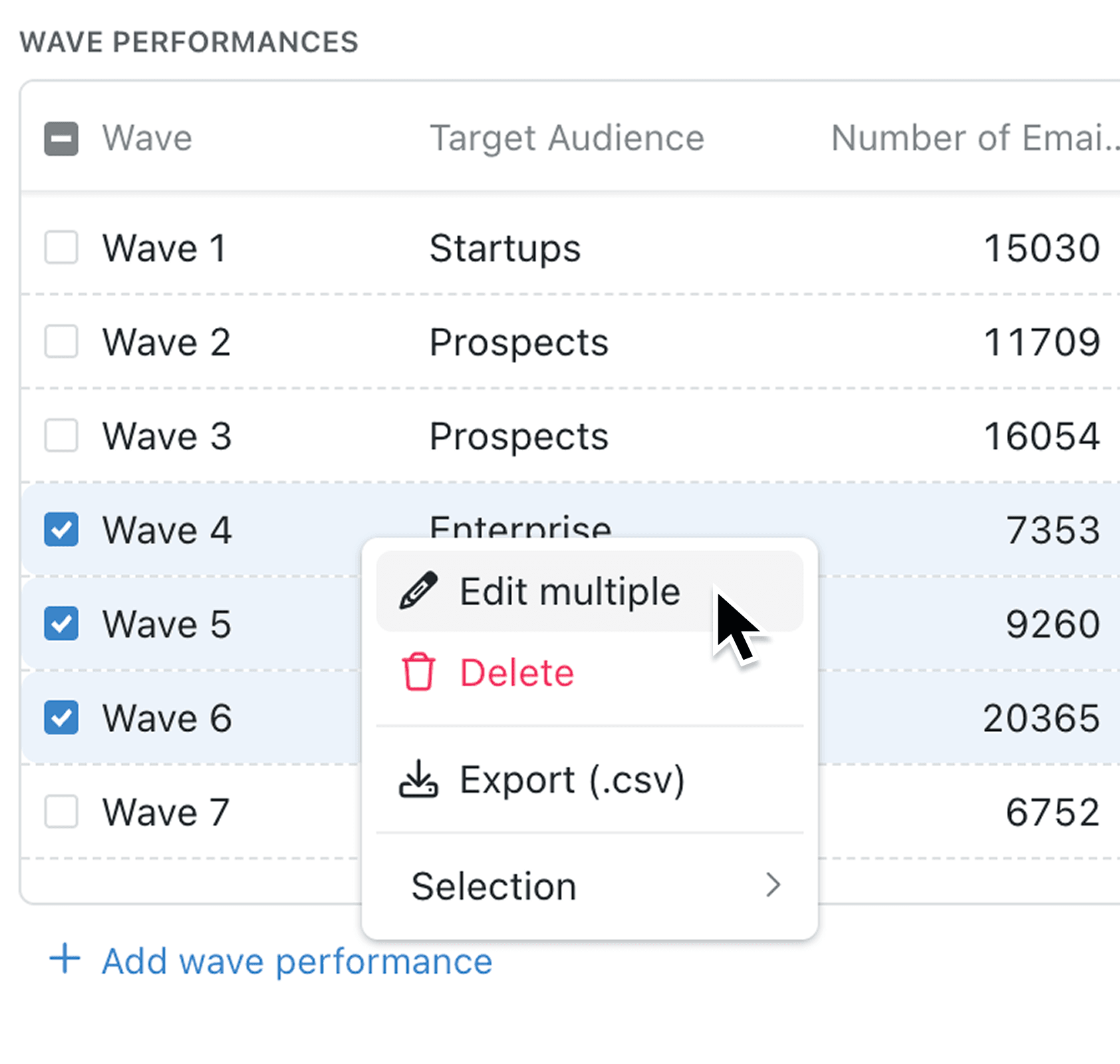
Managing collection list data one record at a time is tedious, especially when you need to delete or update multiple items. Previously, removing a large number of list items meant clicking through confirmation dialogs repeatedly, and editing shared fields across several records required opening each one individually.
What's new:
Collection list tables now include checkboxes for multi-select functionality. You can select multiple list items, right-click to open a bulk action menu, and perform batch operations including bulk edit and bulk delete. The delete confirmation now shows how to recover records within 30 days via the 'Recently Deleted' pane, giving you confidence when removing items.
Why it matters:
- Edit multiple list items at once by changing a shared field value that updates across all selected list items in a single action
- Bulk delete with confidence using the new confirmation modal that clearly explains the 30-day recovery window
- Export selected list items to CSV format directly from the multi-select context menu
- Maintain data integrity with permission-aware actions that only show options you have access to use
How it works:
- Open any record that contains a list (linked child records displayed in a table below the main record form).
- Look for the checkbox column on the left side of the list table.
- Click the checkboxes to select multiple list items you want to work with.
- Right-click on any selected row to open the bulk action menu.
- Choose 'Edit multiple' to change field values across all selected list items, 'Delete' to remove them, or 'Export (.csv)' to download the selection.
Note: Admins should ensure users have the appropriate Bulk Delete permission enabled in their role settings if they need to remove multiple subrecords at once.
When to use it:
- Operations managers can update stock quantities, statuses, or categories across multiple line items without editing each one individually.
- Project coordinators can quickly remove completed or obsolete action points from a project's action point list by selecting and deleting them in bulk.
- Sales teams can export selected product variants or order items to share with clients or for reporting purposes.
Get started
Open any record with a list and start using checkboxes to select, edit, or delete multiple list items at once. If you need to recover accidentally deleted records, visit the 'Recently Deleted' pane within 30 days.
If you have questions or feedback, we would love to hear from you. Email support@kinabase.com — we’re listening.