
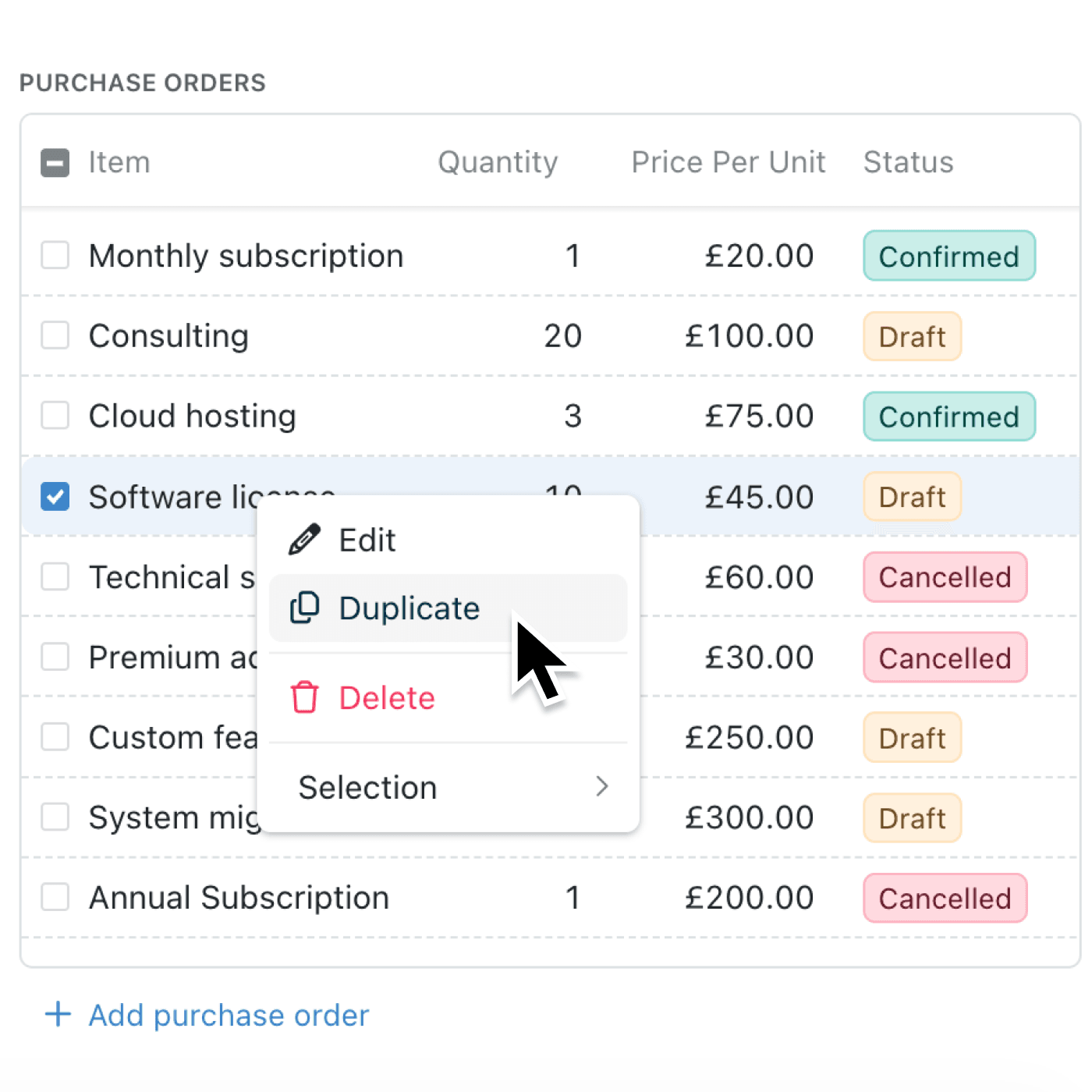
Creating multiple similar line items often means re-entering the same information repeatedly. Whether you're adding invoice items with minor variations or building out a parts list where entries share common details, the manual copying process slows you down and increases the risk of errors.
What's new:
You can now duplicate any line item directly from the right-click context menu. When you select "Duplicate", Kinabase opens a new add form with all the original values pre-filled, ready for you to adjust and save as a separate entry. This mirrors the existing record duplication feature you already use in collections.
Why it matters:
- Speed up data entry by creating new line items from existing ones instead of starting from scratch each time
- Reduce errors by copying known-good values and only changing what needs to differ between entries
- Maintain consistency across similar items without relying on copy-paste between fields
How it works:
- Navigate to any record that contains line items
- Right-click on the line item you want to duplicate
- Select "Duplicate" from the context menu
- Review the pre-filled values in the form that appears
- Make any necessary changes and click Save
Note: The Duplicate option only appears if you have write permission for the list. File attachments are not copied to the duplicate.
When to use it:
- Finance teams can duplicate invoice line items when billing for similar services, changing only the description or quantity
- Operations managers can quickly build out equipment lists by duplicating entries and adjusting part numbers or specifications
- Project coordinators can create multiple similar task items within a project record, modifying deadlines or assignees as needed
Get started
Start using the duplicate feature today by right-clicking any line item in your records.
If you have questions or feedback, we would love to hear from you. Email support@kinabase.com — we’re listening.