
When your outbound emails arrive from a generic address, they undermine the trust you have built with your customers. Until now, Kinabase only supported Azure Communication Services for sending emails.
What's new:
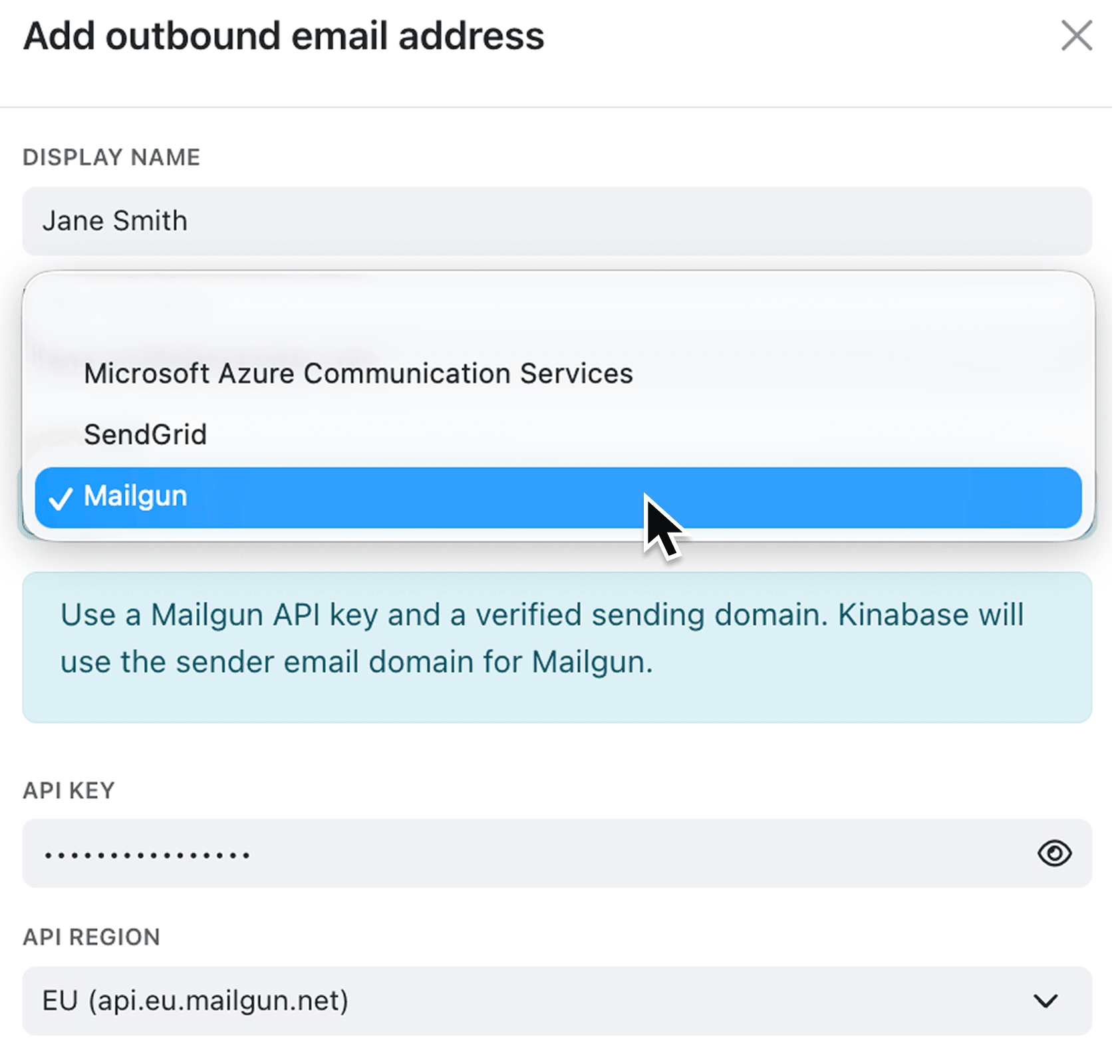
You can now send outbound emails from Kinabase through SendGrid or Mailgun as well as Microsoft Azure Communication Services. A new Provider selector in the outbound email settings lets you choose the service that fits your organisation, enter your API key, and send a test email before going live. For Mailgun users with EU data requirements, an API Region selector switches between US and EU API endpoints.
Why it matters:
- Choose the email provider you already use and if your team runs on Azure Communication Services, SendGrid or Mailgun, plug it straight in.
- Display friendly sender name along with your email address to improve deliverability and makes it clearer to recipients who the email is from.
- Meet EU data residency requirements by selecting the Mailgun EU region, keeping your email traffic routed through European infrastructure.
How it works:
- Navigate to Settings, then Integrations, then Outbound Emails, and click Add Email address.
- Enter a Display Name (the friendly name your recipients will see) and the Email Address you have verified with your provider.
- Select your Provider from the dropdown: Microsoft Azure Communication Services, SendGrid, or Mailgun. Provider-specific guidance appears beneath your selection.
- Enter your API Key (SendGrid or Mailgun) or Connection String (Azure). For Mailgun, choose the US or EU API region.
- Click Continue, then Send test email to verify everything works. Once you confirm the email has arrived, click Done to save.
When to use it:
- Operations managers sending automated status updates through workflow email steps can now use their existing SendGrid account and present emails under the company name.
- IT administrators with EU data compliance requirements can configure Mailgun with the EU region, ensuring email traffic stays within European infrastructure while still benefiting from Kinabase automations.
Get started
Head to Settings → Integrations → Outbound Emails to connect your preferred provider.
If you have questions or feedback, we would love to hear from you. Email support@kinabase.com — we’re listening.