
When you log an email from Outlook into Kinabase, every matched contact gets the activity added to their record automatically. That's fine most of the time, but if someone was CC'd purely for information, their contact record ends up cluttered with emails that aren't really relevant to them.
What's new:
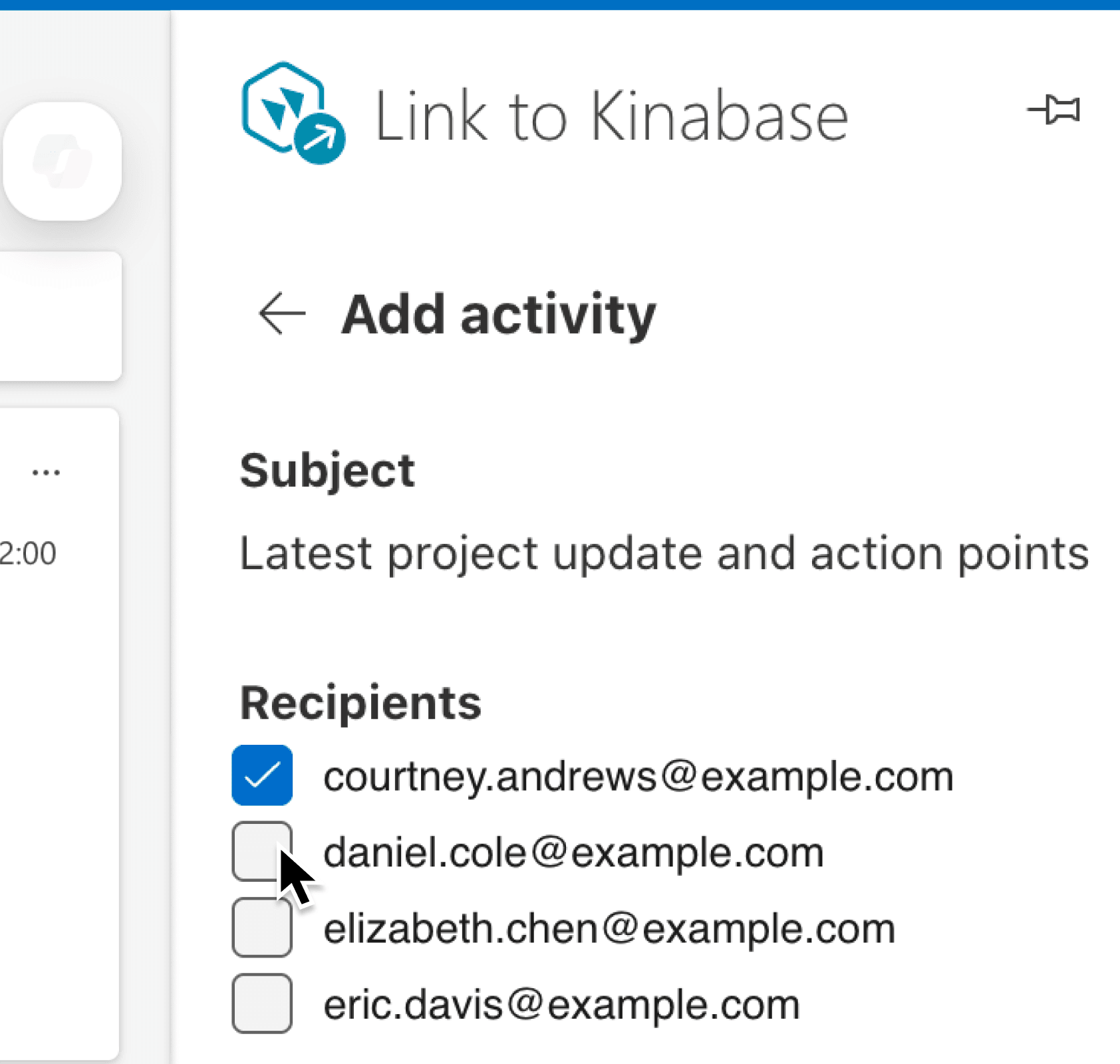
The Outlook add-in now shows each matched recipient as an individual checkbox when you create an email activity. All matched contacts are selected by default, so nothing changes unless you want it to. Simply untick anyone who shouldn't have the email on their record before you click Add activity.
Why it matters:
- Keep contact records clean by excluding recipients who were only CC'd for visibility, so every activity on a record is genuinely relevant.
- Save time on tidy-up because you no longer need to open individual contact records afterwards to remove activities that shouldn't be there.
- Stay in control of your data while still getting the convenience of logging emails directly from Outlook with a single click.
- Avoid missing context since all matched recipients are pre-selected by default, so you only need to act when you want to exclude someone.
How it works:
- Open an email in Outlook and launch the Kinabase add-in from the ribbon or reading pane.
- Click Add email activity on the add-in panel.
- Review the list of matched recipients shown as checkboxes. All matches are ticked by default.
- Untick any recipients you do not want the email linked to.
- Add optional notes if needed, then click Add activity to save.
Note: The Add activity button is disabled if no recipients are selected, so at least one must remain ticked.
When to use it:
- Account managers regularly CC their line manager on client emails. With recipient selection, the manager's contact record stays focused on emails that are directly relevant to them.
- Sales teams often include shared mailboxes or colleagues for visibility. Now they can untick those addresses so the logged activity only appears against the prospect or customer record.
- Operations coordinators forwarding updates to multiple departments can ensure the email is only recorded against the contacts who need it in their activity history.
Get started
Open the Kinabase Outlook add-in next time you log an email and you'll see the new recipient checkboxes straight away.
If you have questions or feedback, we would love to hear from you. Email support@kinabase.com — we’re listening.