
Teams using automations to generate PDFs often want more than file storage. They want invoices, contracts, or compliance documents to appear in the right field on the record, with older versions still accessible.
What's new:
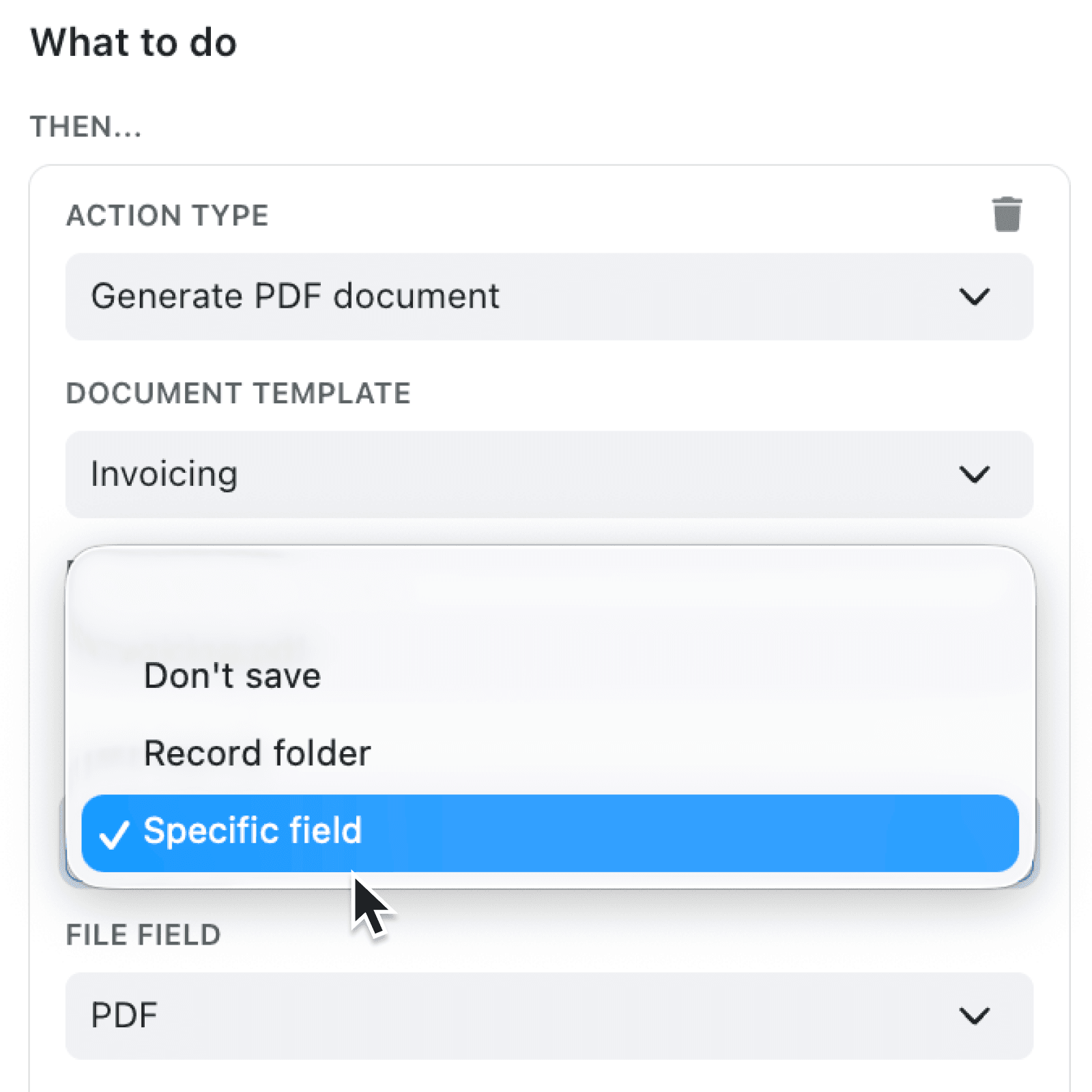
You can now save a generated PDF directly into a file field on a record as part of an automation step. When configuring your PDF-generating automation you simply choose your template, filename & then choose where to save the file to:
- Don't save,
- Record folder, or
- Specific field.
Choosing Specific field reveals a File field picker filtered to your collection's file fields (image-only fields are excluded automatically), so the PDF is written straight into the record's field.
Remember: Within the same automation you can then send this pdf as an email attachment to your contacts.
Why it matters:
- Keep documents where your team expects them by saving generated PDFs directly into the right field, ready for colleagues to view or download without leaving the record.
- Preserve document history automatically with an optional archive subfolder where the old file is moved before saving the new PDF, ensuring you never lose access to past documents.
How it works:
- Open an automation and add or edit a Generate PDF document step.
- In the Save file to dropdown, select Specific field.
- Choose the target file field from the File field picker. Image-only fields are excluded automatically.
- Optionally, enter an Archive subfolder name.
- Save the automation. Each time it runs, the generated PDF will be written directly into the chosen field on the record.
Note: When a file field already contains a file, the existing file is moved into Archive subfolder before the new PDF is saved.
When to use it:
- Operations managers tracking signed contracts can generate a final PDF and save it to a "Signed Contract" file field, with superseded versions archived into a "Previous Versions" subfolder.
- Finance teams producing invoices can generate the PDF and save it directly to a file field on the customer record, with previous invoices automatically archived to a subfolder.
- Compliance officers generating audit reports can automate the entire chain: create the PDF, store it in the designated field, and trust that earlier reports are preserved in an archive subfolder.
Get started
Open any automation that uses the Generate PDF document step, choose Specific field as the save destination, and select your target file field. Your next automation run will place the PDF exactly where your team expects to find it.
Try it now in Kinabase → Settings → Automations → Generate PDF document
If you have questions or feedback, we would love to hear from you. Email support@kinabase.com — we're listening.