
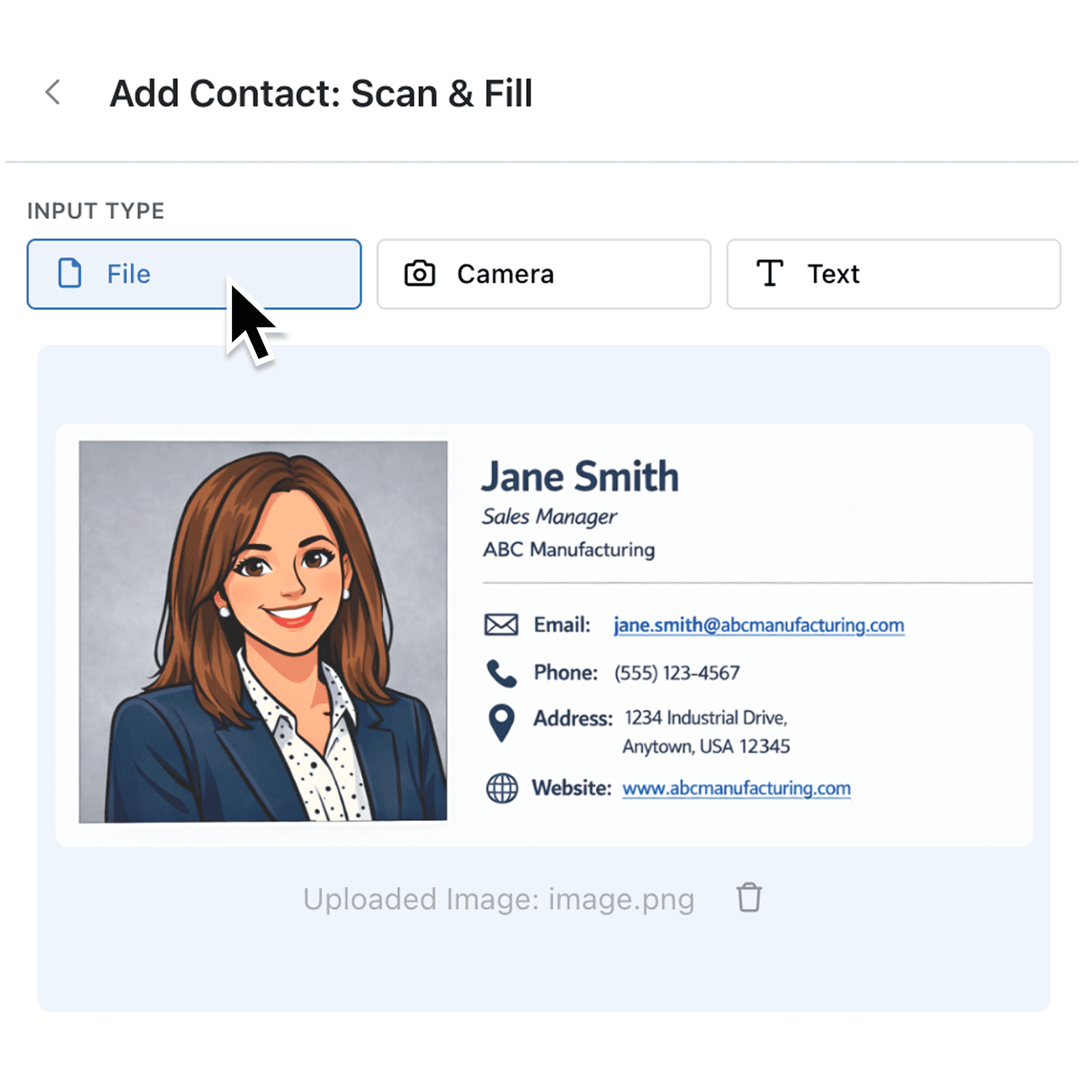
When you need to create a record from a document or image, every extra step slows you down. Previously, uploading a file to Scan & Fill meant dragging it from a folder or clicking to browse. If you had a screenshot on your clipboard or a snipped image ready to go, you still had to save it as a file first.
What's new:
You can now paste files and images directly into the Scan & Fill upload area using your keyboard shortcut (Cmd+V on Mac, Ctrl+V on Windows). Whether you have just captured a screenshot, copied an image from a webpage, or snipped part of a document, simply paste it and Scan & Fill begins processing immediately. The upload area also now supports .webp images alongside the existing .pdf, .docx, .jpg, .jpeg, and .png formats.
Why it matters:
- Skip the save-then-upload step by pasting screenshots, snipped images, or copied files straight into the upload area without saving them to your device first.
- Work faster with keyboard shortcuts instead of switching between windows to drag files or browsing through folders to find the right file.
- Upload from any input mode because pasting automatically switches to File mode, so you do not need to change the input type manually.
- Use more image formats with the addition of
.webpsupport, so images from modern browsers and tools are recognised without conversion.
How it works:
- Open a collection and click + Add, then click the Scan & Fill button to create a new record from a file.
- Copy a file or capture a screenshot to your clipboard (for example, use your system screenshot tool or copy an image from a browser).
- Click inside the upload area and press Cmd+V (Mac) or Ctrl+V (Windows) to paste the file.
- The pasted file appears in the upload area with a preview.
Scan & Fill automatically detects the file type and processes it. - Review the AI-generated field values and save your record.
When to use it:
- Operations teams processing delivery notes or invoices received as email attachments can screenshot the relevant section and paste it straight into Scan & Fill, avoiding the need to save and locate the file.
- Sales teams capturing leads from web forms or online directories can snip the contact details and paste the screenshot directly to generate a new record in seconds.
- Warehouse staff using tablets can take a quick screenshot of a packing slip and paste it to create goods-received records without navigating file managers.
Get Started
Open any collection, go to Scan & Fill, and try pasting a screenshot or copied image into the upload area. You will see your file appear instantly, ready for AI-powered field extraction.
If you have questions or feedback, we would love to hear from you.
Email support@kinabase.com — we're listening.