
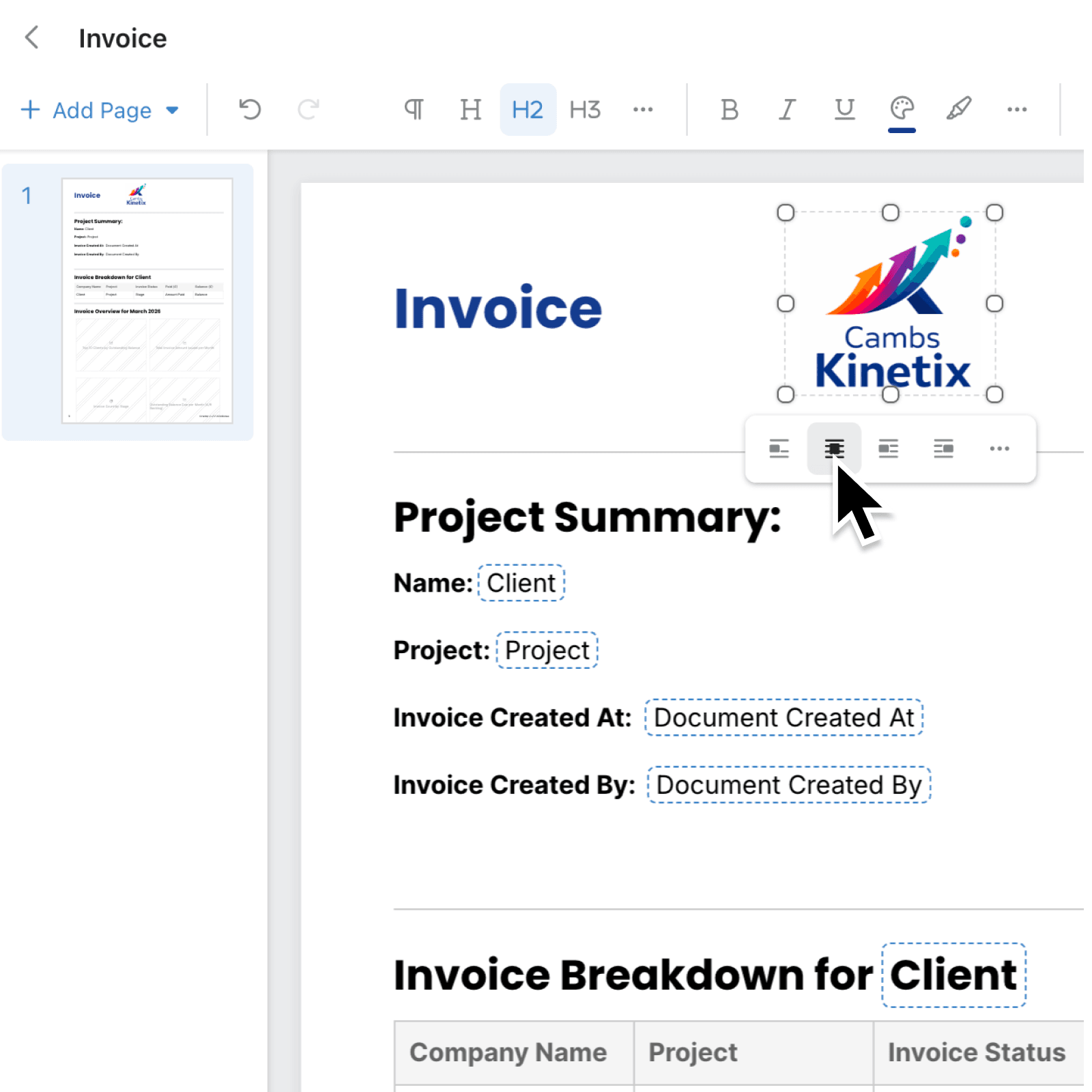
Positioning elements in documents by dragging alone can be frustrating when you need exact placement. A slight hand movement can overshoot your target slightly, making it hard to achieve the precise layout you want.
What's new:
You can now use arrow keys to nudge elements into the exact position in the Document Editor. Select any element set to In front of text mode, such as a text box, image, chart, logo, or QR code, and press the arrow keys to move it in tiny increments at a time. Hold Shift for larger steps, or use the Alignment Grid to guide your element into place automatically.
Why it matters:
- Position elements with precision by moving them in tiny increments at a time using your arrow keys, giving you far more control than dragging alone.
- Work faster with larger steps by holding Shift to move elements in larger increments per press, ideal for covering distance quickly before fine-tuning.
- Stay aligned effortlessly as the editor automatically snaps elements to page edges, centres, and other elements while nudging, with the Alignment Grid briefly appearing to show you what you snapped to.
- Override snapping when needed by holding Alt (Option on Mac) to bypass all snapping behaviour, giving you full manual control over placement.
How it works:
- Open a document template in the Document Editor and select an element set to In front of text mode (text box, image, chart, logo, or QR code).
- Press any arrow key to move the element in tiny increments in that direction, one step at a time.
- Hold Shift while pressing an arrow key to move the element in larger steps instead.
- If the Alignment Grid is enabled, elements will automatically snap to grid lines, page edges, and nearby elements as you nudge. The grid appears briefly to confirm the snap.
- Hold Alt (Option on Mac) while pressing an arrow key to bypass snapping entirely and place the element exactly where you want it.
When to use it:
- Marketing teams creating branded proposals can align images and text boxes precisely to match their brand guidelines, without relying on mouse precision alone.
- Operations managers building report templates can line up charts and data elements consistently across pages, ensuring a polished and professional output every time.
- Finance teams preparing contract or invoice templates can position logos, signatures, and QR codes to exact spots required by compliance or legal standards, producing consistent output every time.
Get started
Open any document template in the Document Editor, select an element, and start using your arrow keys to position it precisely. Combined with the existing Alignment Grid and snap guides, you have full control over your document layouts.
If you have questions or feedback, we would love to hear from you. Email support@kinabase.com — we're listening.