
Moving a record to a new stage often requires more than a simple confirmation. Teams need to fill in specific fields, attach signatures, and add list entries before a transition is complete. Until now, all of that had to happen on the record itself before clicking the action button.
What's new:
Stage actions can now open a guided, multi-page form instead of the standard confirmation dialog. Admins design the form by adding pages, assigning fields and lists to each page, and optionally including a signatures step. When a team member changes the workflow stage, they are walked through each page in order, with a sidebar showing all the pages to complete.
Why it matters:
- Collect the right information at the right moment by presenting only the fields relevant to each stage change, so nothing is missed and nothing is irrelevant.
- Reduce errors before they happen with live validation that highlights incomplete or invalid fields across every page.
- Keep work safe with automatic drafts that save progress to the browser so a refreshed page or accidental close does not lose partially completed forms.
- Give external users the same guided experience through a full-screen workflow form in the Portal, complete with a progress bar, step navigation, and mobile-friendly layout.
How it works:
- Open a collection's workflow settings and select the stage action you want to enhance.
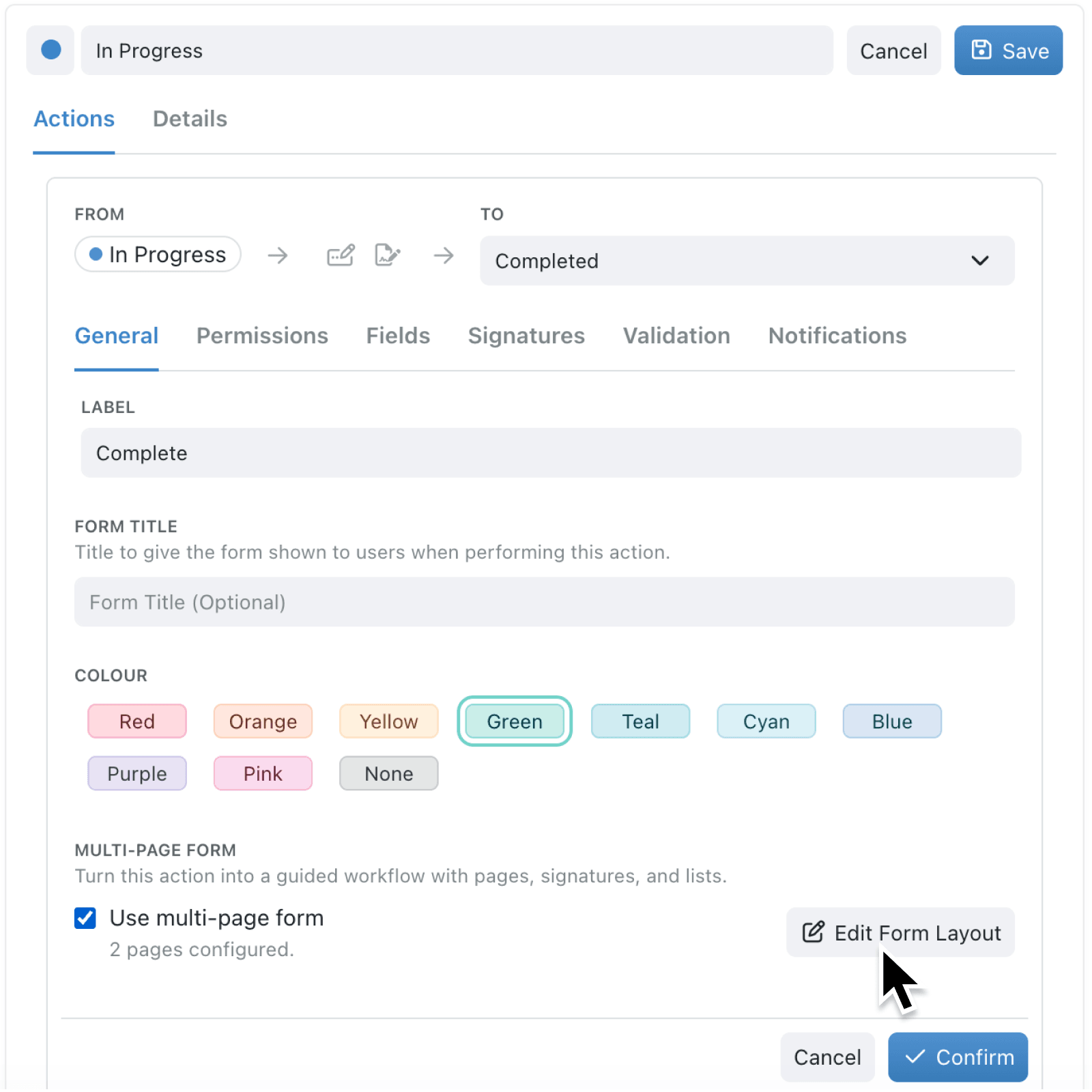
- In the action's General tab, tick Use multi-page form to enable the layout editor.
- Click Edit Form Layout to open the editor. Add pages, give each one a title and optional description, then assign record fields, additional fields, and lists to each page.
- Save the action. Enabled fields that are not yet assigned to a page will be flagged, and empty pages will be removed automatically on save.
- When a team member changes the stage on a record, the multi-page form opens as a popup (or a full-screen page in the Portal). They complete each page, review any validation warnings, and submit to advance the record.
Note: You must select Fields to Update in the action's Fields tab before these appear as options to add to the form page.
When to use it:
- Operations managers running approval workflows can create a form that collects a review summary on the first page, risk assessment fields on the second, and a manager signature on the final step.
- HR teams processing employee onboarding can guide new starters through equipment requests, policy acknowledgements, and document requirements across separate, clearly labelled pages.
- Client-facing teams using Portals can present their customers with a structured product request form, with progress tracking and page navigation.
Get started
Open any collection with a workflow, edit a stage action, and tick Use multi-page form to start building your first guided workflow form.
If you have questions or feedback, we would love to hear from you. Email support@kinabase.com — we're listening.