
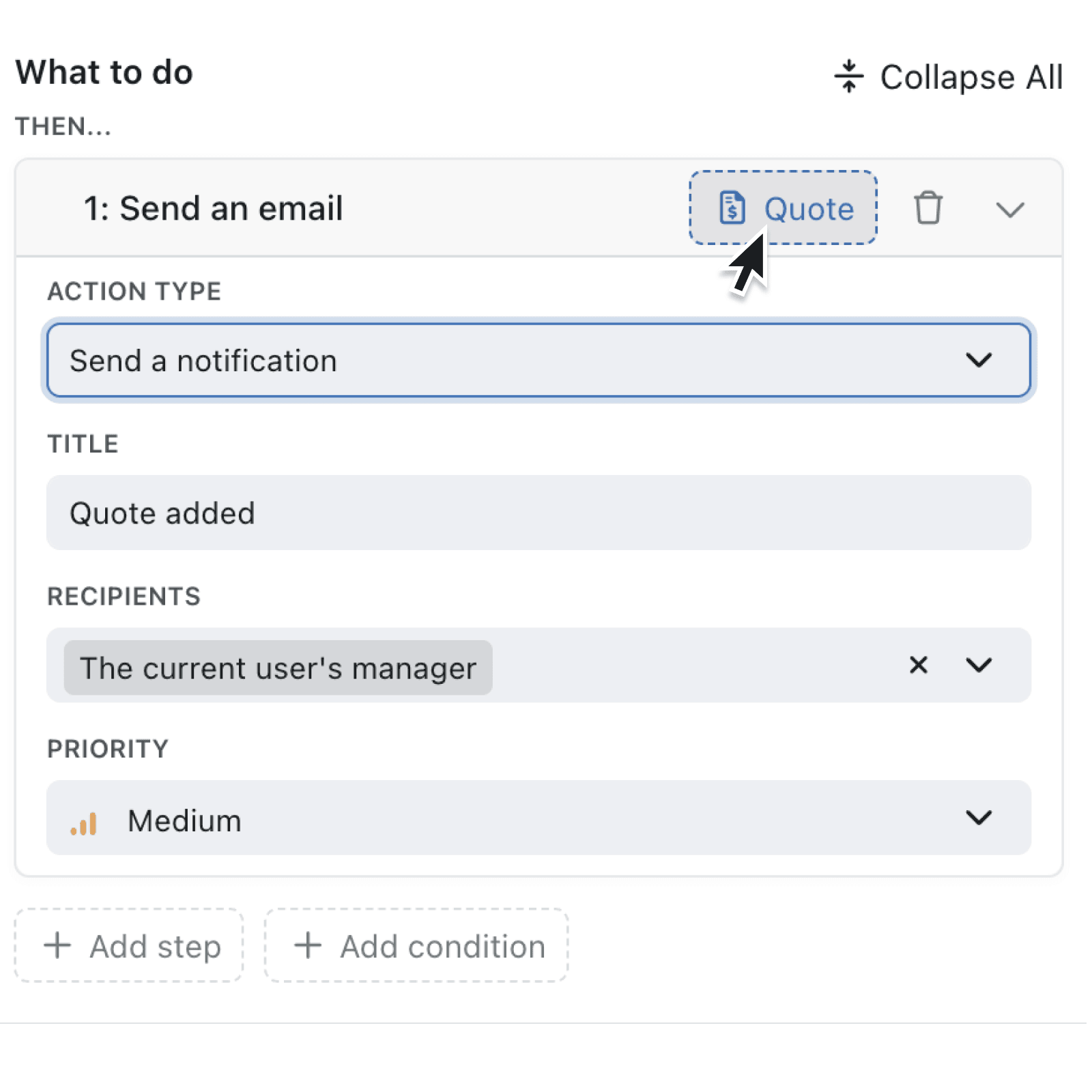
Until now, every step in an automation could only work with the record that triggered it. Need to update a linked company when a contact changes? Want to copy a value from a parent project into a new task? You had to build separate automations to handle these scenarios.
What's new:
Automations now support record context switching, a powerful new capability that lets any automation step operate on a different record than the one that triggered it. You can chain multiple switches together to navigate across linked records, pull in values from earlier steps, and return to a previous record, all within a single automation. Each step clearly shows which record it acts on, so complex multi-record workflows remain easy to follow.
Why it matters:
- Eliminate workarounds by handling related record updates in one automation instead of building multiple disconnected ones.
- Keep data consistent across linked records, since one automation can update a contact, switch to their company, update that too, then switch back.
- Reduce configuration time with a visual editor that shows exactly how your automation moves between records, complete with validation and clear error messages.
How it works:
- Open an automation and add or edit an action step (such as Update Record or Send Email).
- Click the collection name button in the step header. This shows the collection the step currently acts on.
- Click Switch record in the popover to open the context switch editor. You will see a visual chain starting with your trigger record, labelled Initial Record.
- Change the collection record you are acting on by clicking Switch record at the bottom of the chain.
- For the first switch, choose a collection to Select a record from to navigate to a linked record. For subsequent switches, choose Select a new record to navigate to a linked record, or Select a previous record to return to an earlier point in the chain.
- For linked records, choose the collection and the linking field. When multiple linked records exist, set Selection Criteria to pick the right one (for example, Earliest or Latest for date fields, or Min or Max for number fields).
- Click Apply to confirm your switches. The step now operates on the new record, labelled Now Acting On.
Note: When assigning field values, you can copy from any context in the chain, including the original trigger record, any intermediate records, form inputs, or API responses.
When to use it:
- Operations managers can build an automation that triggers when a purchase order is approved, switches to the linked supplier record to update their order count, then switches back to send a confirmation email referencing both records.
- Sales teams can create an automation that fires when a deal closes, switches to the linked company record to update their total revenue, and then switches to the primary contact to send a personalised thank-you message.
- Project managers can set up automation that starts when a project status changes to active, then switches to each linked deliverable to update deadlines, and then returns to the project to log the changes.
Get started
Open any automation in your workspace and try adding a record switch to an action step. The context indicator on each step shows you exactly which record it will act on, and validation messages guide you through the configuration.
If you have questions or feedback, we would love to hear from you. Email support@kinabase.com — we're listening.