
Finding the right record folder in SharePoint or another connected storage provider can be slow when every folder is just a record ID. With this update, you can shape folder names so they read naturally and match the way your team thinks about each record.
What's new:
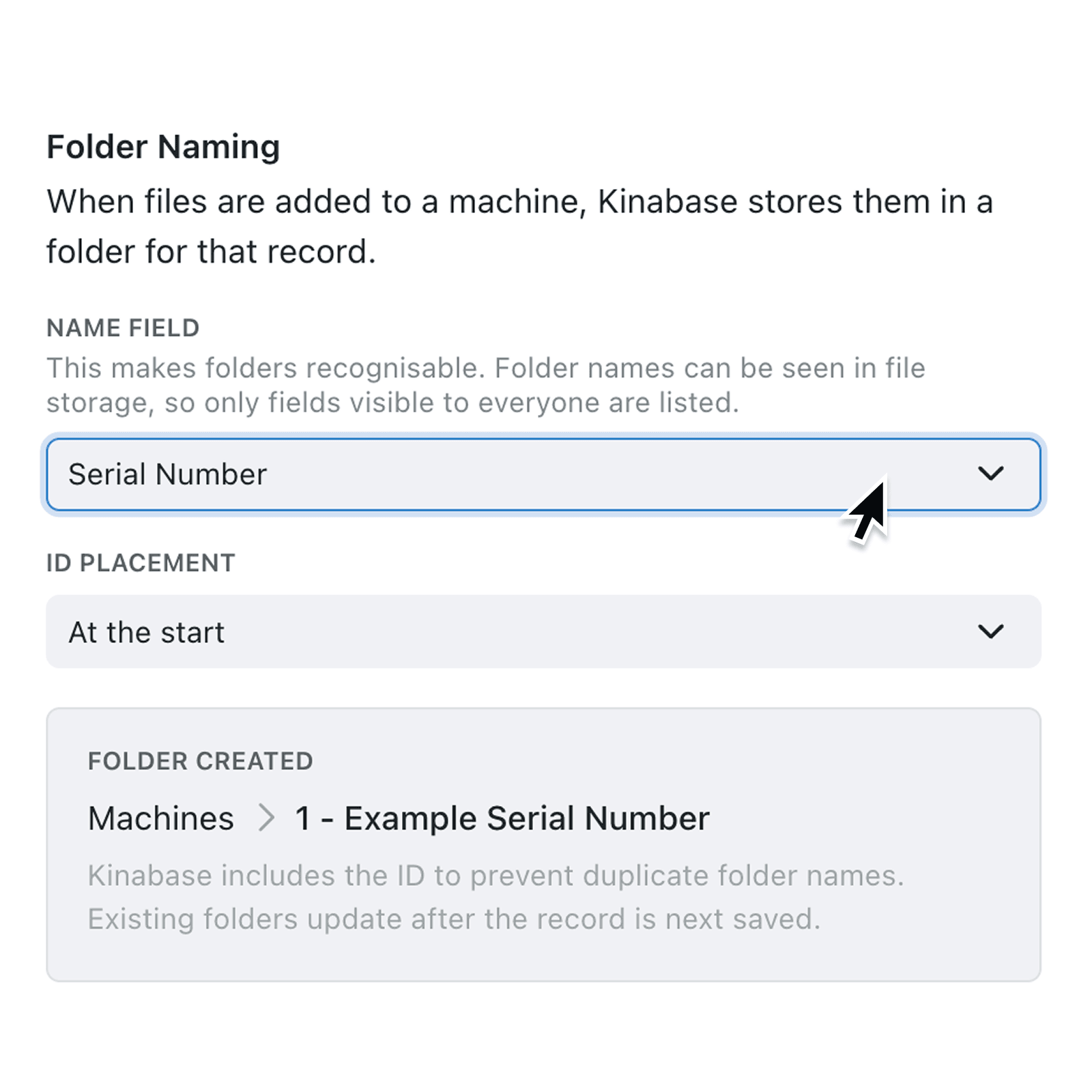
You can now decide which field provides the human-readable part of a record's folder name, and whether the record ID appears at the start or end. A live preview in the collection's Files settings shows exactly how new folders will look, so you can fine-tune the format before saving.
Why it matters:
- Find folders faster by choosing a field that reflects how your team identifies records, such as a project code or supplier name.
- Keep storage tidy with a consistent, predictable naming pattern across every record in a collection.
- Stay in control as admins, with safe defaults, validation that limits the choice to suitable fields, and a warning if the chosen field has restricted read permissions.
- Avoid duplicates because Kinabase always includes the unique record ID, either before or after your chosen field.
How it works:
- Open the collection you want to configure and go to its Files settings.
- Make sure files are enabled and that an external file storage provider is connected.
- Under Folder Naming, pick a Name field from the list of eligible fields, or leave it on the default primary field.
- Choose ID placement, either At the start or At the end, and check the live Folder created preview.
- Save your changes. Existing folders will be renamed automatically the next time each record is updated.
When to use it:
- Operations managers running a projects collection can surface the project code in every folder, making document audits much quicker.
- Sales teams can name folders by company so account managers locate contracts and proposals without opening each record.
- Finance admins can place supplier names before the invoice ID, lining up folders alphabetically in shared storage.
Get started
Visit any collection's Files settings to configure folder naming.
If you have questions or feedback, we would love to hear from you. Email support@kinabase.com — we're listening.