
Losing a critical record, or accidentally undoing weeks of configuration changes, is the kind of worry that keeps administrators up at night. Until now, keeping your own off-platform copy of Kinabase data meant remembering to run a manual export every week and storing the file somewhere safe.
What's new:
External Backups gives Max plan workspaces a fully automated nightly backup that uploads a complete archive of your data to a storage library you choose. Each archive contains your records, activities, tasks, and workspace setup, packaged into a single ZIP and dropped straight into your own external storage library. Run history, retention controls, and a one-click manual run round out the new settings panel.
Why it matters:
- Keep recovery copies you control as archives land in your own storage library, giving you an independent copy of your data outside Kinabase that you can restore from if you ever need to.
- Cut out manual export work with scheduled backups running every night without anyone having to remember, freeing administrators from a recurring chore.
- Set retention to match your policy by choosing to keep archives for 7, 14, 30, 60, 90, or 365 days, or retain them forever, and old files are cleaned up automatically.
- Verify backups at a glance with the status panel shows the next run, last success, and most recent failure, with a View recent runs popup window that links straight to each archive in your storage library.
How it works:
- Open Settings → System → Import / Export and find the External Backups panel.
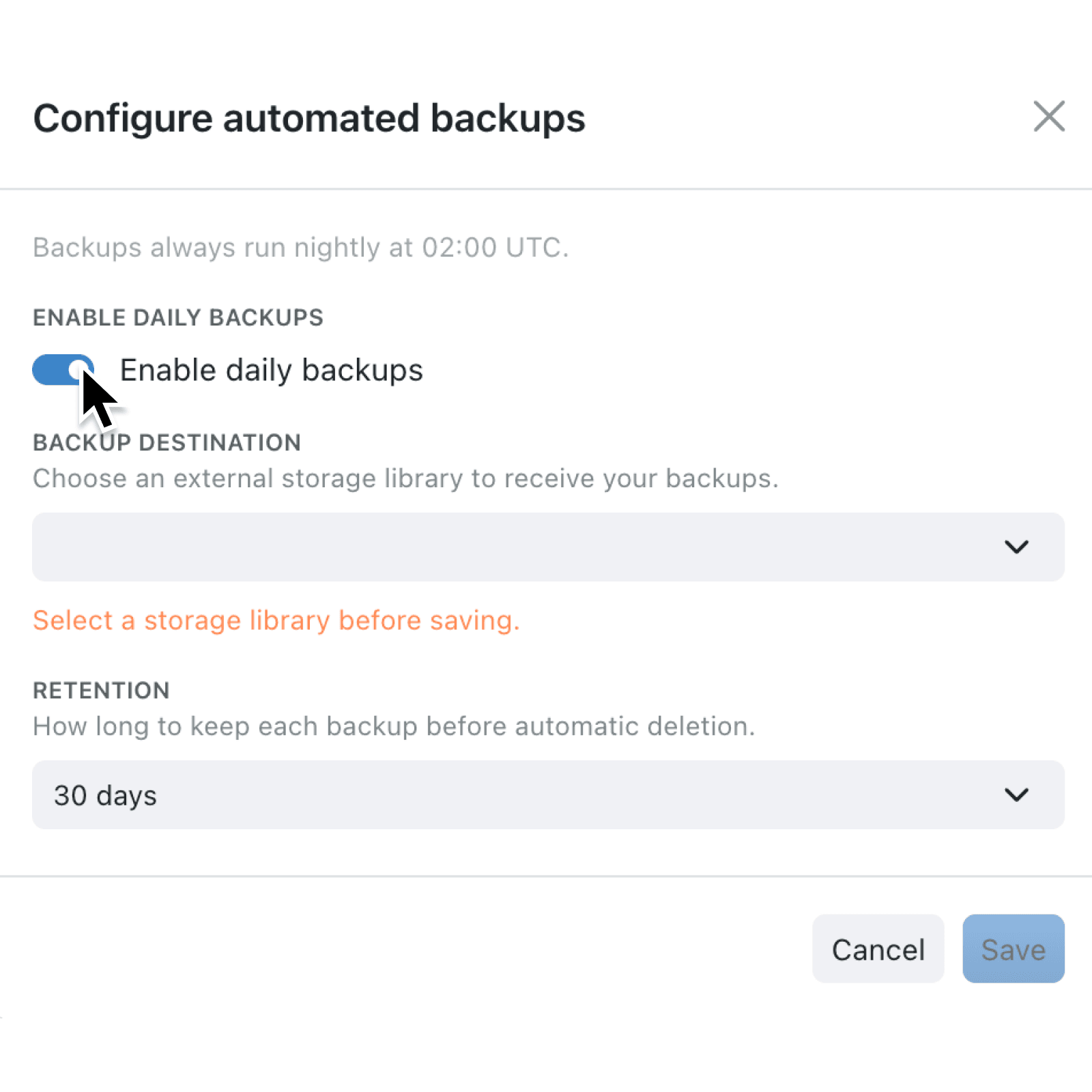
- Click Configure, toggle Enable daily backups on, and pick a Backup destination from your connected external storage libraries.
- Choose how long to keep each archive under Retention, then save. Backups run nightly at 02:00 UTC.
- Use Run backup now any time you want an immediate copy, such as before a major configuration change.
- Open View recent runs to see the latest backup runs, check their status, or jump to each archive in your storage library.
Note: You will need at least one external storage library (SharePoint) connected under File Storage settings to use as the backup destination.
When to use it:
- Operations managers preparing for an audit can show an independent backup trail living in storage their organisation owns.
- IT administrators rolling out a major workspace change can trigger a manual backup first, giving themselves a known-good snapshot to fall back on.
- Compliance teams in regulated industries can keep archives for the full retention window their policy requires, without leaving it to memory.
Get started
External Backups are available on the Max plan. Visit Settings → System → Import / Export to enable nightly backups for your workspace.
If you have questions or feedback, we would love to hear from you. Email support@kinabase.com — we're listening.