
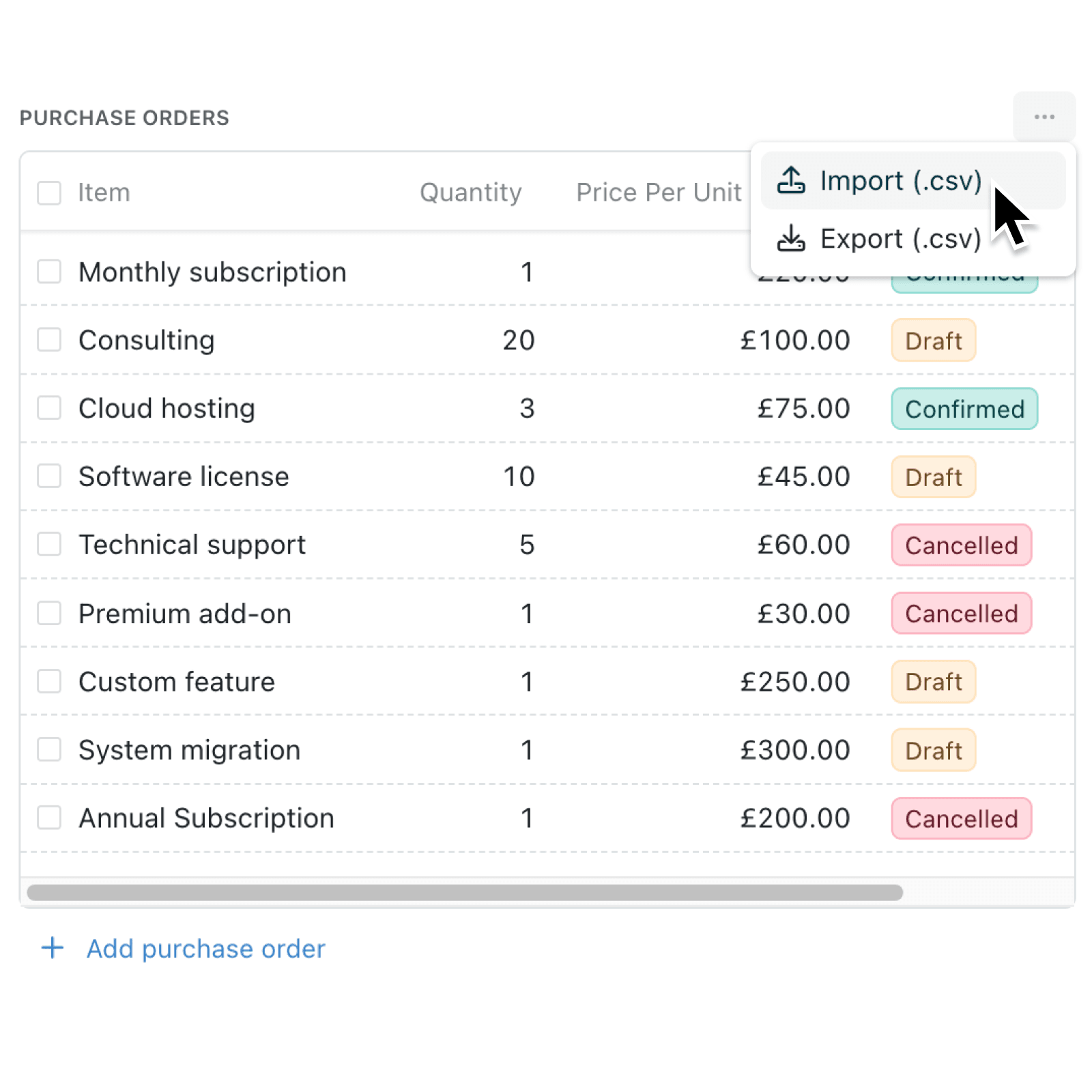
When you keep line items, attendees, or other linked lists tied to a parent record, moving data in or out used to mean leaving the tab, filtering the linked list by hand, and stitching the parent reference back onto every row. Now you can do it right where the linked lists live.
What's new:
Tables of linked lists on a record's detail tab now include their own Import (.csv) and Export (.csv) actions. Every imported row is automatically linked to the parent record, and exports are scoped so you only get the records that belong to the parent record you are looking at. A new ⋯ options menu appears on the table's label row, and an inline Import (.csv) button shows up when the table is empty.
Why it matters:
- Cut out manual linking since every imported row is connected to the parent record for you, so you do not have to add the parent reference to each row of your CSV.
- Get clean, scoped exports by exporting from a parent record and only including its linked lists, not everything in the underlying Collection.
How it works:
- Open a Record that has linked lists, such as a project with tasks or an invoice with line items.
- Click the ⋯ options menu on the linked list table's label row, or use the inline Import (.csv) button when the table is empty.
- Choose Import (.csv) to upload a file, or Export (.csv) to download what is already there.
- Map your columns as usual. The parent record field is hidden from the mapping step, so every row is attached to the parent record automatically.
- Review the import preview and finish. Every row is linked to the parent record automatically, and blank rows are skipped.
When to use it:
- Operations managers can paste a CSV of weekly line items onto a single project Record without leaving the page.
- Sales teams can export only the contacts belonging to an account, ready to share with a partner.
- Finance professionals can export only the financial data belonging to a specific account, ready to share with a client.
Get started
Open any Record with a linked lists table, look for the new ⋯ options menu on the table label, and try an import or export.
If you have questions or feedback, we would love to hear from you. Email support@kinabase.com — we're listening.