
Managing operations in one system and finances in another often leads to duplicate data entry, disconnected information, and limited visibility across teams. Customer information changes, product pricing gets out of sync, and financial details remain hidden inside accounting software.
What's new:
Kinabase now connects to Xero and QuickBooks, bringing your accounting data into the platform where you already manage your operations. Link your records to customers, suppliers, products, and services in your accounting software, sync reference data like tax codes and ledger codes automatically, and see live financial summaries without leaving Kinabase.
The accounting integrations are available to the Max plan users.
Why it matters:
- Eliminate double entry by linking Kinabase records directly to contacts and items in your accounting system, with configurable field mappings that keep data in sync.
- Give teams better visibility with customer balances, overdue amounts, and other financial information available inside record.
- Keep reference data consistent as tax codes and ledger codes are synced automatically when you connect, and can be refreshed when you need.
- Work from a single source of truth without relying on spreadsheets or manual updates to keep operations and accounting aligned.
How it works:
- Connect your Xero or QuickBooks account by navigating to Settings → Integrations → Accounting Integration, selecting your provider, and following the connection process.
- Once connected, tax codes and ledger codes sync automatically into your reference data. You can trigger a manual sync at any time using Sync Reference Data.
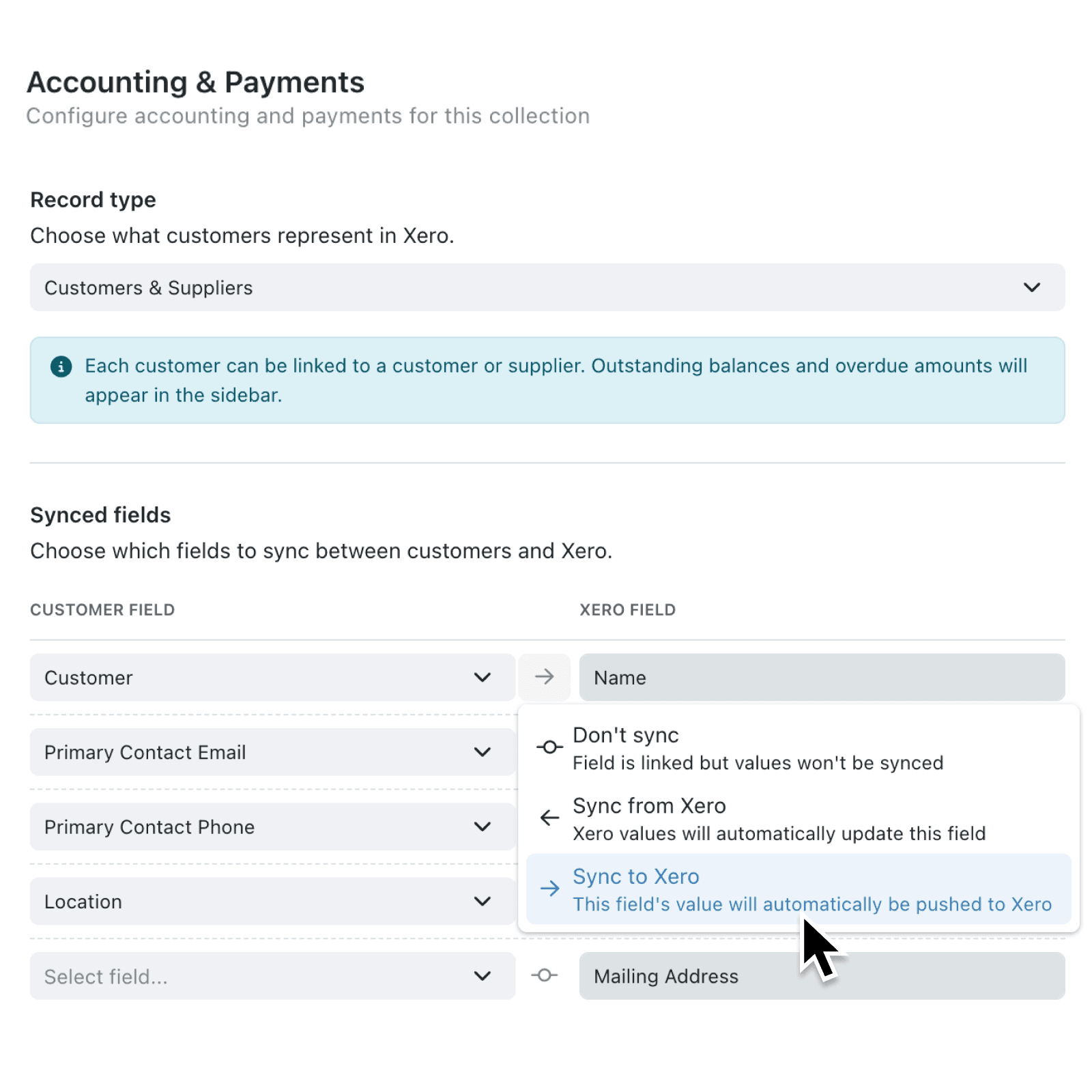
- Open collection's Configure menu, go to the Accounting & Payments pane, and choose whether records represent Customers & Suppliers, Products & Services, Invoices, or Bills.
- Under the Synced fields section, map the fields between your collection and the accounting system and set the sync direction using the Sync from provider or Sync to provider direction options.
- On individual records, use the Xero/QuickBooks card in the record panel to link to an existing contact or item or create a new one.
Note: Only system administrators can connect the integration and configure field mappings, but all users can link records to accounting contacts and items once the integration is set up.
When to use it:
- Finance teams can link company records to Xero or QuickBooks contacts and immediately see outstanding receivables, payables, and overdue amounts alongside operational data in one place.
- Operations managers can connect product collections to their accounting items, keeping pricing and codes consistent across both systems and reducing errors when raising invoices or purchase orders.
- Business leaders can gain better visibility across operational and financial information with unified reporting and dashboards from Kinabase.
Get started
Head to Settings → Integrations → Accounting Integration and connect your Xero or QuickBooks account. Once connected, you can begin linking collections and bringing operational and financial information together.
If you have questions or feedback, we would love to hear from you. Email support@kinabase.com — we're listening.