
Managing invoices and bills across your accounting software and business records meant jumping between systems and manually tracking what has been invoiced. Now, Kinabase brings invoicing and billing directly into your workflow.
What's new:
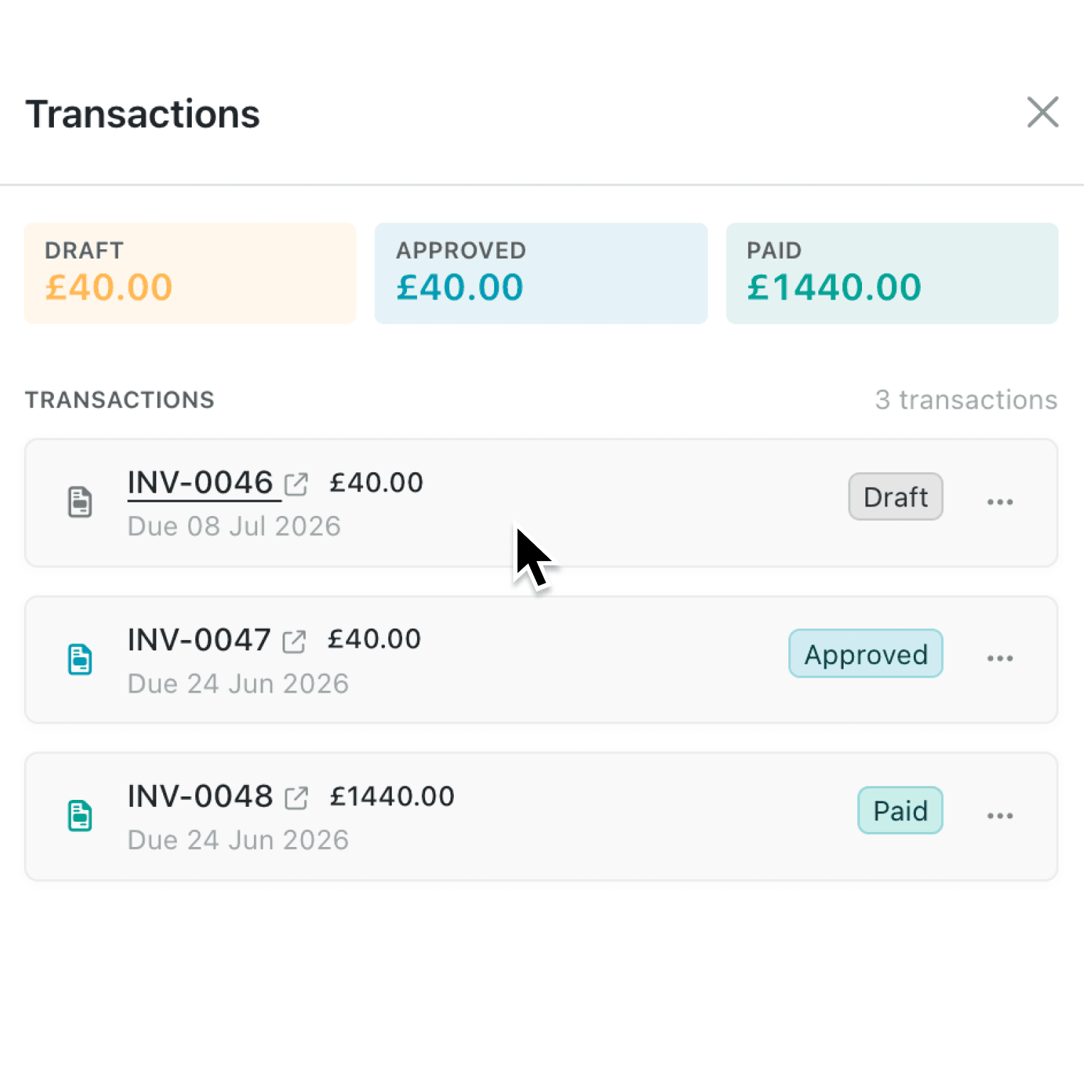
Kinabase now lets you create, link, and track invoices and bills directly from your records through accounting integration (Xero and QuickBooks). A new accounting card on the record panel gives you a live view of invoicing status, payment progress, and outstanding amounts, while invoicing completion tracking shows exactly which items have been invoiced or billed and which still need attention.
Why it matters:
- Create invoices without leaving Kinabase by creating a draft invoice or bill in your accounting system with one click.
- See payment status at a glance with colour-coding and a progress bar show you the breakdown across Draft, Submitted, Approved, Sent, and Paid statuses.
- Link existing transactions by searching your accounting system from within Kinabase and linking invoices or bills to the right records.
How it works:
- Navigate to your collection's Configure settings and open the Accounting section. Set the Accounting record type to Invoices or Bills to enable transaction tracking.
- Configure your line item source (One line per item, or One line per list item) and map which fields sync to your accounting system, such as Description, Quantity, and Unit Price.
- Optionally set a Default tax code and Default ledger code that apply when no field mapping provides one.
- Open any record and use the accounting card in the panel.
- Click Create invoice to review line items, adjust quantities, and create a draft in your accounting software. Click Link existing invoice to search for and attach an existing transaction.
- Use View details to see the full breakdown: key financial metrics, the list of linked transactions with their statuses, and an invoicing completion summary showing how many line items have been invoiced.
When to use it
- Operations managers tracking project delivery can see at a glance which line items on a job have been invoiced, and create bills for supplier costs, all without opening their accounting software.
- Finance teams processing invoices can create draft invoices directly from order records, ensuring every line item is accounted for and that quantities match what was delivered.
- Sales teams managing client accounts can check outstanding amounts and payment statuses on each deal record, and quickly link existing invoices when reconciling.
Get started
Open your collection Configure settings, choose Invoices or Bills as the accounting record type, and configure your field mappings. The accounting card will appear on every record in that collection, ready for you to create or link your first invoice.
If you have questions or feedback, we would love to hear from you. Email support@kinabase.com — we're listening.