
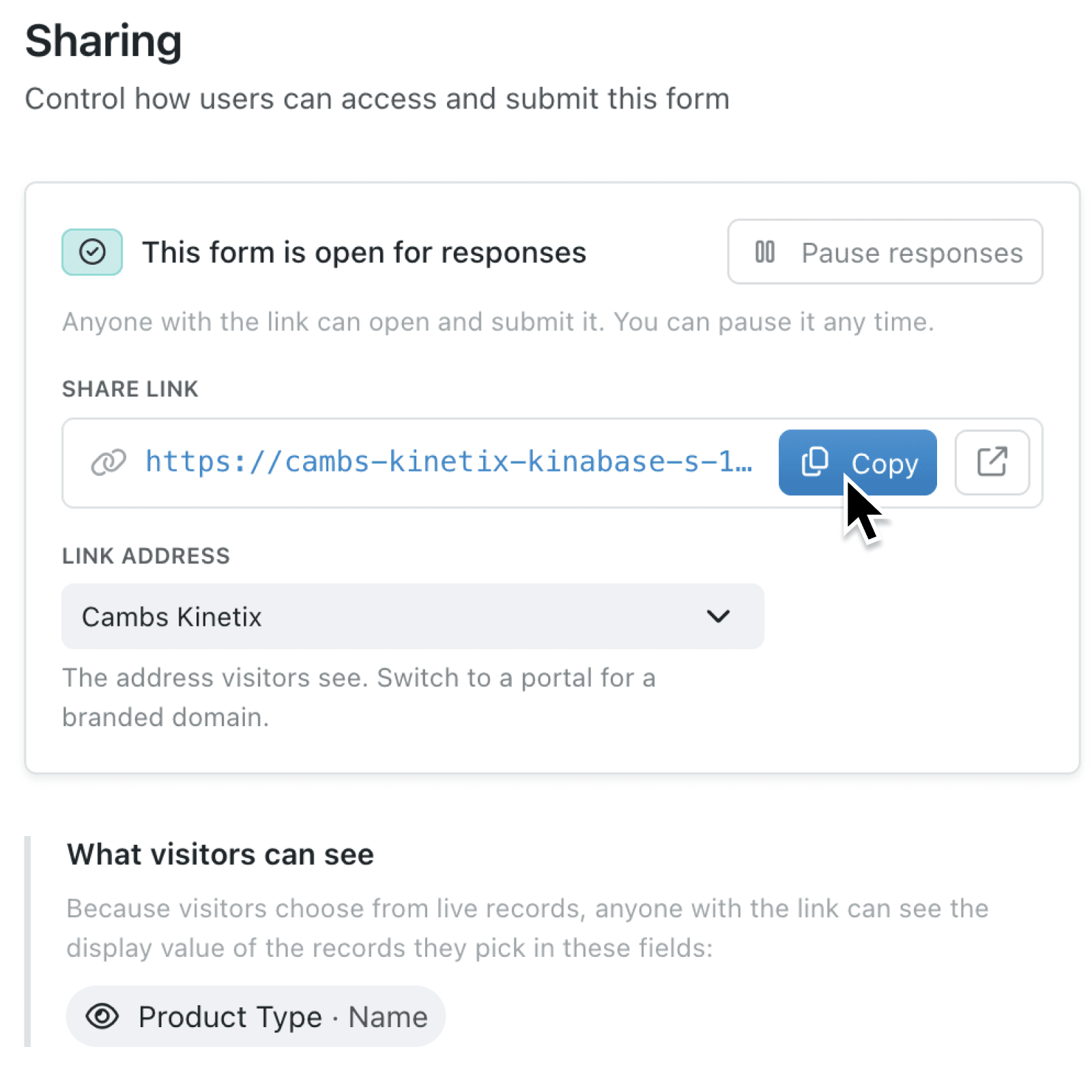
Getting information from customers, suppliers, or job applicants usually means sending them a form built in some other tool, then copying answers back into Kinabase. Now you can share a Kinabase form directly - as a link, on your website, or inside a portal - so responses land straight in the right place, looking like your brand, with no account for the person filling it in or extra software needed.
What's new:
Kinabase forms can now be shared outside your organisation: as a public link, embedded on your website, or added into a portal for clients and partners to use. Visitors simply open the form and fill it in - no Kinabase login required - and their answers flow into your collections or form actions.
Shared forms carry your logo and colours, with multi-page forms and confirmation screen options available. Administrators can pause the form, reset the link, set a response deadline and limit, require email verification, and preview which Record fields are visible to visitors.
Why it matters:
- Collect responses faster as people can submit details without needing a Kinabase account, so enquiry, onboarding, request, and application flows move straight into your collections.
- Control access with confidence by pausing a form at any time, setting a closing date, capping total responses, or requiring email verification before a visitor can submit.
- Keep every form on-brand whether it's shared as a Kinabase link, added to a portal, or embedded on your own website, your logo and styling carry through.
How it works:
- Open Settings > Forms, add or edit a form, and go to the Form tab.
- Select From a link or portal under How users open this form, then save the form.
- Go to Sharing tab, click Create share link, and choose a Kinabase link or an available portal in Link address.
- Configure response settings, including Require email verification, Stop accepting responses on date, Limit total responses, Embed on a website, and optional After they submit page redirect.
- Copy the share link, open the form as visitors will see it, or add the shareable form to Portal settings > Structure as a Form navigation item.
- When you want a shareable form inside a portal, add the shareable form in Portal settings > Structure as a Form item.
Note: You need Administrator permissions to create and manage share links.
When to use it:
- Operations managers can send suppliers onboarding forms that create records directly in the Supplier collection.
- Sales teams can add enquiry or quote-request forms to the company website, then get automatically notified when a new submission comes in.
- HR managers can share a job application form as a public link, so candidates apply without needing an account, and applications land straight in your hiring pipeline.
Get started
Open Settings > Forms, add or edit a form, and use Form > Sharing to create your first shareable form.
If you have questions or feedback, we would love to hear from you. Email support@kinabase.com - we're listening.