
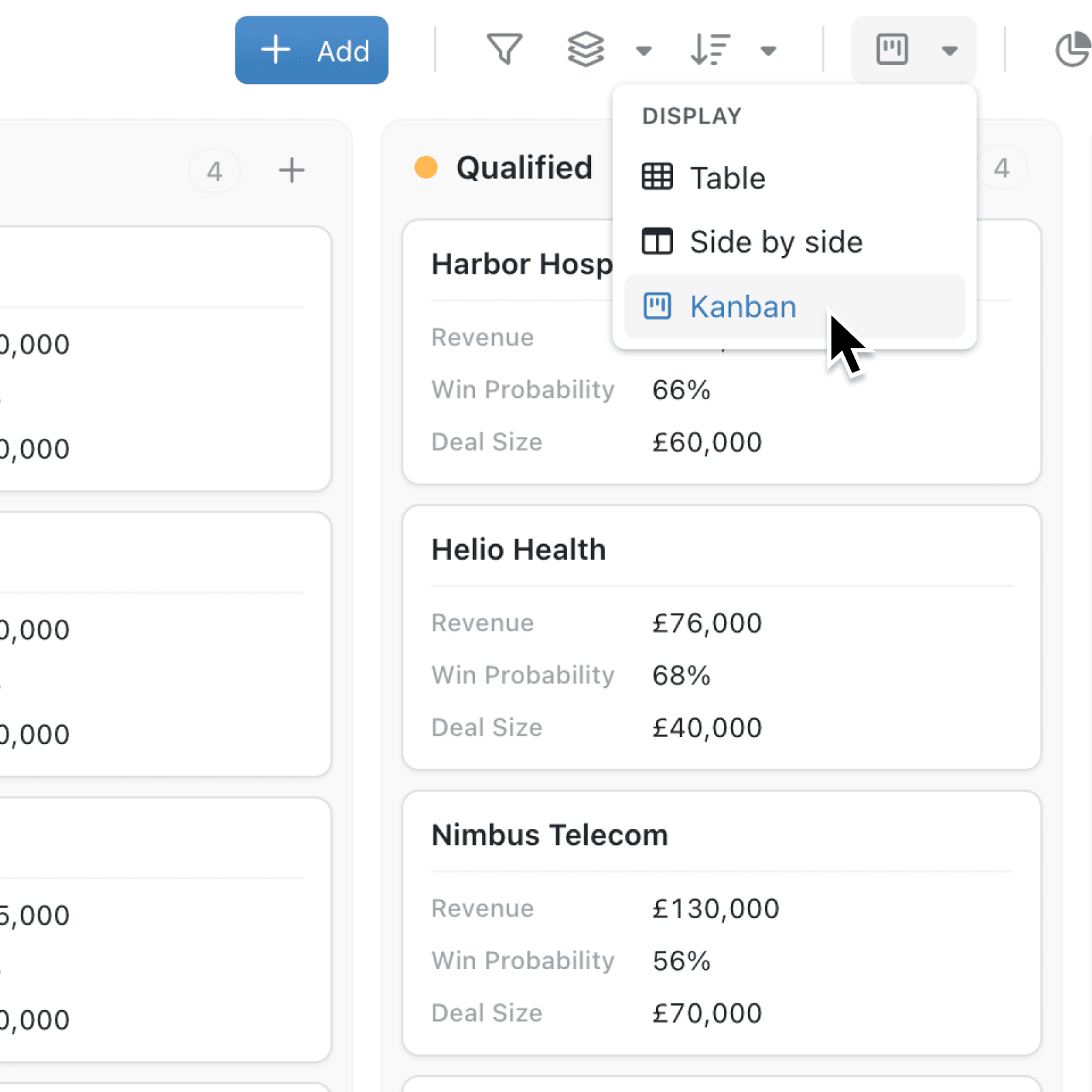
Long lists can make it difficult to see what needs attention and how work is progressing. The new Kanban display turns your records into visual cards, organised into clear columns that reflect your process.
What's new:
You can now display any suitable collection view as a Kanban board. Group record cards by a single-select option field, a workflow stage or a date field, then search, filter and work with them directly from the board.
Each column shows its record count and loads more cards as you scroll. Cards display the primary field, the optional secondary field and up to four additional selected fields.
Why it matters:
- Understand progress faster by seeing how work is distributed without reading a table row by row.
- Update records naturally by dragging a card into another column to change its grouping field.
- Keep priorities consistent by enabling Manual ordering on a saved view so users can arrange cards within each column.
- Give teams the right perspective as users can also try Kanban temporarily through Display options without changing the view default.
How it works:
- Open a collection and click Display in the toolbar, then select Kanban.
- Open Group by and select a suitable option field, stage or date field. For dates, select Day, Week, Month, Quarter or Year, where available for that field.
- Drag cards between columns to update records, provided you have permission to change the grouping field.
- Click the add button in an option or date column to create a record with that column's value already filled in. On workflow boards, the add button appears only in the default stage column, and new records start in that stage.
- Configure a view's Display section to choose Card fields, a fallback Kanban Sort Field and Kanban Sort Direction, and Manual ordering.
When to use it:
- Operations managers can group jobs by status, spot overloaded steps and move work forward from one screen.
- Sales teams can organise opportunities by stage and maintain a shared priority order within each column.
- Service coordinators can group scheduled work by date, add new appointments in context and open any card for full record details.
Get started
Open Kinabase and choose a collection to try the Kanban display, or configure a saved Kanban view that your team can use.
If you have questions or feedback, we would love to hear from you. Email support@kinabase.com - we're listening.