
Long forms can overwhelm people with questions that do not apply to them. Conditional visibility keeps each form focused by adapting its content as answers are entered.
What's new:
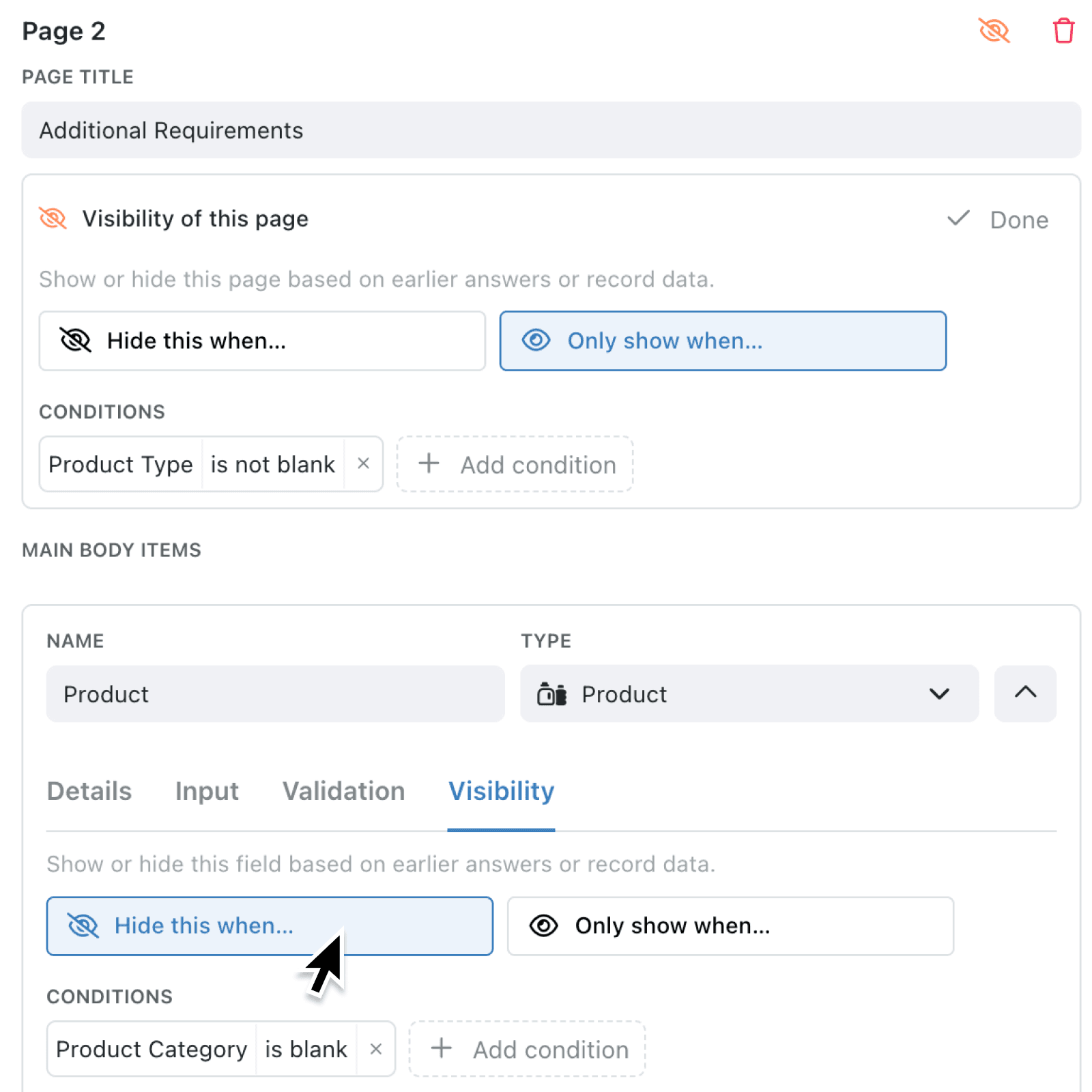
You can now add visibility conditions to individual fields, Text, Image / Images and Results Block items, and to form pages from page two onwards. Choose Hide this when… or Only show when…, then build conditions using earlier answers or available record data.
Visibility updates immediately while someone completes the form. Pages with no visible content are skipped automatically, helping people move through each relevant step without encountering blank pages.
Why it matters:
- Make forms easier to complete by showing people only the questions and guidance that relate to their situation, reducing distraction and unnecessary work.
- Design one adaptable process that supports different routes through a form, without maintaining several near-identical versions.
- Deliver consistent external experiences as the same rules apply in Kinabase, portals and public forms.
How it works:
- Go to Settings → Forms, then create a form or select one to edit.
- Edit a field or Text item and select its Visibility tab. For Image / Images or a Results Block, open its menu and select Add visibility conditions.
- Use the eye-slash Visibility conditions button to configure a page from page two onwards. The first page always remains available.
- Select Hide this when… or Only show when…, then click Add condition.
- Review any warnings about required fields, later steps that use a possibly hidden value, or conditions that cannot work on an anonymous public form.
When to use it:
- Operations managers can reveal incident details only when someone reports a problem, keeping routine checks short.
- Sales teams can show qualification questions for selected services while hiding irrelevant sections from prospects.
- Client onboarding teams can tailor onboarding forms to a visitor's earlier answers or related record information.
Get started
Open Settings → Forms and add visibility conditions to your next form.
If you have questions or feedback, we would love to hear from you. Email support@kinabase.com - we're listening.