
Entering order lines, stock allocations or attendance details one record at a time is slow and makes mistakes harder to spot. Multi-row inputs let you capture the whole set together while Kinabase checks the data as you work.
What's new:
You can now add a Multi-row input to a Kinabase form and capture up to 500 rows in a structured table. Inputs can be simple or organised into two groups, with Entry types, calculated summaries, progress bars, validation rules and actions that run when the form is submitted.
People filling in the form can add, duplicate and remove rows, collapse groups and jump directly to anything that needs attention.
Why it matters:
- Complete work faster by entering many related items without opening a separate form for every record.
- Guide accurate entry with required fields, defaults, Row limits, warnings and submission blockers that take people straight to the affected row.
- Monitor totals as you type with summaries and progress bars for each group. Live totals can preview how entered amounts affect a linked record, such as remaining stock, and block submission when configured Value limits would be exceeded.
How it works:
- Go to Settings → Forms and create a form, or edit an existing form.
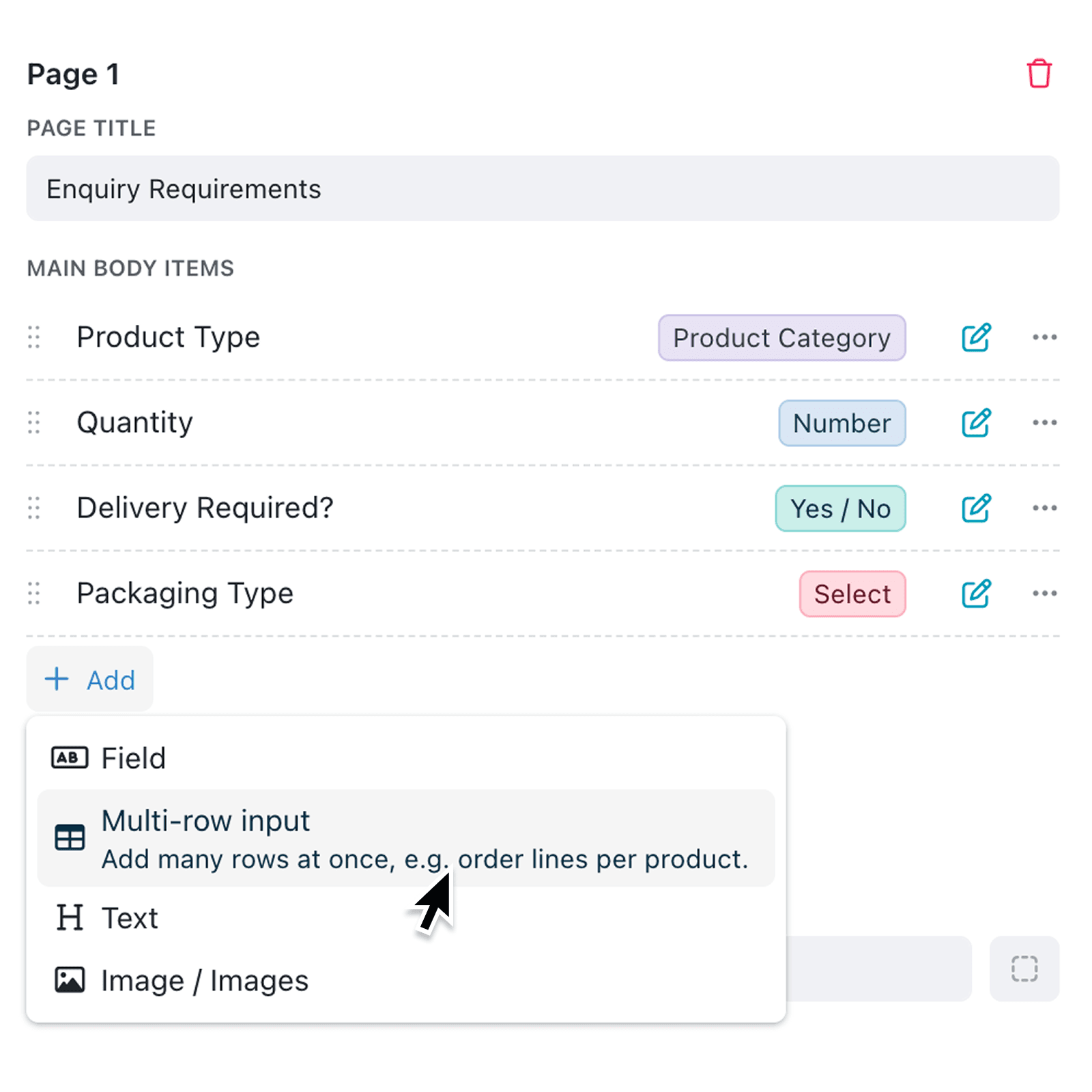
- Select the Form tab, click Add, then choose Multi-row input. Give the input a clear Input name and Description.
- Configure the fields people will complete under Rows & fields. Add Entry types when different kinds of row need different fields, defaults or actions.
- Add optional groupings with Group by…. You can filter and sort the records shown, allow groups to be left out, calculate Summaries, display Progress bars and configure Live totals.
- Preview the input as fillers see it, configure the Actions to run on submission, click Done, then save the form.
Note: Multi-row inputs can only be filled in From a record page, not From a link or portal.
When to use it:
- Operations managers can allocate products across orders or locations while watching available quantities and preventing over-allocation.
- Finance teams can capture invoice or expense lines, apply different entry types and review grouped totals before submitting.
- Project teams can record time, materials or completed activities across several work areas in one guided form.
Get started
Go to Settings → Forms and add your first Multi-row input from the Form tab.
If you have questions or feedback, we would love to hear from you. Email support@kinabase.com — we're listening.