
Repeated form submissions and overlapping processes can create duplicate records, leaving teams to clean up data and work out which entry is correct. Kinabase automations can now search for a suitable existing record before creating another one.
What's new:
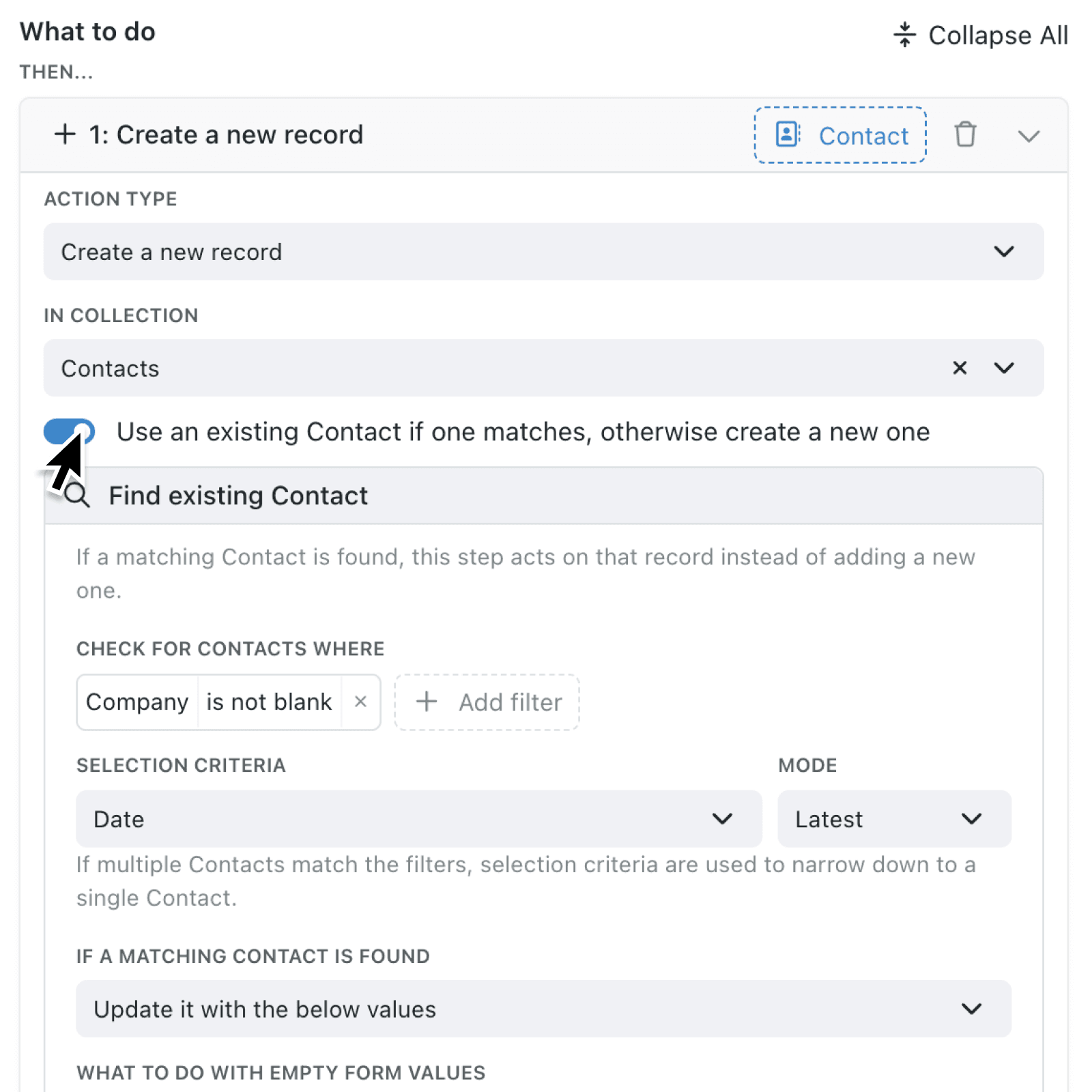
The Create a new record automation step now includes an option to use an existing record if one matches. The option uses the target collection's name, for example, Use an existing Contact if one matches, otherwise create a new one. You can build filters using values from the form, the record that started the automation, or records used by earlier steps.
If several records match, Selection Criteria and Mode choose one consistently. Date and time fields offer Earliest or Latest, while number and duration fields offer Min or Max. The step can then Keep its existing values or Update it with the below values.
Why it matters:
- Reduce duplicate data by reusing a matching record instead of creating another entry for the same person, booking, request, or relationship.
- Design precise searches by combining several filter conditions, including text and linked record values, to represent how your organisation identifies a match.
- Control every update by choosing whether empty form values leave stored information untouched or deliberately clear the relevant fields.
How it works:
- Go to Settings → Operations → Automations, then add an automation or edit an existing one.
- Under What to do, select Add step, choose Create a new record, and select the target collection in In Collection.
- Turn on Use an existing Record if one matches, otherwise create a new one, where Record is the target collection's singular name.
- Configure Check for Records where with one or more filters. If you leave the filters empty, every existing record in the target collection becomes a candidate.
- Choose a number, duration, or date and time field under Selection Criteria, then select Min, Max, Earliest, or Latest under Mode.
- Under If a matching Record is found, choose whether to keep its existing values or update it with the assigned values.
- If you update a match, use What to do with empty form values to keep the stored value or set it to blank. Turn on Use the matched or newly created record for subsequent steps when later steps should act on the result.
Note: This option is not available for create steps inside multi-row input action panels in forms.
When to use it:
- Sales teams can match a contact using an email submitted through a lead form, reducing duplicate contacts while keeping details current.
- Event coordinators can look for an attendance record matching both a contact and an event before adding another registration.
- Operations managers can find an existing customer request, update selected details, and link later automation steps to the correct record.
Get started
Go to Settings → Operations → Automations and add the find-existing option to your next Create a new record step.
If you have questions or feedback, we would love to hear from you. Email support@kinabase.com — we're listening.