
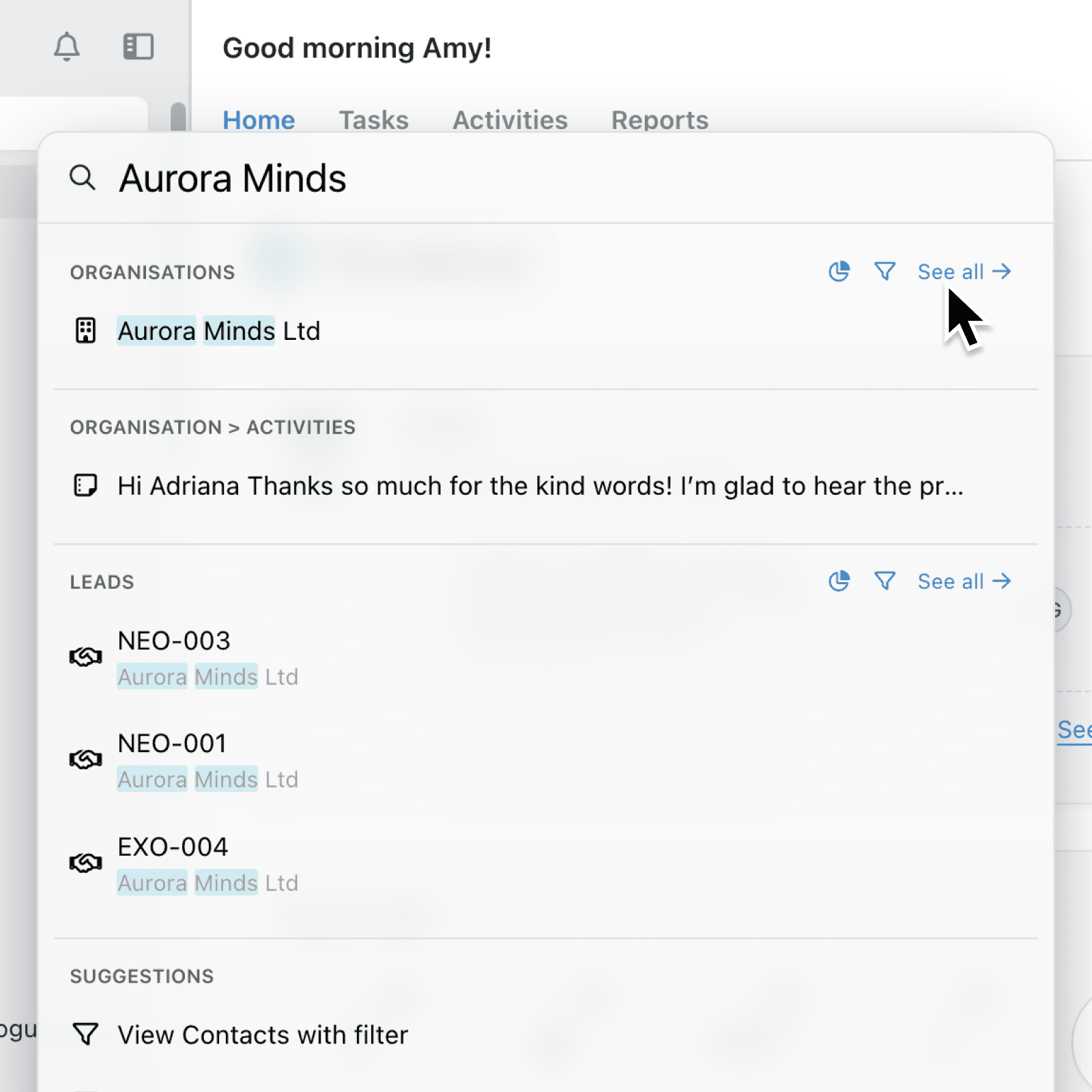
Searching should take you straight to the right piece of work, not leave you scanning a list of loosely related results. We have improved global search across Kinabase so you can find relevant information and act on it sooner.
What's new:
Global search now ranks results by relevance, placing ID matches, names or secondary labels that begin with your search, and other matching names or secondary labels ahead of weaker matches. You can see up to 20 search results across records, tasks and activities.
Why it matters:
- Reach the right result sooner as strong matches appear at the top regardless of when they were last updated.
- Focus on one collection by using a scoped search such as
in:projects greenfieldwhen a common term appears across several areas of your organisation. - Continue into detailed work by selecting See all results in Projects for a collection with matches, opening its full list with your search already applied.
- Turn findings into action by opening View Projects with filter or Add a new Projects chart directly from a matching collection group.
How it works:
- Click the search bar in the navigation bar, or press Command + K (Mac) / Ctrl + K (Windows).
- Enter at least two characters from a record name, secondary label or ID, or search for a matching task or activity.
- Narrow the search to one collection by entering
in:, the collection name and your search term. For example,in:projects greenfieldsearches only Projects. - Choose your next step: open a result, select See all results in Projects, or use View Projects with filter or Add a new Projects chart for a matching collection.
- Reuse a previous search from Recent Searches the next time you use the search bar.
Note: Search results continue to follow your existing permissions, so colleagues only see collections and records they are allowed to access.
When to use it:
- Operations managers can paste a case ID, open the strongest match and move directly into the relevant record.
- Sales teams can scope a common customer or opportunity name to one collection, then use See all results in Projects to review every match.
- Analysts can describe the information they need, then move from a matching collection to a suggested filter or chart without leaving the search menu.
Get started
Open Kinabase and use the search bar in the navigation bar to try the improved global search.
If you have questions or feedback, we would love to hear from you. Email support@kinabase.com - we’re listening.