
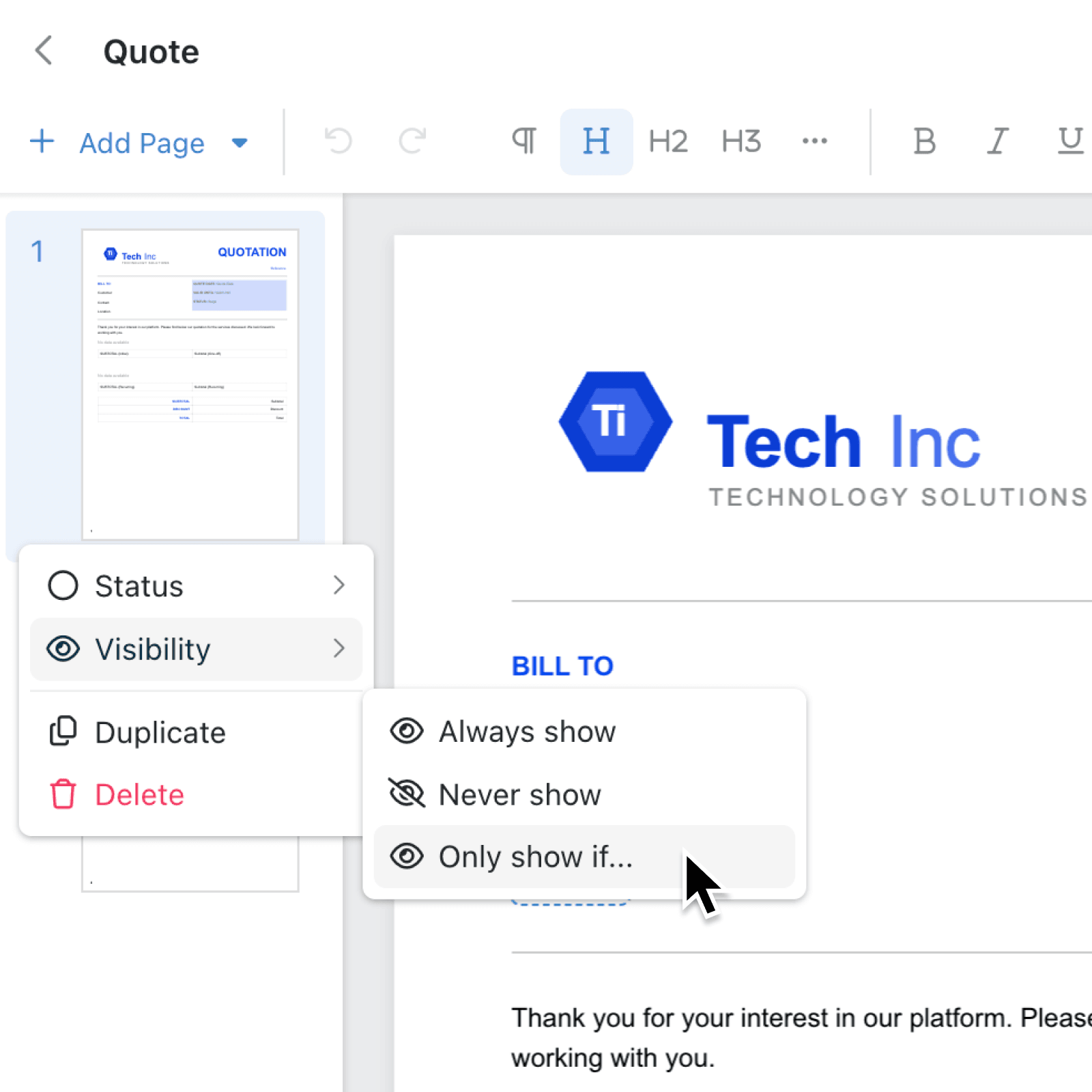
Document templates often contain pages that are only relevant in certain circumstances. Previously, removing an unwanted page meant deleting it or maintaining several versions of the same template.
What's new:
You can now control whether each page is always shown, never shown, or included only when conditions based on record data are met. These rules apply consistently to previews, printing, and PDFs, including documents produced for several records at once.
Pages remain available in the editor even when they are hidden. A dimmed thumbnail and eye-slash icon identify pages that will never appear, while conditional pages display a filter icon with a summary of their rules.
Why it matters:
- Create flexible templates by including optional sections without duplicating the whole document or repeatedly adding and deleting pages.
- Tailor every output by evaluating conditions separately for each record, so the same template can produce the right combination of pages for every recipient.
- Keep authors informed by showing hidden and conditional pages in the editor, so you can continue editing them and review their visibility settings from the page thumbnail.
How it works:
- Open a collection, select Configure, click Templates under Documents, and create or edit a document template.
- Click the ⋯ menu on a page thumbnail on the left, or right-click the thumbnail, then open Visibility.
- Choose Always show to include the page in every output, or Never show to keep it editable while excluding it from record-backed previews, printouts and PDFs.
- Choose Only show if... to open the condition builder. Add one or more conditions using fields from the collection, then click Apply.
- Select Reset whenever you want to remove an existing visibility setting and return the page to its default, always-visible state.
When to use it:
- Operations managers can include an exception page only when a record needs additional review, while keeping one standard template for the whole process.
- Sales teams can show contract schedules only when particular products, services or terms are present on a customer record.
- Client services teams can build maintainable document packs that adapt per client or case, including multi-record print runs where each record may produce different pages.
Get started
Open Kinabase and go to your collection's Configure → Documents → Templates to add page visibility rules to a document template.
If you have questions or feedback, we would love to hear from you. Email support@kinabase.com — we're listening.