
Generic colours can make an important form feel disconnected from the organisation presenting it. You can now use the correct Brand Guide palette in forms instead of finding approximate colours elsewhere.
What's new:
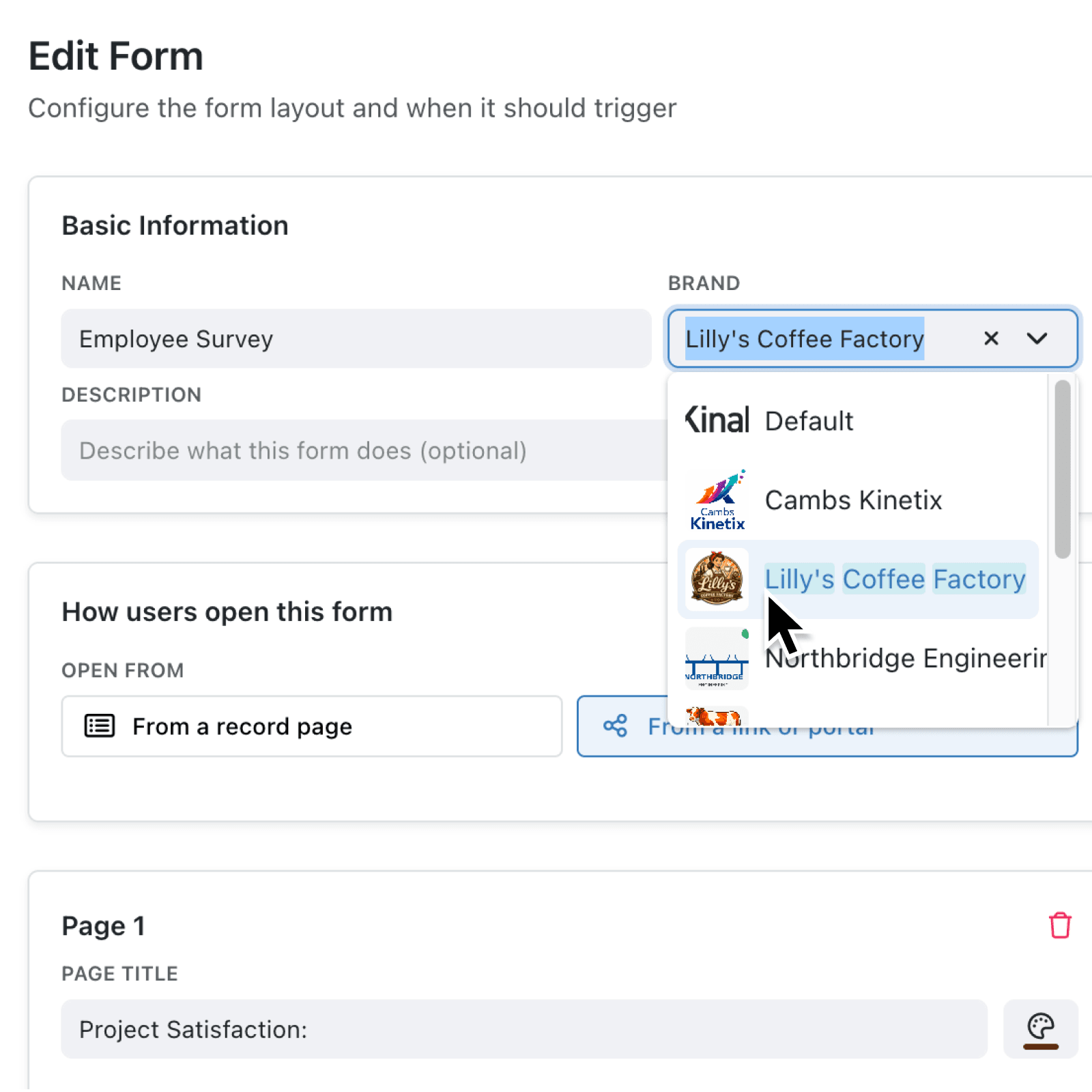
You can select a Brand for a form, and Kinabase makes its palette available while you author the form and its actions. Page titles now have a dedicated Page title colour picker. Text items in the main body and sidebar also offer Brand Guide colours, including custom colours, through Text Color and Highlight.
Your choices appear in Preview and wherever the saved form is opened, including in Kinabase, portals, and public forms.
Why it matters:
- Present a consistent identity by matching forms to your organisation, service, or customer-facing brand they represent.
- Guide people through critical work by using dependable colour cues for page headings, instructions, warnings, and supporting context.
- Check title readability with Kinabase displaying May be hard to read. when a selected page title colour has poor contrast against the form background.
How it works:
- Create or update your Brand identities under Settings → Organisation → Branding. Each identity can include the standard palette and custom colours.
- Open Settings → Operations → Forms, then add a form or edit an existing one.
- Select a value from Brand beside the form name. This control appears when your workspace has multiple Brand identities. If there is only one, Kinabase applies it automatically.
- Enter a Page Title, then open Page title colour beside it. Select a shade from the chosen brand, review any May be hard to read. warning, or select No colour to restore the default.
- Under Main Body Items or Sidebar Items, select Add, then Text. Highlight the required words, and use Text Color or Highlight in the toolbar.
When to use it:
- Operations managers can colour page headings and instructions so colleagues can move through controlled approval or inspection forms more confidently.
- Customer service teams can apply a customer-facing identity to guidance and warnings on forms shared through a portal or public link.
- Project teams can configure separate brands for different client organisations while keeping each form's content visually consistent.
Get started
Open Settings → Operations → Forms, edit a form, and apply your Brand Guide colours to its page title or text.
If you have questions or feedback, we would love to hear from you. Email support@kinabase.com — we're listening.