
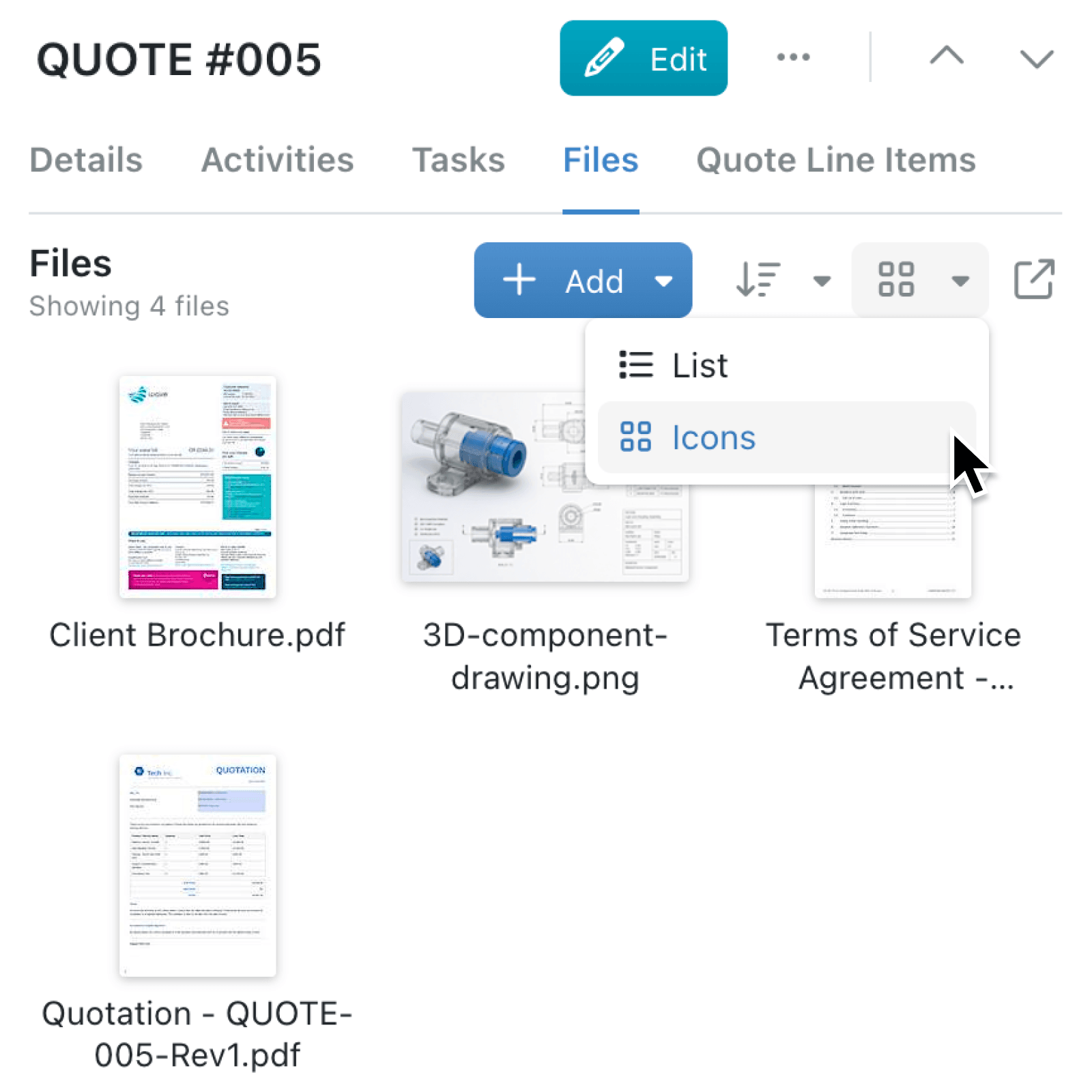
Long file lists can make it difficult to identify the right document without opening several browser tabs. You can now recognise files visually and check their contents while staying inside the record.
What's new:
The Files tab now offers List and Icons views. Icons arranges files in a visual grid and displays SharePoint thumbnails when available.
You can also open an in-app preview from either view. Kinabase displays supported images and PDFs directly, while SharePoint file storage can provide previews for additional formats, including Microsoft Office documents.
Why it matters:
- Find files faster by scanning names, thumbnails, and file-type icons instead of opening each file to identify it.
- Check documents in context by previewing a file alongside the record where your team manages the related work, then downloading it or opening it separately when needed.
- Keep familiar working preferences by choosing the compact List view or visual Icons view.
How it works:
- Navigate to a collection, open a record, and select the Files tab.
- Click View icon in the Files toolbar, then select List or Icons.
- In Icons view, SharePoint thumbnails appear when available. Kinabase remembers your choice separately for each collection on your device.
When to use it:
- Operations managers can review delivery notes, site photographs, and supporting PDFs without losing their place in a record.
- Sales teams can scan proposal thumbnails and preview the latest customer document before a call.
Get started
Open a record's Files tab and switch between List and Icons.
If you have questions or feedback, we would love to hear from you. Email support@kinabase.com — we're listening.