
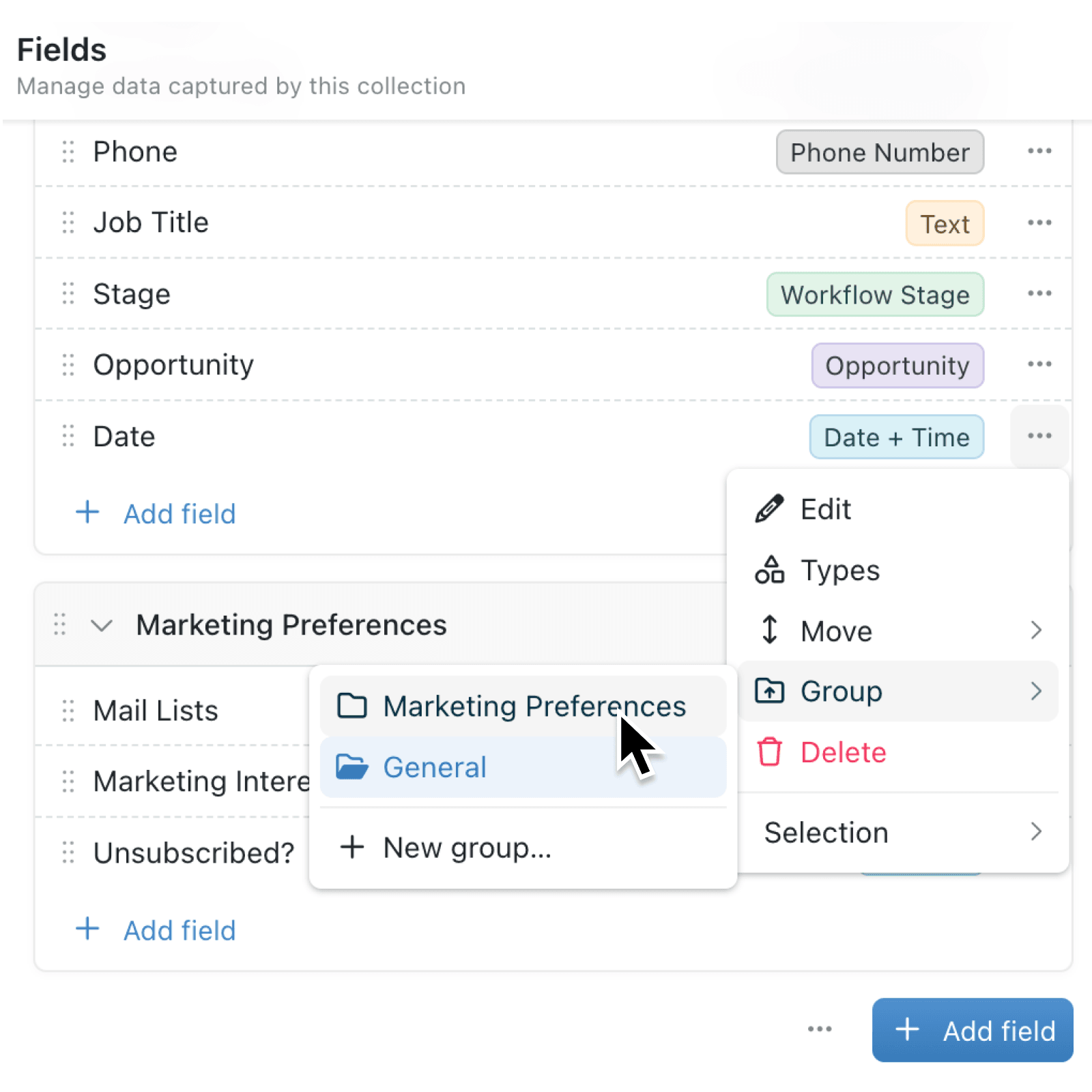
Long lists of fields can make related information difficult to find when creating or editing a record, especially when different records need different details. Field groups give records a clearer structure while keeping their data and validation rules intact.
What's new:
Field groups let you organise related fields into named sections from a collection's Fields settings. You can reorder groups and their fields, add an icon and colour, set visibility conditions, and choose whether a group starts collapsed.
When you create or edit a record, named groups appear as collapsible headings. Fields outside a named group appear first without a heading. In the Fields settings, these ungrouped fields remain in the default General section.
Why it matters:
- Find relevant information faster by giving people clear sections such as Contact details, Approval, or Delivery instead of one long list of fields.
- Show details at the right time by using conditions to hide or reveal a group according to values on the record being edited.
- Protect data and validation because collapsed or conditionally hidden fields keep their values and still validate and submit.
How it works:
- Open the collection, select Configure, then choose Fields.
- Click More actions, choose Add group, enter a Group name, and click Add group.
- Drag fields between groups, or open a field's Actions menu and choose Group. Select several fields first, then use Group on the selection bar to move them together.
- Select Edit on a group heading or from its menu, and choose an icon and colour.
- Open Visibility to configure Hide this when… or Only show when… conditions.
- Open Display to select Start collapsed when a form opens.
- Click Save, then drag the group headings into the required order.
When to use it:
- Operations managers can separate routine information from exception details, showing an incident section only when a record needs investigation.
- Sales teams can group contact, qualification, and commercial fields, with less frequently used sections starting collapsed.
- HR professionals can organise employee information into distinct logicalsections like Personal details, Employment history, and Skills.
Get started
Open a collection's Configure → Fields settings and create your first group around a set of related fields.
If you have questions or feedback, we would love to hear from you. Email support@kinabase.com — we're listening.