
Inconsistent or incomplete answers can slip through a multi-page form when nothing compares related fields or stops visitors moving past an unresolved error. Kinabase's Validation section now catches both, so submissions arrive complete and consistent.
What's new:
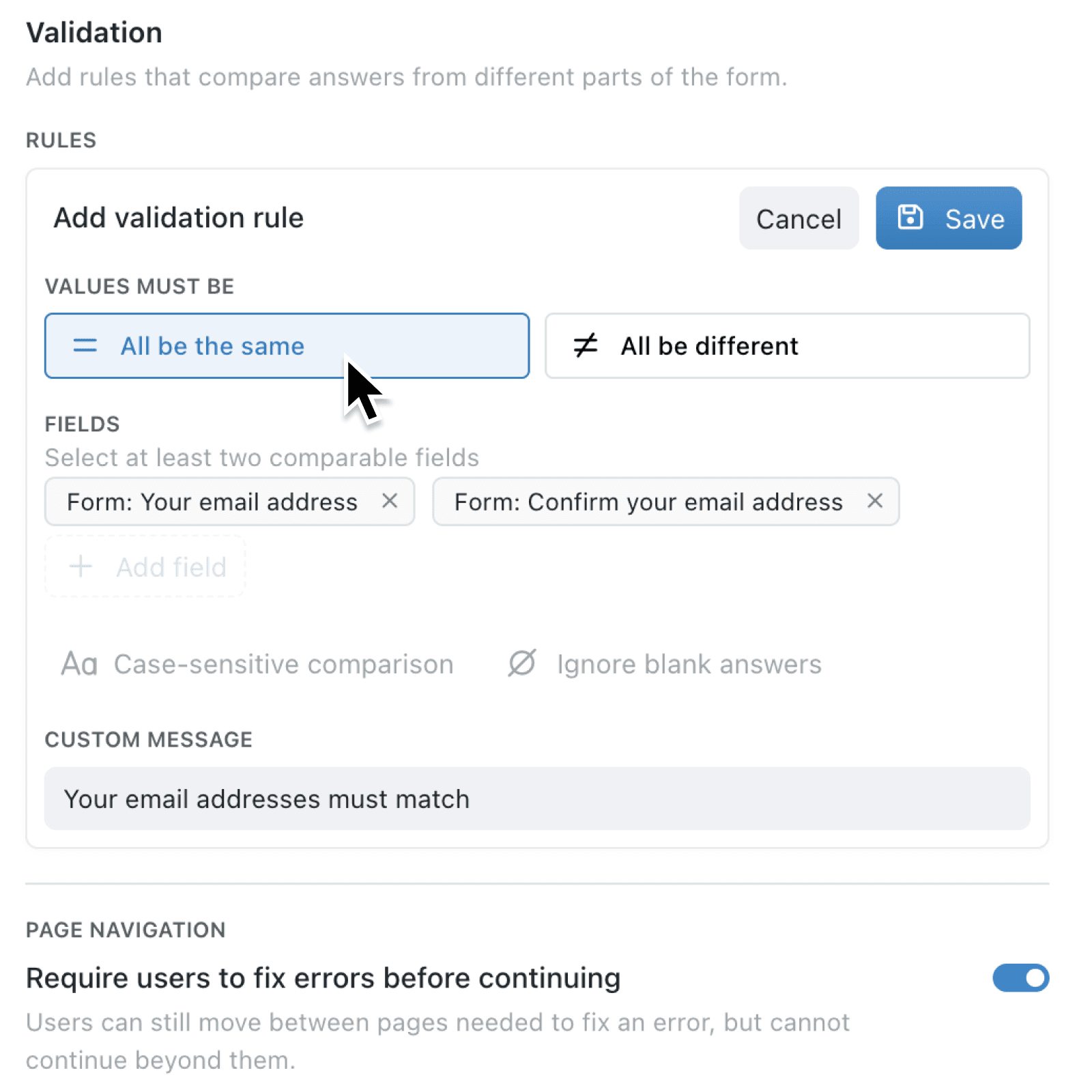
Each form now has a Validation section. Under Rules, add a validation rule that compares two or more fields and requires their answers to All be the same or All be different - useful for confirmation fields, or for flagging duplicate entries across a form. Each rule can ignore blank answers, apply a case-sensitive comparison, and show a custom message when it fails.
Under Page navigation, turn on Require users to fix errors before continuing to stop visitors moving past a page while it, or an earlier page, contains an unresolved error.
Why it matters:
- Catch inconsistent answers by comparing two or more fields with a validation rule, such as confirming an email address matches or flagging duplicate entries.
- Guide visitors to corrections with page markers that highlight warnings immediately and show errors after a navigation or submission attempt.
- Keep recovery routes open because visitors can always move backwards, and Kinabase checks each page in sequence when they jump ahead.
How it works:
- Open Settings → Operations → Forms, then select Add Form or edit an existing form.
- Open the form's Form tab, scroll down to the Validation section.
- Under Rules, click Add rule. Choose whether the selected field values must All be the same or All be different, add two or more fields to compare.
- Optionally set a case-sensitive comparison, ignore blank answers, or add a custom message.
- Under Page navigation, turn on Require users to fix errors before continuing. This allows users to move between pages needed to fix an error, but cannot continue beyond them.
- Open Preview and test the form. Attempting to continue reveals the relevant errors.
- Select Add for a new form or Save for an existing one. Edit or delete a saved rule any time from the Rules list.
When to use it:
- Operations managers can require inspection or handover details to be corrected before staff move beyond the relevant section.
- HR teams can confirm answers like a start date or contact details agree across pages, and keep onboarding forms moving in a dependable order.
- Marketing leads can request emails to be entered twice in subscription forms to prevent typos and make sure newsletters don't bounce.
Get started
Open Settings → Operations → Forms, then add a validation rule and turn on Require users to fix errors before continuing on your new or existing form.
If you have questions or feedback, we would love to hear from you. Email support@kinabase.com — we're listening.