
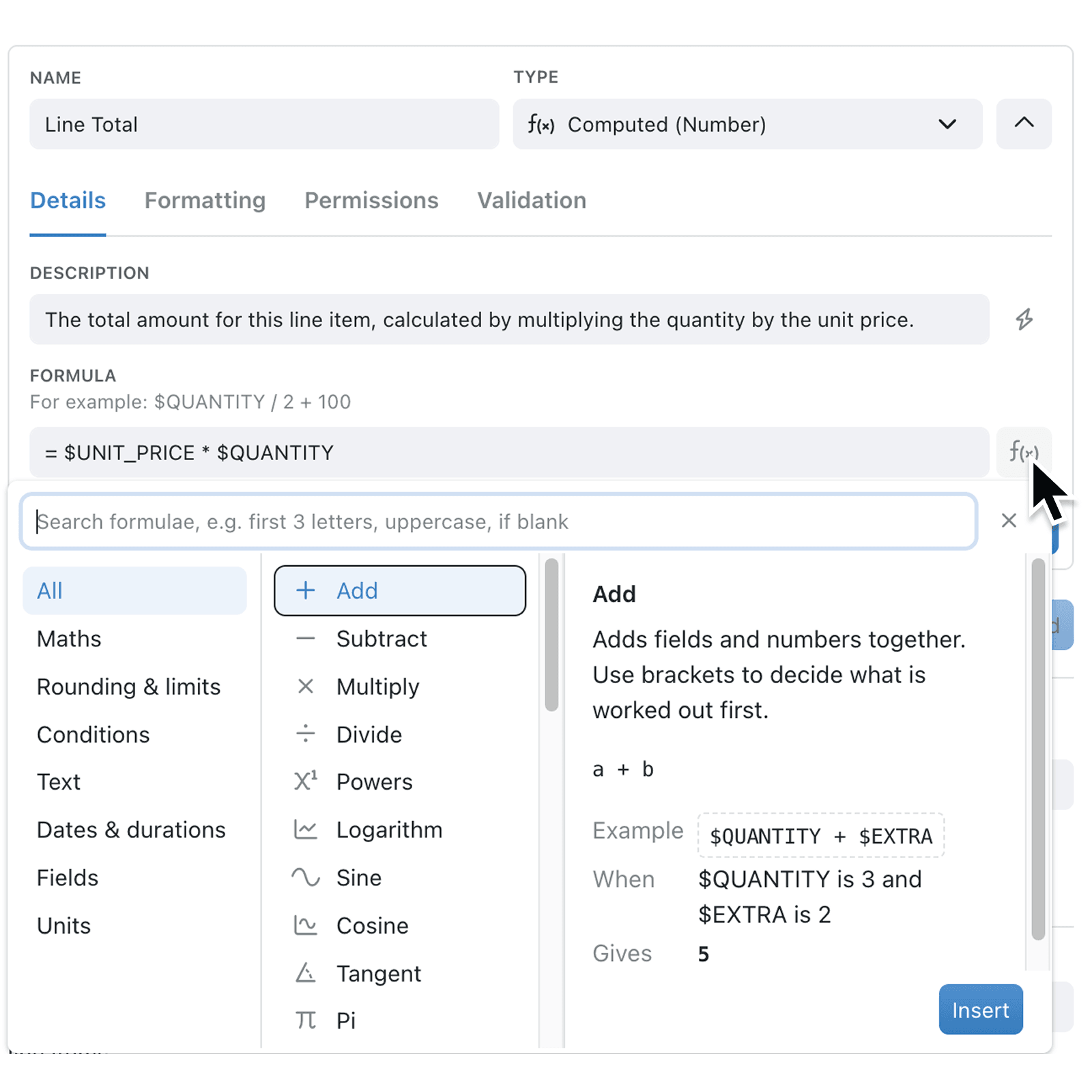
Remembering the exact name and shape of a formula can slow down configuration work, especially when you only need one familiar calculation or text function. Kinabase now puts the whole formula catalogue beside the input you are editing, with a worked example for every entry.
What's new:
Supported formula and computed text inputs now have an fx button labelled Browse formulae. These include Formula and Template when configuring computed fields, along with supported inputs such as Subject and Title in automations. It opens a searchable catalogue grouped into categories, and each entry shows its description, its syntax, an Example, the sample values behind that example under When, and the result under Gives.
You can also skip the catalogue entirely. Type two or more letters where a formula name can begin and Kinabase offers matches in a Formulae group, with the syntax shown beside each one. Selecting a match inserts the formula with placeholders for you to edit.
Why it matters:
- Find a formula by what it does by searching for an outcome such as first characters or if blank, rather than needing to know the function name first.
- Start from a checked pattern by reviewing the example and its result before inserting it, so you can understand the formula without relying on separate reference material.
- See only what fits because the catalogue offers the formulas that suit the input you are in, so text functions appear in a Template input, and number functions appear in a Formula input.
- Build formulas faster with suggestions appearing as you start typing, and ability to insert the formula with placeholders for you to replace with your own fields or values.
How it works:
- Open a collection, click the options menu (⋯), select Configure, then click Fields under Setup.
- Add or edit a computed number or computed text field so its Formula or Template input is on screen.
- Click fx beside the input to open the Search formulae box. Type at least two letters of a formula's name to see suggestions, or select a category to see options available.
- Read the Example, When, and Gives details for the highlighted formula.
- Click Insert or double-click the entry to add the formula, or click the text under Example to insert the complete worked version.
- Replace any placeholders. Where the placeholder expects a field, the field picker (starts with
$) opens so you can select one.
Note: Suggestions appear only where a formula name is valid i.e. after the = prefix in a Formula, or inside a ${ } section in a Template.
When to use it:
- Operations teams can build a part or job reference out of existing company and product fields, without needing to remember the exact formula syntax.
- Sales teams can prevent missing contact name from appearing in email subject lines by finding the fallback formula that fills in a blank contact name with a default value.
- Finance teams can confirm how to round to the nearest 5p, or apply a rate per mile or per hectare, from a worked example before that figure goes anywhere near a live invoice.
Get started
Open a collection's Configure page, click Fields under Setup, and click fx in a computed field's Formula or Template input.
If you have questions or feedback, we would love to hear from you. Email support@kinabase.com — we're listening.