
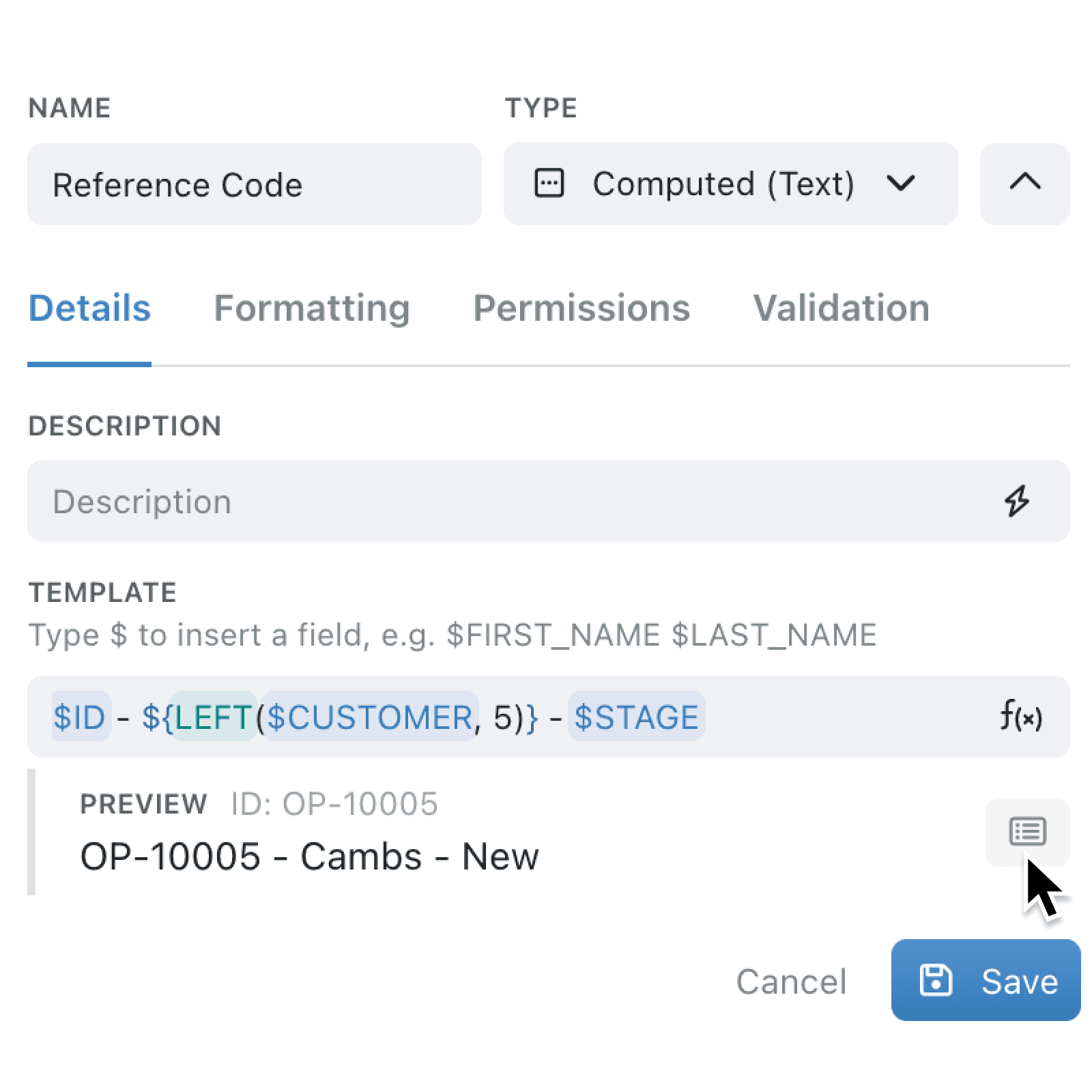
Writing a formula can feel uncertain when you cannot see its result until after you save it. Expression preview now shows you the answer as you type the formula, worked out against a real record from the collection.
What's new:
A Preview sits below supported expression inputs and evaluates your formula or template shortly after you stop typing. Where the collection has records, Kinabase uses one of them and names it, and Preview with a different record, under list icon, lets you search for another.
Expression inputs are also tinted as you write. Field references, formula names, and the braces around formula sections each take a subtle colour, so a long expression is easier to read at a glance.
Why it matters:
- Catch mistakes early by seeing the value your expression produces while you are still editing, not after it appears on every record.
- Test the case that worries you by searching for a specific record and checking the result against a blank field, an unusual quantity, or a missing link.
- Read long expressions faster as tinting separates the fields from the formulas and shows you where each formula section begins and ends.
How it works:
- Open a collection's Configure page and click Fields under Setup, then add or edit a computed field.
- Write your Formula or Template. Kinabase tints field references, formula names, and the braces around formula sections as you type.
- Read the Preview below the input. The record it used is named beside it.
- Click list icon for Preview with a different record function and open the searchable record menu to select another record to test against.
- Correct anything the preview reveals, then click Add for a new field or Save for an existing one.
Note: when the collection has no usable record, the preview is labelled Example values and uses stand-in data. An empty or invalid expression shows Nothing to preview yet.
When to use it:
- Finance teams can confirm a total-cost calculation against both a standard order and a discounted one before it feeds a report.
- Operations managers can check that a part number label still reads correctly even when a date field happens to be empty.
- Sales teams can preview the wording of an automated proposal message against a real opportunity before anyone receives it.
Get started
Open a collection's Configure page, click Fields under Setup, and edit a computed field to see the Preview below its input.
If you have questions or feedback, we would love to hear from you. Email support@kinabase.com — we're listening.