
Until now, adding an email from Outlook with the Outlook add-in mainly followed the people Kinabase already recognised. A useful message could sit on a contact while the related record your team works from stayed empty.
What's new:
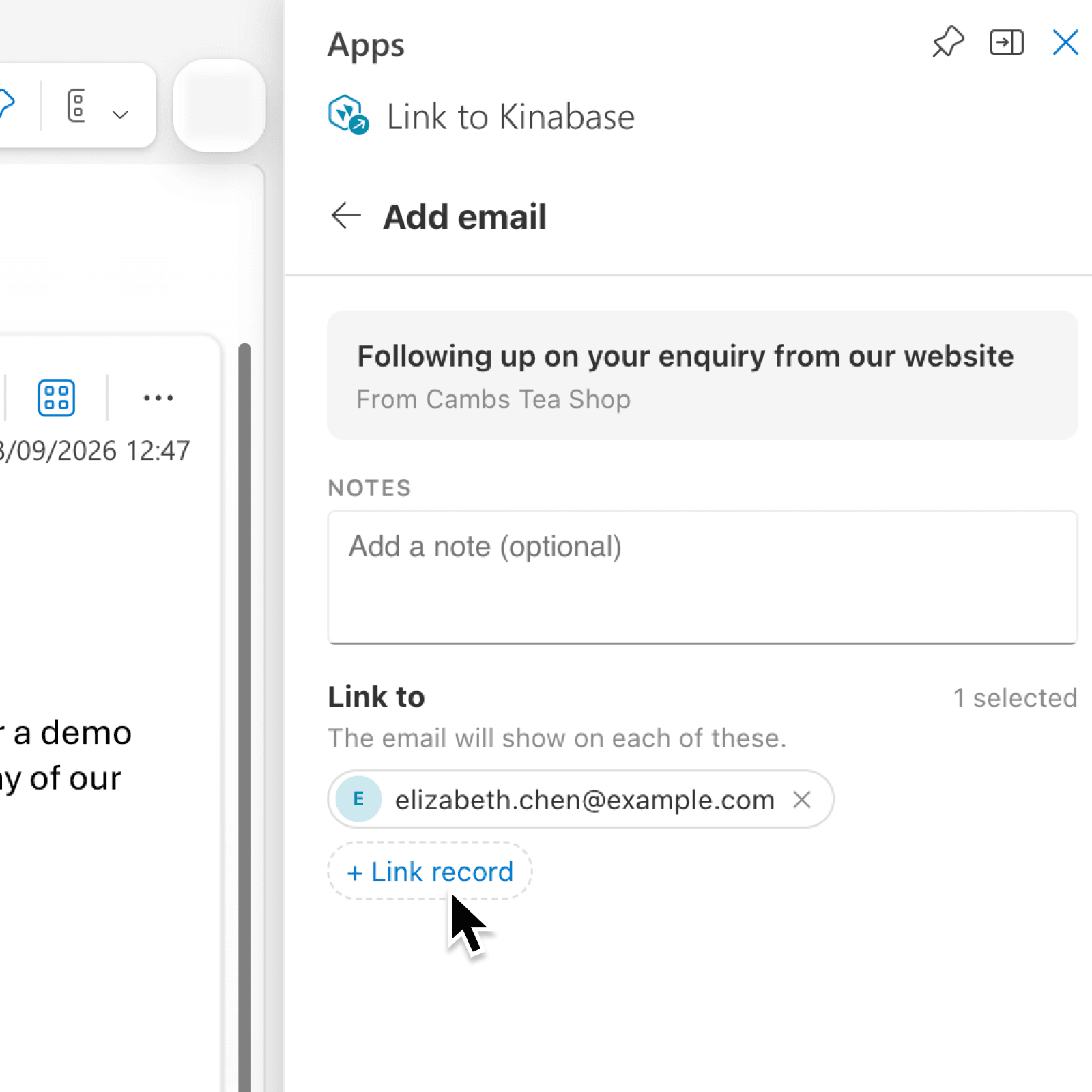
Kinabase Outlook add-in now lets you decide which records an Outlook email should show on, instead of following only the people it recognised. Under Link to you can keep or remove the matched people, and Choose records suggests records connected to them while letting you search the collections you have enabled.
You can also create the related record from the message itself - the email is added first, then moves onto the new record when you save it. The add-in's Settings control which collections are suggested, and whether Kinabase uses AI to fill a new record in from the email for you to review.
Why it matters:
- Keep the email with the work by showing it on the related records you already use, not only on a matched person.
- Choose every link so the email lands where your team looks, even when nobody in the message is in Kinabase yet.
- Stay in control with only the collections and records you can read and add activities to, and a review step before any AI suggestion is saved.
How it works:
- Select an email in Outlook, navigate to the Outlook add-in and click Link to Kinabase, then select Add email to Kinabase.
- Under Link to, check the people Kinabase matched. Click the cross on a chip to remove someone, or click + and their name to put them back.
- Click + Link record to open Choose records. It suggests records connected to the people or company in the email, and you can search the collections you have enabled.
- Tick the records the email should show on and click Done. Add an optional note, then click Add email. Email added lists where it landed.
- To start a new related record instead, click Create record, leave the Create a new switch on, and click Next. The email is added first, then you create the record in Kinabase and save.
- To change which collections are offered, open Settings, tick them under Suggested records, and turn Start with connected records and Fill in new records from the email on or off.
Note: To add several emails, select them in Outlook and click Add 2 emails to Kinabase - one Link all to choice applies to every message. Emails with nobody in Kinabase are skipped unless you link a record, and adding multiple emails is not supported on Mac.
When to use it:
- Sales teams chasing a tender can add the buyer's reply to the opportunity record as well as the contact, so the whole bid team sees it without anyone forwarding the thread.
- Client services teams handling a complaint can link the message to the case record, even when the customer writes in from a personal address nobody has in Kinabase yet.
- Recruitment teams can create a candidate record straight from a speculative CV email, with the message already attached before they finish filling in the form.
Get started
Open Link to Kinabase on your next email and click + Link record to choose where it should show.
If you have questions or feedback, we would love to hear from you. Email support@kinabase.com — we're listening.