
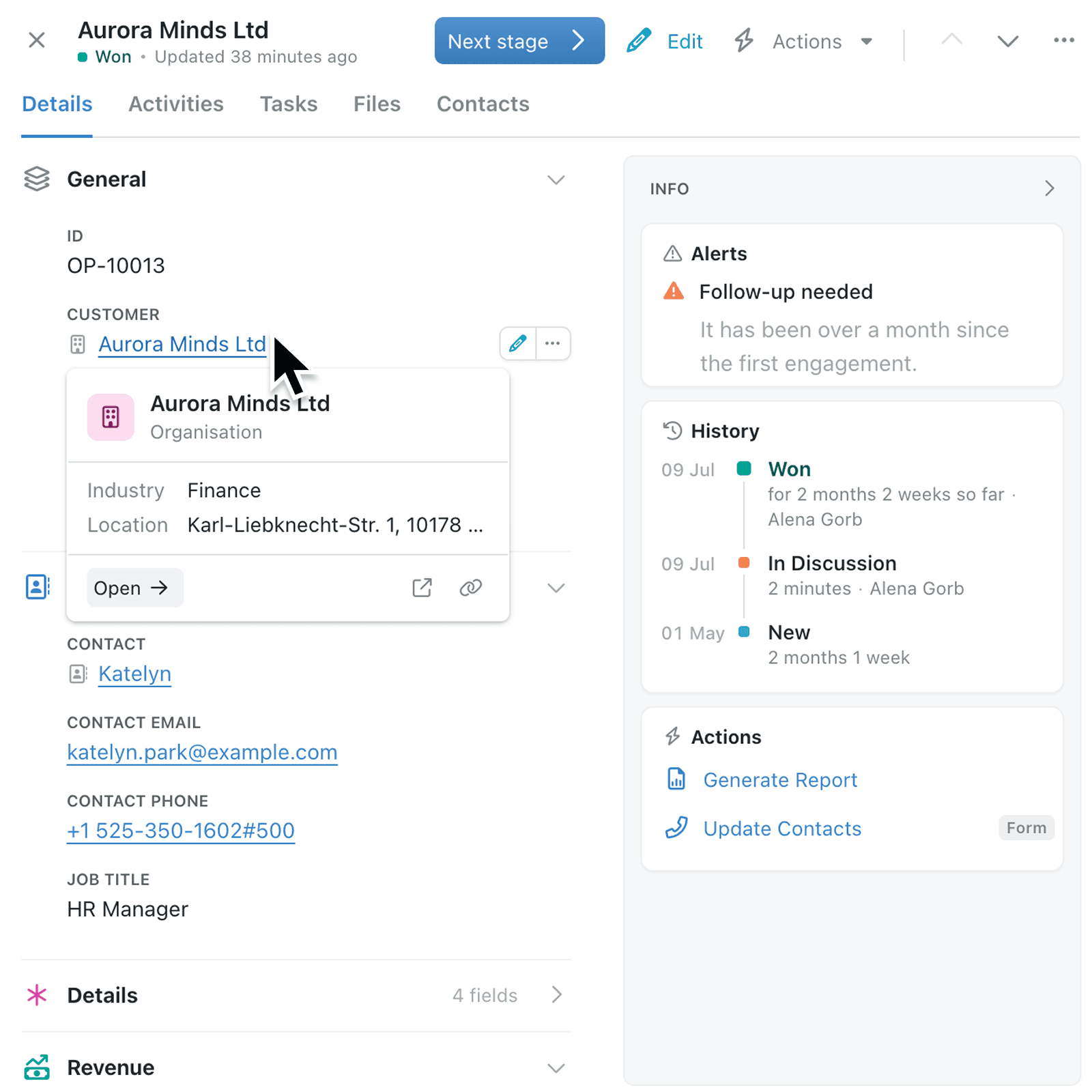
When a record holds a whole process, a long, flat list of fields makes it hard to find what matters right now, with history, stage buttons and automations all competing for the same space. You can see the field groups in the record Details tab, with all other important information and actions close at hand beside them.
What's new:
The record Details tab now shows fields in the same groups you've set up for creating or editing records, with their headings, icons and colours. Groups can be collapsed, and Kinabase remembers your choice for the collection. Copying a value, editing a field and previewing a linked record all happen from the field itself.
Everything else about the record now sits in the new Info panel beside the fields - History, Alerts, Integrations, Actions and more - showing only the sections that apply. When more than one stage change is permitted, they sit together in a Next stage button, each marked with its stage colour.
Why it matters:
- Find what you need faster with fields laid out in the same field groups your team already knows.
- Choose the next step deliberately with every permitted stage change in one colour-coded menu and no default selected.
- Keep context in reach with history, alerts, integrations and automations in one panel you can hide when you don't need it.
How it works:
- Open a record and go to the Details tab.
- Click a group heading to collapse or expand it, or open the three-dot menu (⋯) in the right-top corner and select Expand all sections or Collapse all sections.
- Rest the pointer on a field, click the three-dot More options button and select Copy, or click the pencil to edit it.
- Hover over a linked record to preview it, then click Open button, or Open in new tab or Copy link icons.
- Use the Info panel to check workflow stage change History, Integrations or Alerts, or to run an automation from Actions. Click Hide info to collapse it to icons.
- To move the record on, click Next stage and select a stage.
Note: If only one stage change is permitted, it appears as its own button instead of the Next stage button. A stage change that can't run yet stays listed with a lock and the reason.
When to use it:
- Property management teams reviewing a tenancy can collapse the lease and deposit groups and go straight to maintenance details, with the tenant's record a hover away.
- Engineering firms approving a design change can pick Approved, Rework or Rejected from Next stage, each in its stage colour, so nobody moves the job on by accident.
- Project managers can check the completed project's History in the Info panel, before sending the details to their resourcing system through an API call from Actions.
Get started
Open a record in a collection that uses field groups and workflow stages to see the new Details tab, Info panel and Next stage button.
If you have questions or feedback, we would love to hear from you. Email support@kinabase.com — we're listening.