
A long list is harder to work through when the columns won't stay put. Widths were shared across every view of a collection, adding or hiding a field cleared them, and opening a record could squeeze the table. Filtering and grouping also meant a trip to the toolbar, away from the column you were looking at.
What's new:
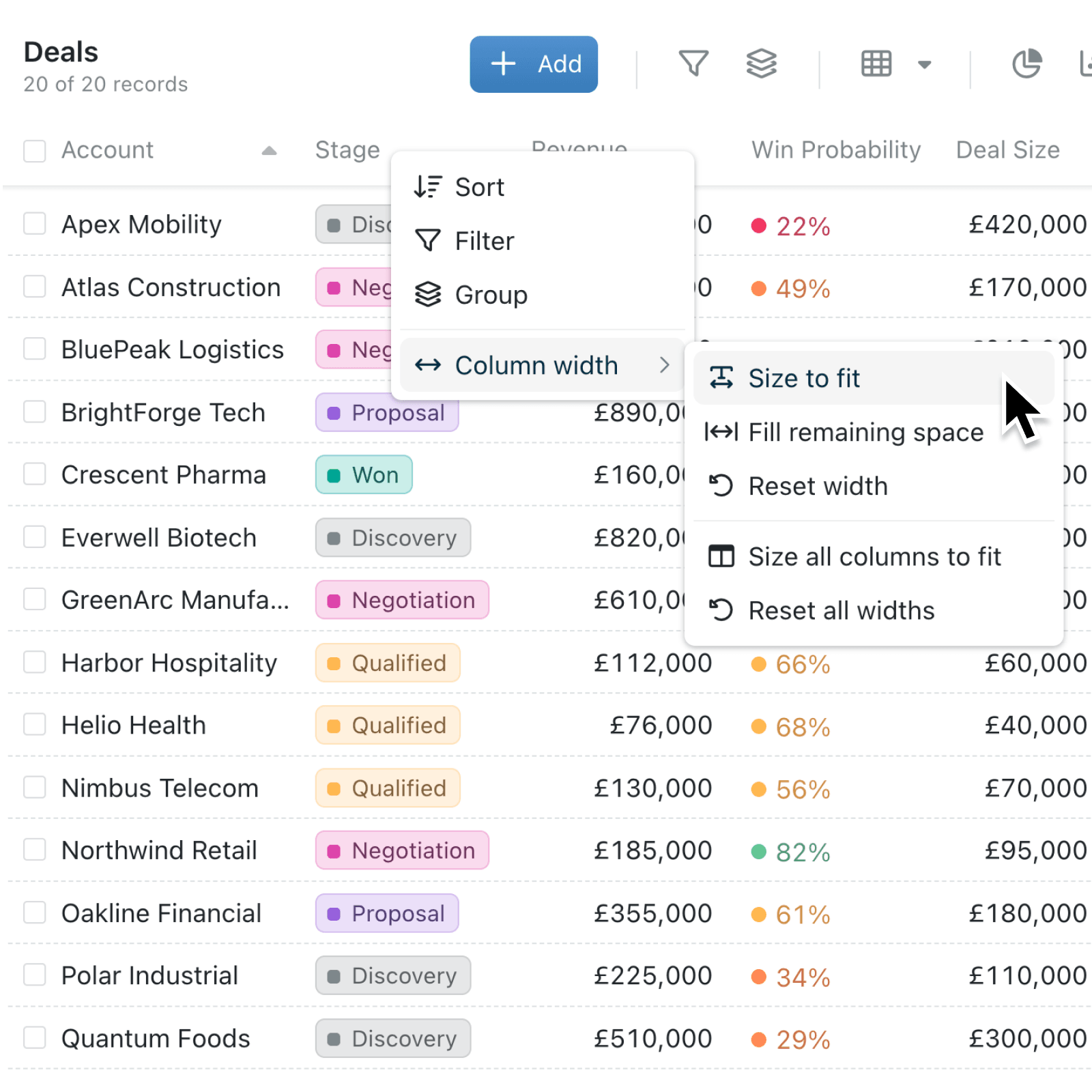
You can now right-click any column header in a Table to Sort, Filter, Group or set its Column width, starting from the field you're already looking at. Column width can fit a column to its content, let it fill the spare room, or reset it - one column at a time or all at once.
The widths you set now stay with each saved view in your browser, without changing the layout anyone else sees. Adding or hiding a field keeps the other widths, and opening a record in Table no longer moves the columns.
Why it matters:
- Start from the column by filtering or grouping on the field in front of you, rather than hunting for it in the toolbar.
- Keep a layout for each view with widths that come back every time you open it.
- Work without the table shifting as opening a record or changing fields leaves your columns where you put them.
- Keep records recognisable as automatic sizing always leaves the primary field wide enough to read.
How it works:
- Open a collection, click Display and select Table.
- Right-click a column header.
- Select Filter to open the filter bar with that field ready, then set the condition.
- Select Group to group the list by that field. For a date or an address, select how to group it, such as Month or City.
- Open Column width and select Size to fit, Fill remaining space or Reset width, or drag the edge of the header.
- You can also adjust the width of all columns at once by selecting Size all columns to fit or Reset all widths to return every column to its default size.
Note: Timeline display option offers Sort, Filter and Column width from the header too.
When to use it:
- Recruitment teams working through applicants can right-click the Role column to group candidates by the job they applied for.
- Estate agents can filter a property list by City straight from the address column, then keep a wide notes column on their own viewings view.
- Finance teams reviewing unpaid invoices can fit the amount and due date columns to their content and open each invoice without the table jumping about.
Get started
Open a collection in the Table display and right-click a column header to group, filter or adjust the column width without leaving the table.
If you have questions or feedback, we would love to hear from you. Email support@kinabase.com — we're listening.