
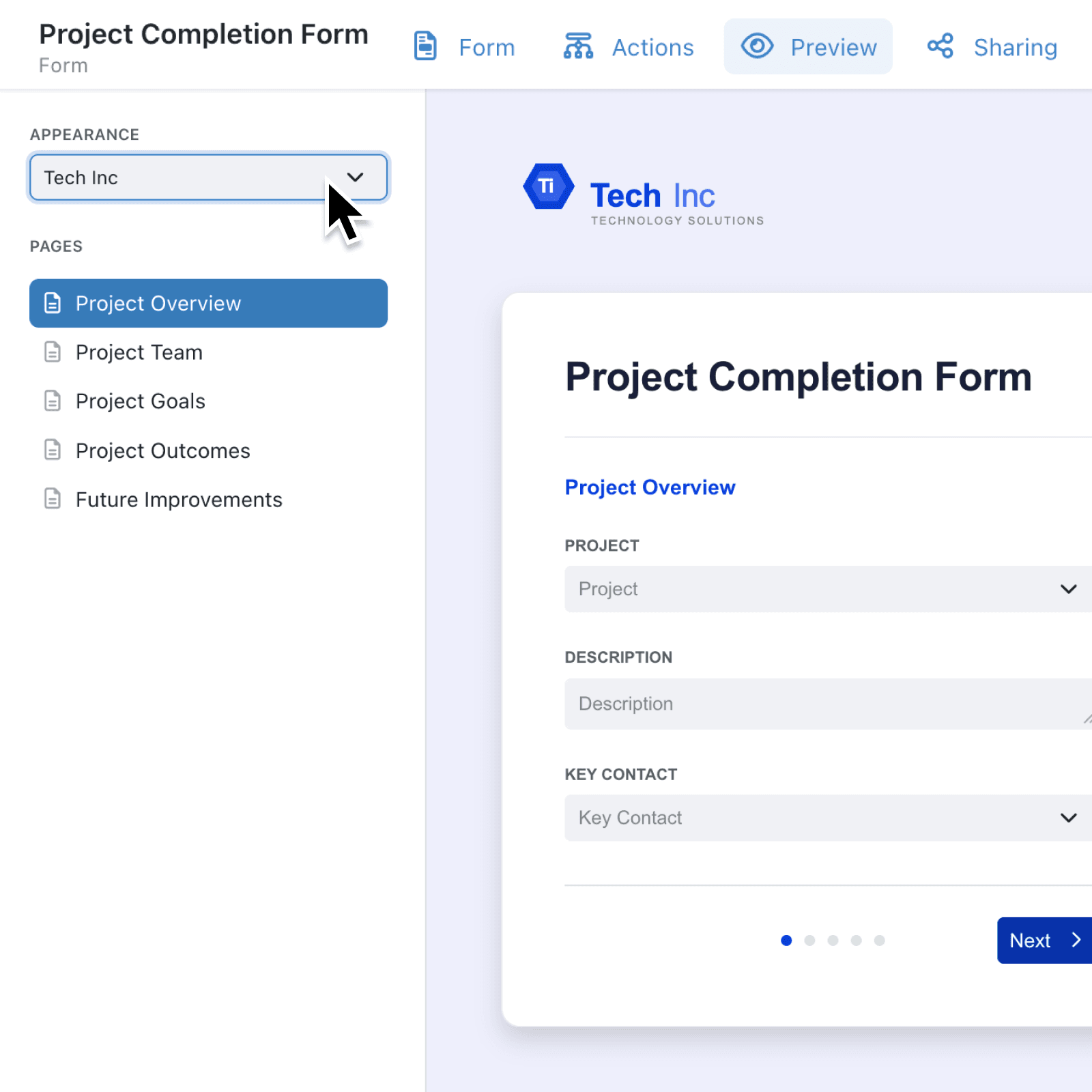
A form often starts work that has to run reliably, so its pages should follow the process and look exactly as colleagues or portal visitors will see them. Until now, moving a question to another page meant deleting it and adding it again, and it was hard to check the finished result before sharing it.
What's new:
In the form editor, you can now drag an item onto another page, or move it from its Item Actions menu. If a move would affect a visibility condition, Kinabase warns you first and lists exactly which conditions would be removed.
Preview now shows the form as people will see it. You can preview it against a real record, switch Appearance to one of your brands to check its colours, fonts and logo, and step through every page, including the Confirmation page.
Why it matters:
- Rearrange forms freely by moving questions between pages without rebuilding them.
- Check the finished form in your brand's colours, fonts and logo before you share it.
- Test with real data by previewing against an actual record, so checks and the confirmation page match everyday use.
How it works:
- Open Settings → Operations → Forms and open the form.
- On the Form tab, drag the grip beside an item onto another page, or click three-dot (⋯) Item Actions, then Move, and select where it should go.
- If This move breaks visibility conditions appears, review the list and click Reorder and remove conditions, or Cancel to leave the item where it is.
- Click Preview. If the form opens from a record, choose one under Preview as.
- Select a brand under Appearance, then open each page and the Confirmation page under Pages.
When to use it:
- Housing associations can split a long repairs request across pages, moving the access questions after the fault details without rebuilding them.
- Events teams can preview a portal booking form in each client's brand before sending the link, so attendees see the right logo and colours.
- Quality teams can test an inspection form against a real batch record and check the Confirmation page shows the right results before it goes to the shop floor.
Get started
Open a form under Settings → Operations → Forms to reorder fields between pages, then click Preview to see it as your team will.
If you have questions or feedback, we would love to hear from you. Email support@kinabase.com — we're listening.