
Some fields and related records only matter for one kind of record, or once work reaches a certain stage. When everything shows all the time, records get longer and adding one takes longer than it should. You can now decide exactly where each field group, list and child collection appears.
What's new:
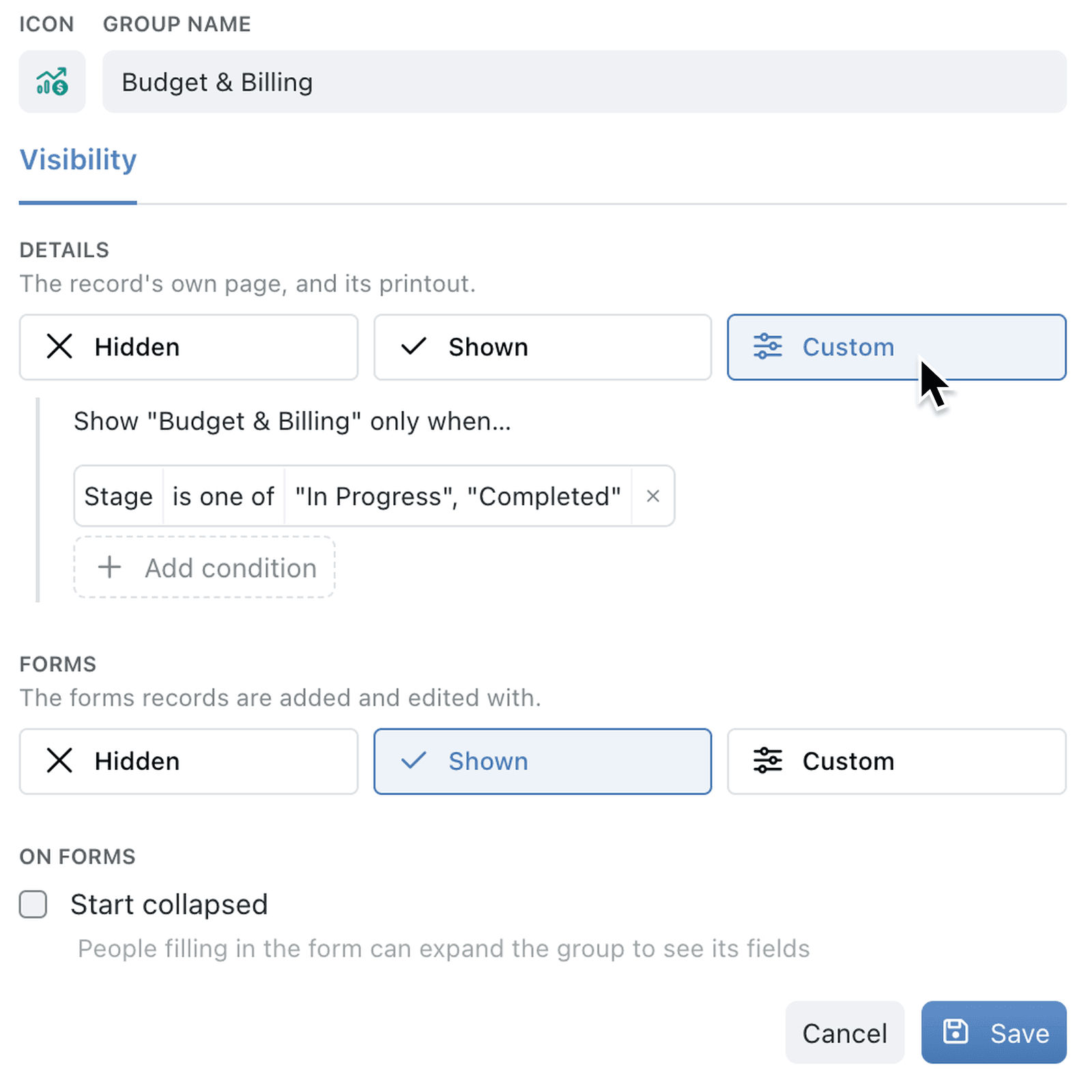
Each field group, list and child collection now has a Visibility setting with separate choices for Details - the record's own page and its printout - and Forms - what you see when you add or edit a record. Select Hidden, Shown or Custom, and use Custom to show it only for particular types or workflow stages.
You can also set this from the other side: editing a type or a stage now has a Groups and Lists tab, where you tick what appears on its records. Hiding a group never removes data - its fields keep their values and are still checked when the record is saved.
Why it matters:
- Keep records focused by showing only the groups and related records that apply to each type and stage.
- Speed up adding records by leaving out sections that are filled in later, without hiding them from the Details tab.
- Configure it where you think about it from the group or list itself, or from the type or stage it belongs to.
- Protect your data as hidden fields keep their values, and a group reappears if one of its fields needs attention on save.
How it works:
- Open the collection, click the options menu (⋯) and select Configure.
- Under Setup, open Fields and click Edit on a field group, or open Lists and click the three-dot (⋯) Menu button on a child collection and select Visibility.
- For Details and for Forms, select Hidden, Shown or Custom.
- For Custom, click Add condition and select the type or stage the group or table should show for, then click Save.
- To set this for one type or stage instead, open Types or Workflow, click Edit on it, open Groups and Lists, tick Details or Forms, and click Save.
Note: A group or list hidden on Details is still included when you print the record.
When to use it:
- Property management teams can show the service charge group only on leasehold properties, so freehold records stay short.
- Construction firms can keep site visits out of the way when a project is first added, and show them once the project is In Progress, when visits actually start.
- Recruitment agencies can hide the offer and onboarding group until a candidate reaches the offer stage, so early-stage records stay quick to scan.
Get started
Open Configure → Fields on a collection with field groups and click Edit on a group to set its Visibility.
If you have questions or feedback, we would love to hear from you. Email support@kinabase.com — we're listening.