
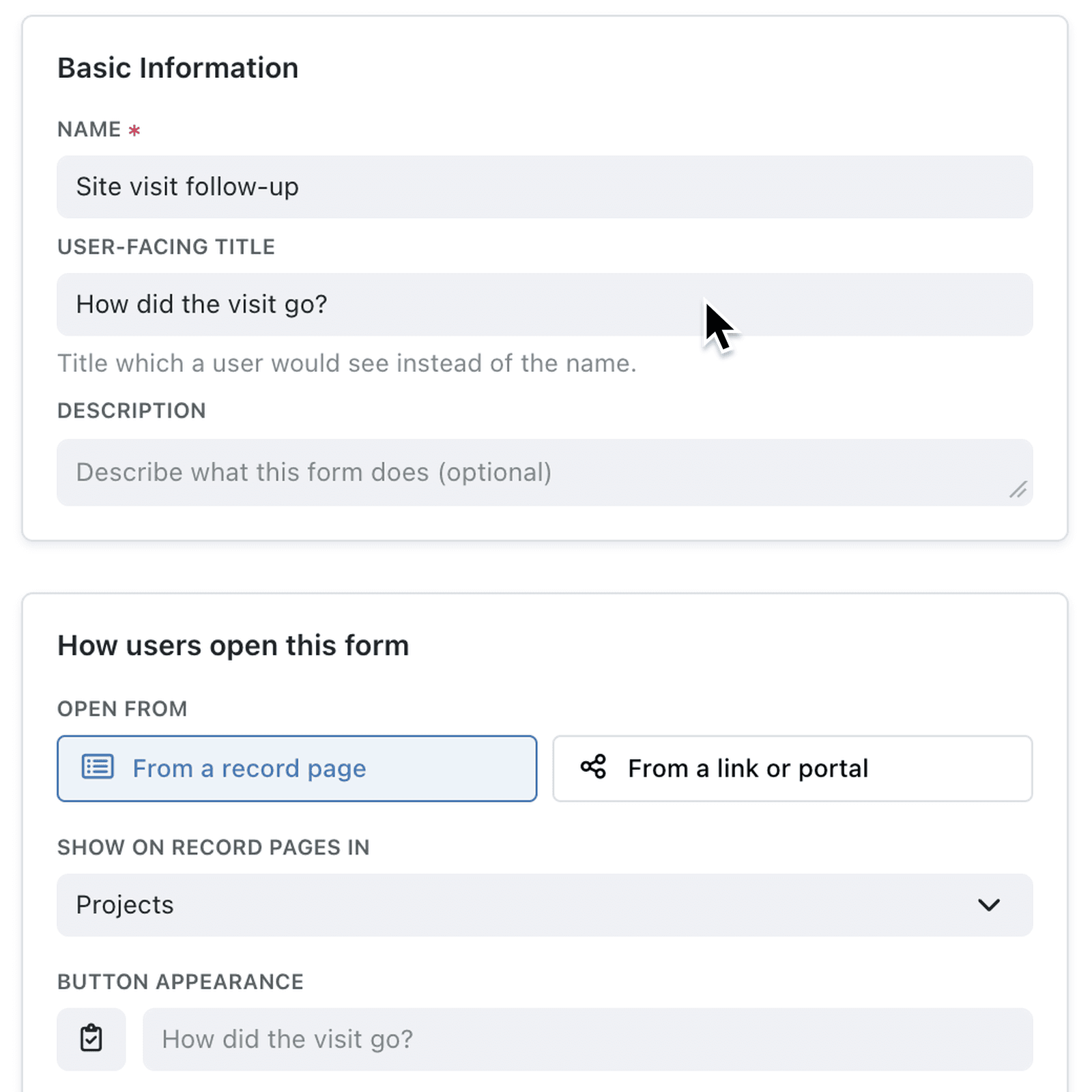
A form's name is how your team finds it in settings and history - often something like Site visit follow-up. The people filling it in, especially customers and suppliers, usually need a plainer heading. You can now set the two separately.
What's new:
Forms now have a User-facing title under Basic Information. It's the heading people see when they fill the form in - in the app, in Preview, on a portal and on a shared link - while the Name stays as your team's label. Leave the title blank and the name is shown, as before.
The title also becomes the form's button label on record pages unless you set a Button label of your own. For a form embedded on your website, Hide the title when embedded on the Sharing tab hides the heading when the page already introduces the form.
Why it matters:
- Speak to your audience with a friendly heading for external users and a precise name for your team.
- Keep settings tidy as internal names no longer need to double as headings.
- Label buttons automatically because the title is used when no button label is set.
- Fit your website by hiding a heading the page already shows.
How it works:
- Open Settings → Operations → Forms and open a form, or click Add Form.
- Under Basic Information, enter a User-facing title, such as How did the visit go?.
- If the form opens from a record page, check the Button label under Button appearance - it now shows the title unless you enter a label.
- To embed a shared form, open the Sharing tab and turn on Hide the title when embedded if your page already introduces it.
- Click Preview to check the heading, then save the form.
When to use it:
- Property maintenance companies can name a form Tenant repair request - portal for their team, while tenants simply see Report a repair.
- Event organisers can embed a registration form under their own event banner and hide the duplicate heading.
- Customer success teams can keep a Quarterly review - enterprise form name in settings, while clients see How are we doing?.
Get started
Open a form under Settings → Operations → Forms and enter a User-facing title under Basic Information.
If you have questions or feedback, we would love to hear from you. Email support@kinabase.com — we're listening.